Connecting to the Internet
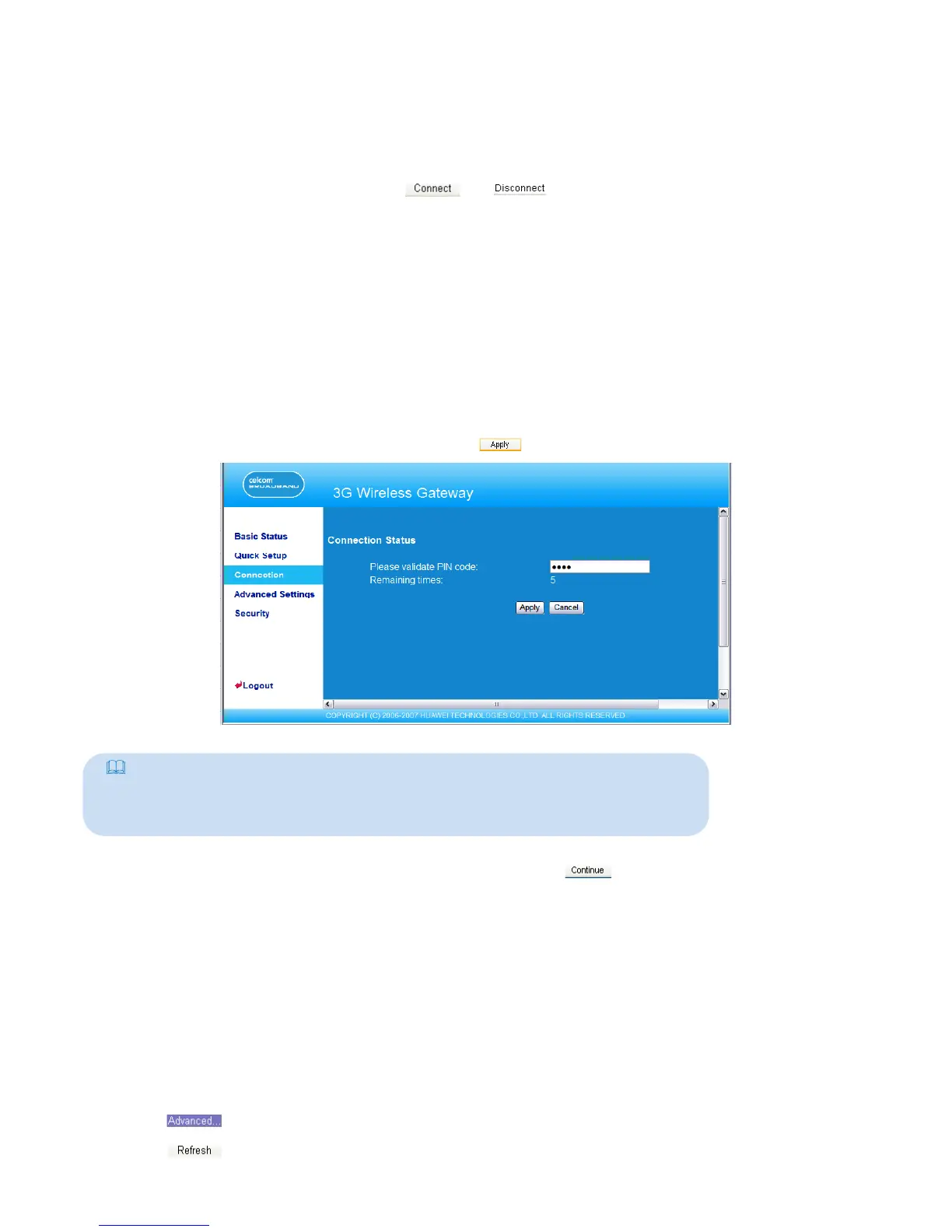
1. If the PIN code protection is enabled, the system prompts you to validate the PIN code.
For details, see “Validating the PIN Code.”
2. If PPP Connection is Auto or Demand, refresh the page to view the current network
connection status.
3. If PPP Connection is Manual, click or to connect or disconnect from the
network.
4. Wait for several minutes, if you are prompted that the connection is successful, you can
start the IE browser and enter the website address to access the Internet.
Validating the PIN Code
If the PIN code protection is enabled, you are prompted to validate the PIN code when
you restart the gateway and log in to the management page.
1. Enter the correct PIN code, and then click .
Note:
• The default PIN Code is “1234”.
• If you enter wrong PIN codes for three successive times, the PIN is locked.
For details, see “Unlocking the PIN Code.”
• If the PIN validation fails, you cannot use the network-related functions.
Viewing the Gateway Conguration Information
On the gateway conguration page, you can view the current parameter conguration
information of the gateway and the network connection status. The network connection
status includes WAN, LAN, and WLAN.
1. Click Basic Status in the operation navigation area.
2. Click on the right part of the page to view the status of the gateway.
3. Click to view the current status of the gateway on the advanced status page.
2. When you succeed in validating the PIN code, click to access the network
connection page.
8



 To Next Page