12. PRINTOUT
12.1 Single image printout
When a compatible USB printer is connected, any acquired image can be printed by clicking on the
printer icon in the Full Image screen. Also red-free images (see par. 10) can be printed using the
same procedure. In the same way a pdf file containing the single printout can be generated if a
USB key is connected.
12.2 Dual image printout
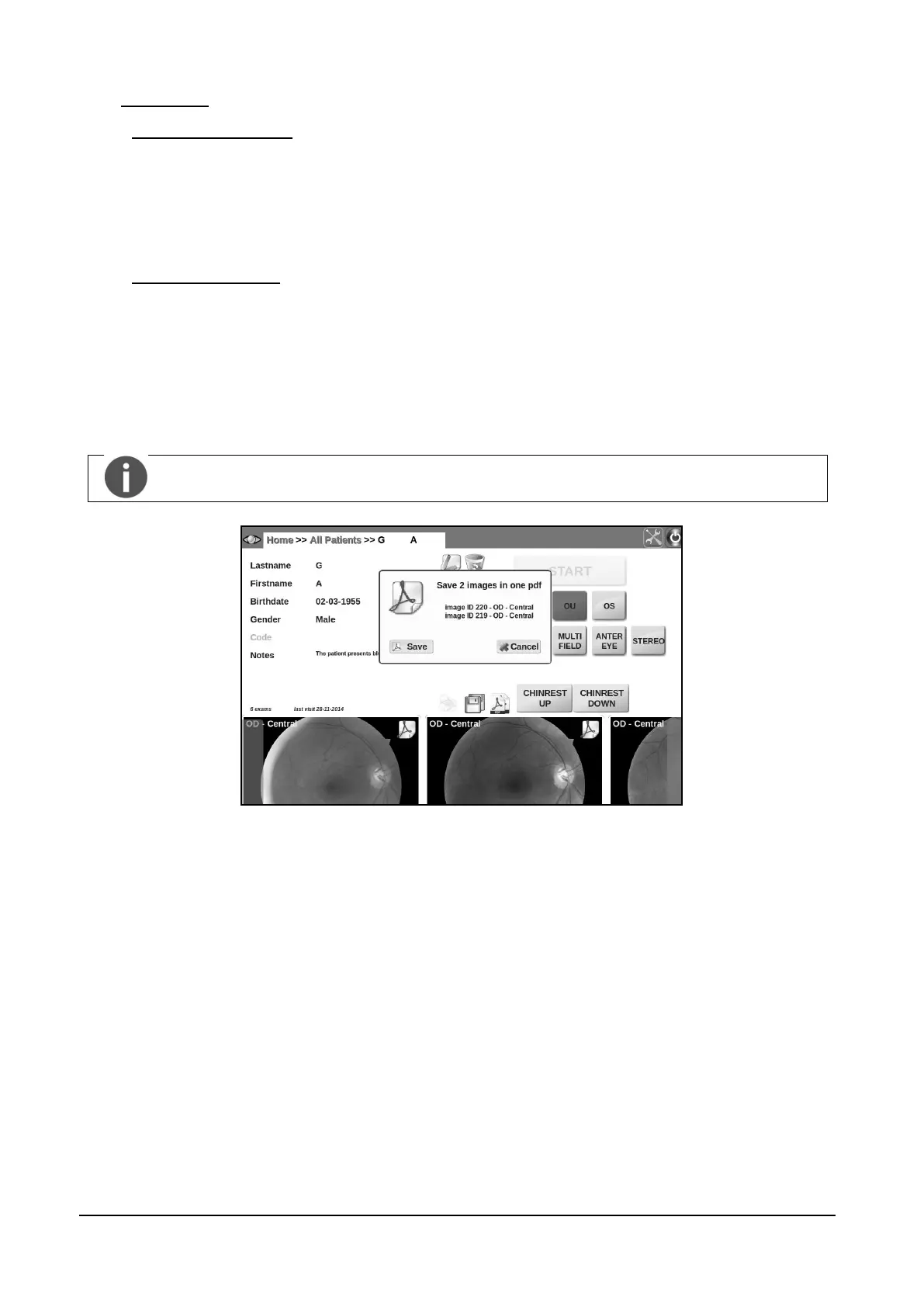
By clicking on the printer icon in the Patient Record screen it is possible to print two images on the
same sheet. Once the button is pressed a dialog box appears prompting for the selection of two
images. The list can be scrolled to select the images to be printed by clicking on the printer icon
that is placed on the top right corner of each image. Once two images are selected click the Print
button. In the same way a pdf file containing the dual printout can be generated if a USB key is
connected.
The single image printout uses portrait format, while the dual image printout uses
landscape format.
Figure 29 – image selection screen for dual image printout


 To Next Page