available for stereo pairs.
Click on the printer icon to print two images in a single sheet. Icon is
enabled when a supported printer is connected.
Click on the Acrobat icon to generate and export a dual image printout
(available if a USB key is connected, see par. 12.2 for further details).
Click on this icon to start generation of a mosaic (a composition) of
multiple retinal fields. This icon is only available if the related license is
installed. See Appendix B for explanations on how to use this function.
Please contact your CenterVue representative for information on how
to obtain the license.
10.2 Full image screen
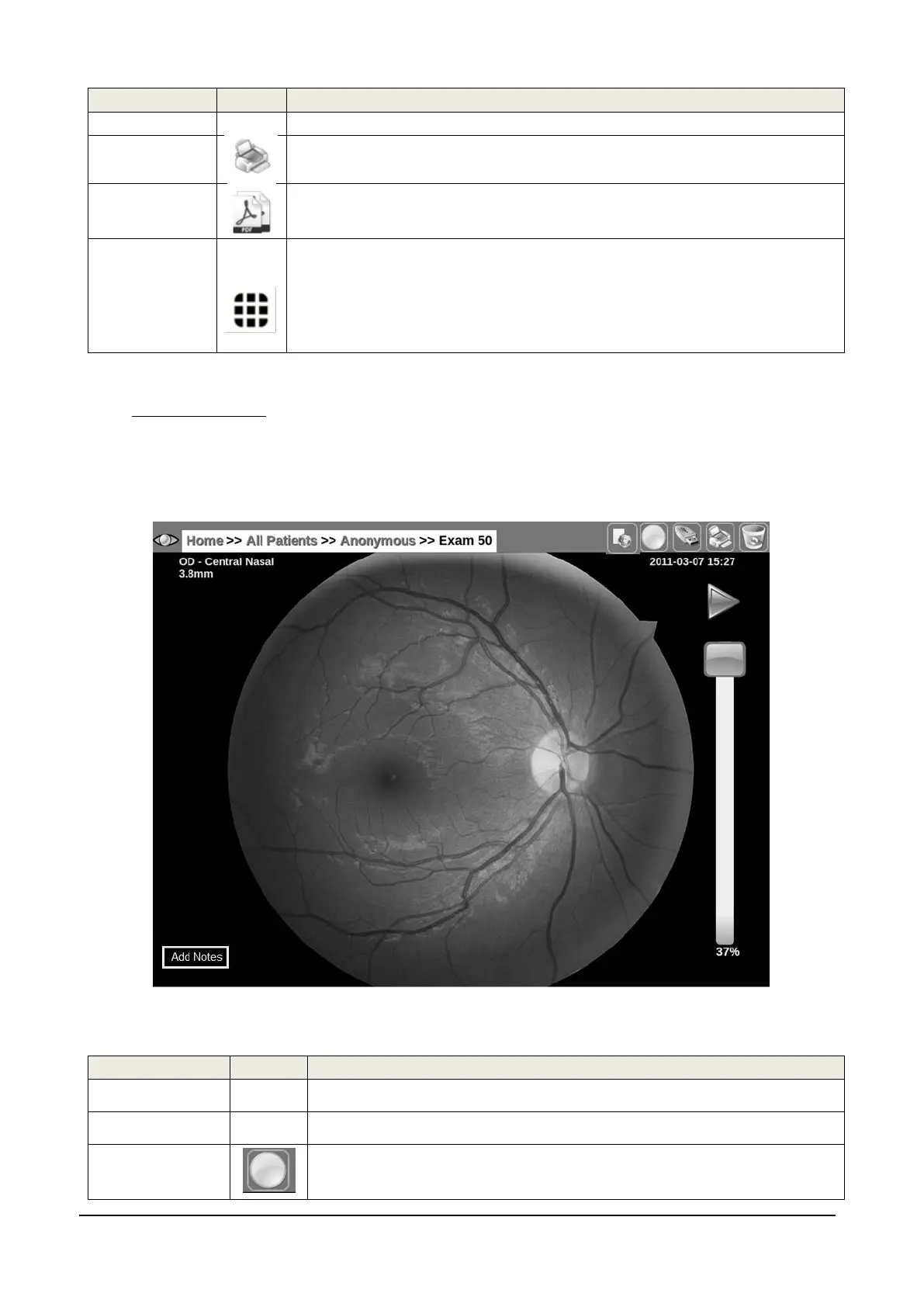
The Full Image screen (see Figure 24) is used to review individual images at full screen.
The information available in this screen includes the eye (OD, OS), pupil size at capture, date and
time when the image was captured and any image related notes.
Figure 24 - Full image screen
Functions available in this screen include:
The slider on the right side of the screen allows zooming
Click on the image and drag it around to frame the desired area
Click on this icon to display a black and white image corresponding
to the green component of the image


 To Next Page