STOP
OK
BACK
ARCONTROLBMS.COM
12
2 System Overview
2.1 User Interface
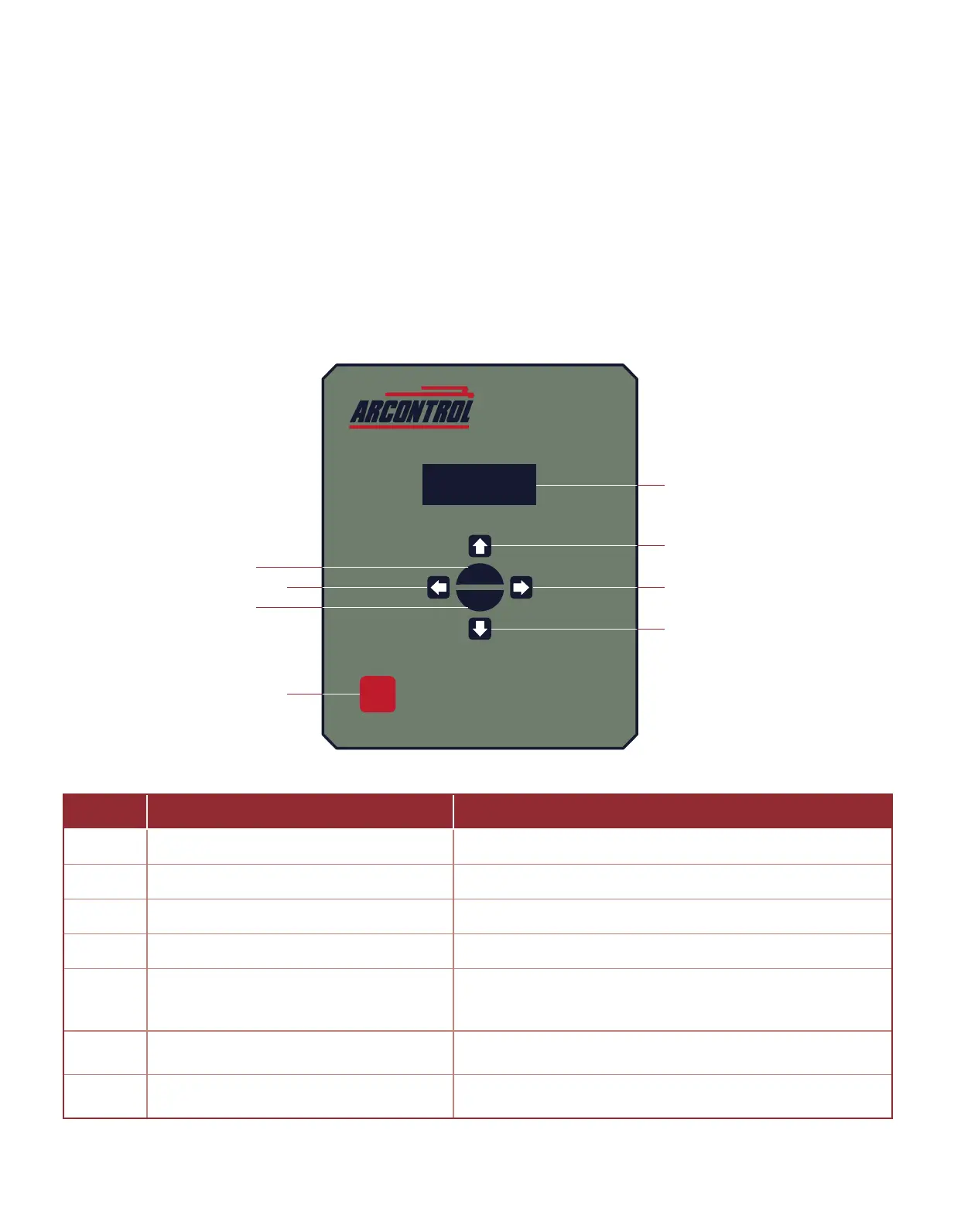
The system user interface (Image 2.1.1) consists of a text display and seven keys (Table 2.1.1) that are used for menu
navigaon, selecng opons on menu items and entering or exing menus.
The text display provides informaon regarding menus, submenus, system modes, selectable opons, current mode
operaon states and alarms. The text display features automac shuto aer 60 seconds without user interacon
through the keypad. The automac shuto feature helps save power which is especially important in remote
installaons that are solar powered.
Pressing any key will wake up the text display and bring it to the top of the Main menu. If the STOP key is pressed while
the text display is o, it will both send the unit in to the STOPPED state and wake up the text display. Addionally, if the
system enters into any of the alarm states this will also wake up the text display and it will bring the alarm state screen.
Text Display
Right Key
Down Key
Up Key
Le Key
OK Key
BACK Key
STOP Key
Image 2.1.1 · System user interface
Table 2.1.1 · User interface keys
KEY USE DESCRIPTION
Up Use to scroll up menu items
Down Use to scroll down menu items
Le Use to toggle through selectable opons Selectable opons are shown between angle brackets < >
Right Use to toggle through selectable opons Selectable opons are shown between angle brackets < >
OK
Use to enter a submenu and select or
enter menu item choice
The OK key allows the entering of menu item acons
and choices, and to and accept or deny system
conrmaon screens.
BACK
Use to exit a selected submenu or cancel /
deny prompts
STOP Use to put the system in STOP state
The STOP key interrupts any current operaon and sends the
system to the STOPPED state.



 To Next Page