12 78-15630-02
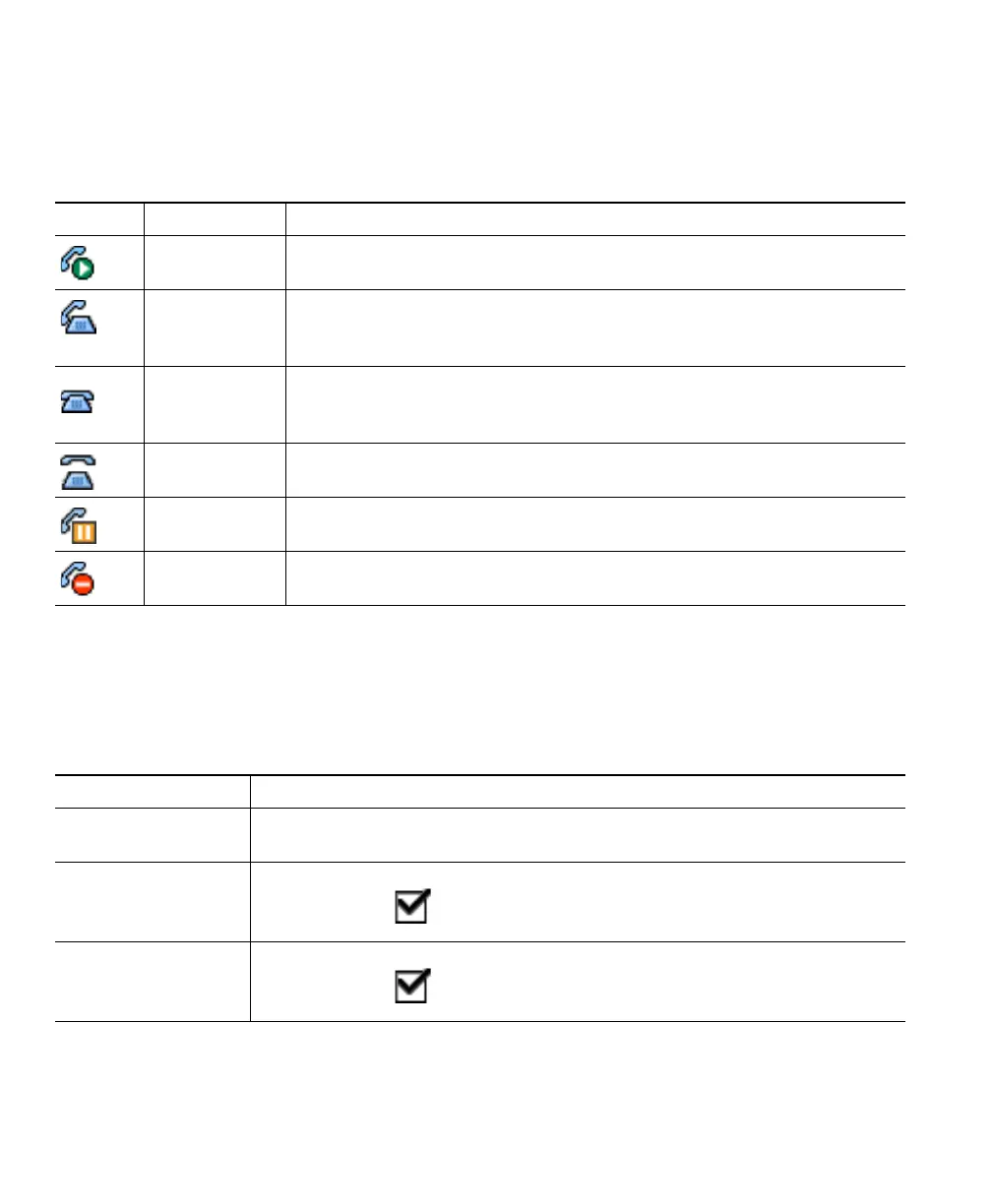
Calls can have different states, which are indicated by special icons in the call activity area. Only one
call can be active at any given time. An active call can be a connected call or an in-progress call (you
are dialing a number or an outgoing call is ringing). Other calls must be ringing in, on hold,
remote-in-use (for shared lines).
Selecting Calls
Many phone features require that you select the calls you want to use with a particular feature. For
example, you might have 15 held calls, but you only want to join 10 of them to a conference call. You
can select just the calls you want to add to the conference call before activating the feature.
Icon Call State Description
Connected call A type of active call in which you are currently connected to the other
party. Many phone features require that you have a connected call.
Off hook A type of active call in which you are actively dialing a number or an
outgoing call is ringing. You have not yet connected with the other party.
See the “Placing a Call” section on page 16 for details.
On hook No call activity on this line. You might be using on-hook dialing features,
but the call is not in-progress until you go off hook. See the “Placing a
Call” section on page 16 for details.
Ringing A incoming call is ringing on one of your lines. See the “Answering a
Call” section on page 18 for details.
Call on hold The call is on hold. See the “Using Hold and Resume” section on page 19
for details.
Remote in use Another phone that shares the line has an active connected call. See the
“Understanding Shared Lines” section on page 25 for details.
If you want to... Then...
Highlight a call Use the Navigation button to scroll through the call list. Highlighted calls
appear on a lighter and brighter background color.
Select a call Highlight a connected or held call and press Select. Selected calls are
indicated with a next to them.
Verify selected calls Use the Navigation button to scroll through the list of calls. Selected calls are
indicated with a and are grouped together in the call list.



 To Next Page