Clare Controls IP Network Camera User Guide 7
Setting the network camera over a WAN
This section explains how to connect the network camera to a WAN with a static IP or a
dynamic IP.
Static IP connection
Apply a static IP from an ISP (Internet Service Provider). With the static IP address, you
can connect the network camera via a router or connect it to a WAN directly.
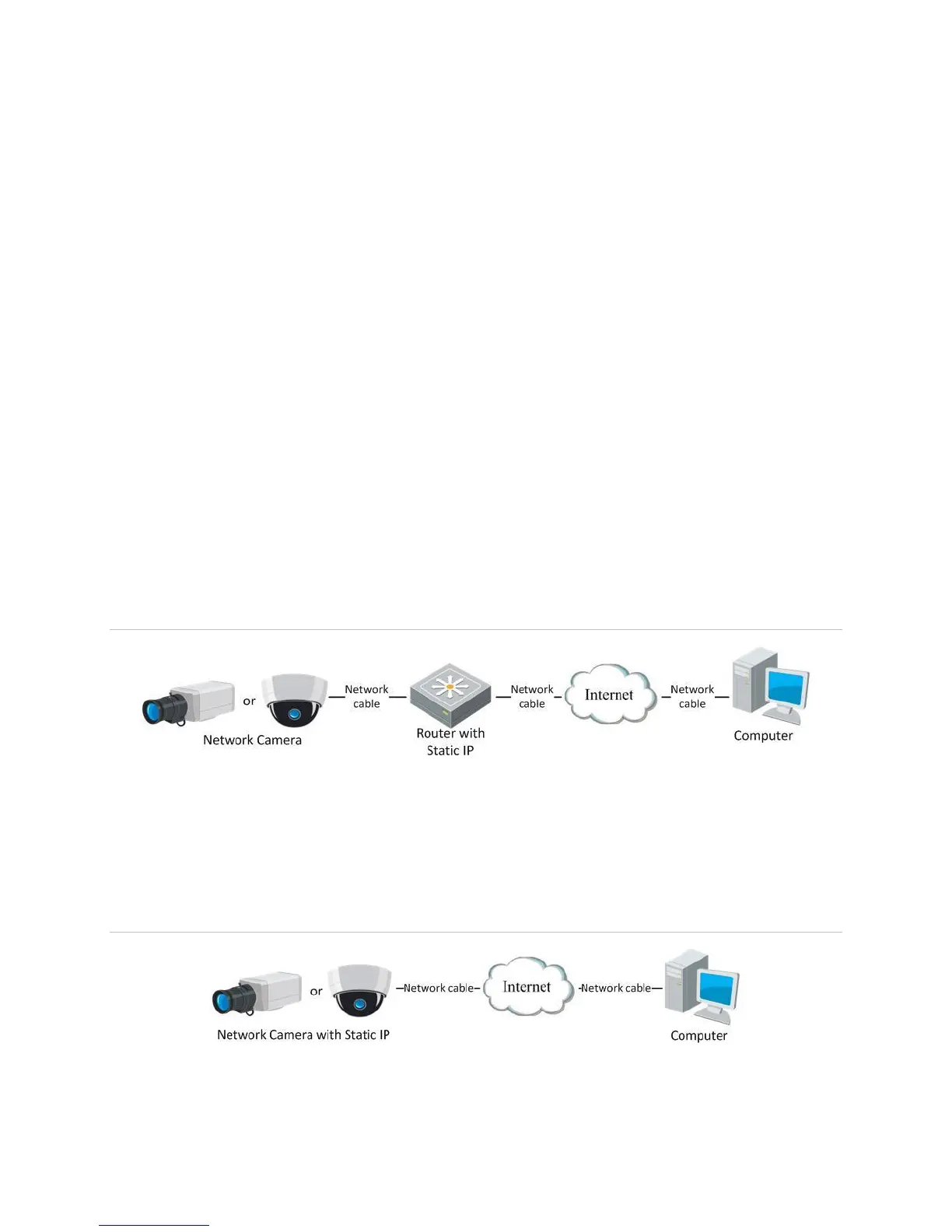
To connect the network camera via a router:
1. Connect the network camera to the router.
2. Assign the LAN IP address, subnet mask, and gateway.
3. Save the static IP in the router.
4. Set port mapping – for example, 80, 8000, 8200, and the 554 ports. The steps for
port mapping vary based on router. Call the router manufacturer for assistance with
port mapping.
Note: Refer to Appendix 2 for detailed information about port mapping.
5. Visit the network camera through a web browser or the client software.
Figure 4: Accessing the camera though a router with a static IP
Connecting the network camera with static IP directly
You can save the static IP in the camera and connect it directly to the internet without
using a router.
Figure 5: Accessing the camera with static IP directly



 To Next Page