58 Clare Controls IP Network Camera User Guide
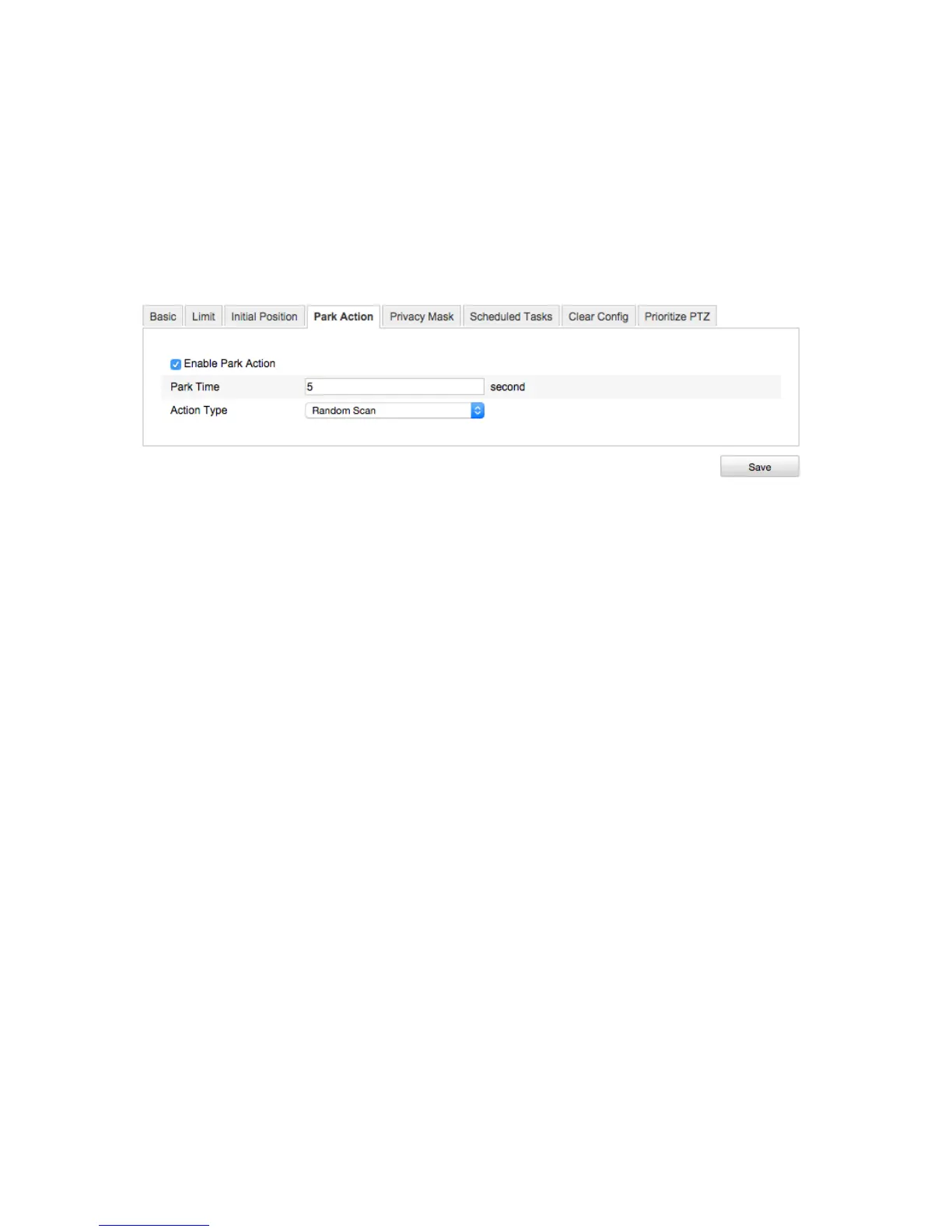
Configuring the PTZ park action
The Park Actions lets you stop the camera.
To configure the park action:
1. Enter the Park Action settings interface.
Configuration > Camera Configuration > PTZ > Park Action
2. Select the Enable Park Action checkbox to enable this function.
3. In the Park Time field, enter a time in seconds for the park time.
4. Customize the Action Type drop-down from the following options.
Auto Scan: This scans automatically.
Frame Scan: This scans by image frame.
Random Scan: This scans at random, stopping at random points, depending on the
park action.
Patrol: This scans in a path of presets.
Pattern: This scans in a recorded motion sequence.
Preset: This scans to a recorded location.
Panorama Scan: This scans in panoramic view.
Tilt Scan: This scans at a tilted angle, moving up and down on the Y axis.
5. Click Save.
Configuring the PTZ privacy mask
Privacy mask lets you cover certain areas on the live video to prevent zones in the
surveillance area from being live viewed and recorded.
To configure privacy mask
1. Enter the Privacy Mask settings interface.
Configuration > Camera Configuration > PTZ > Privacy Mask



 To Next Page