Clare Controls IP Network Camera User Guide 35
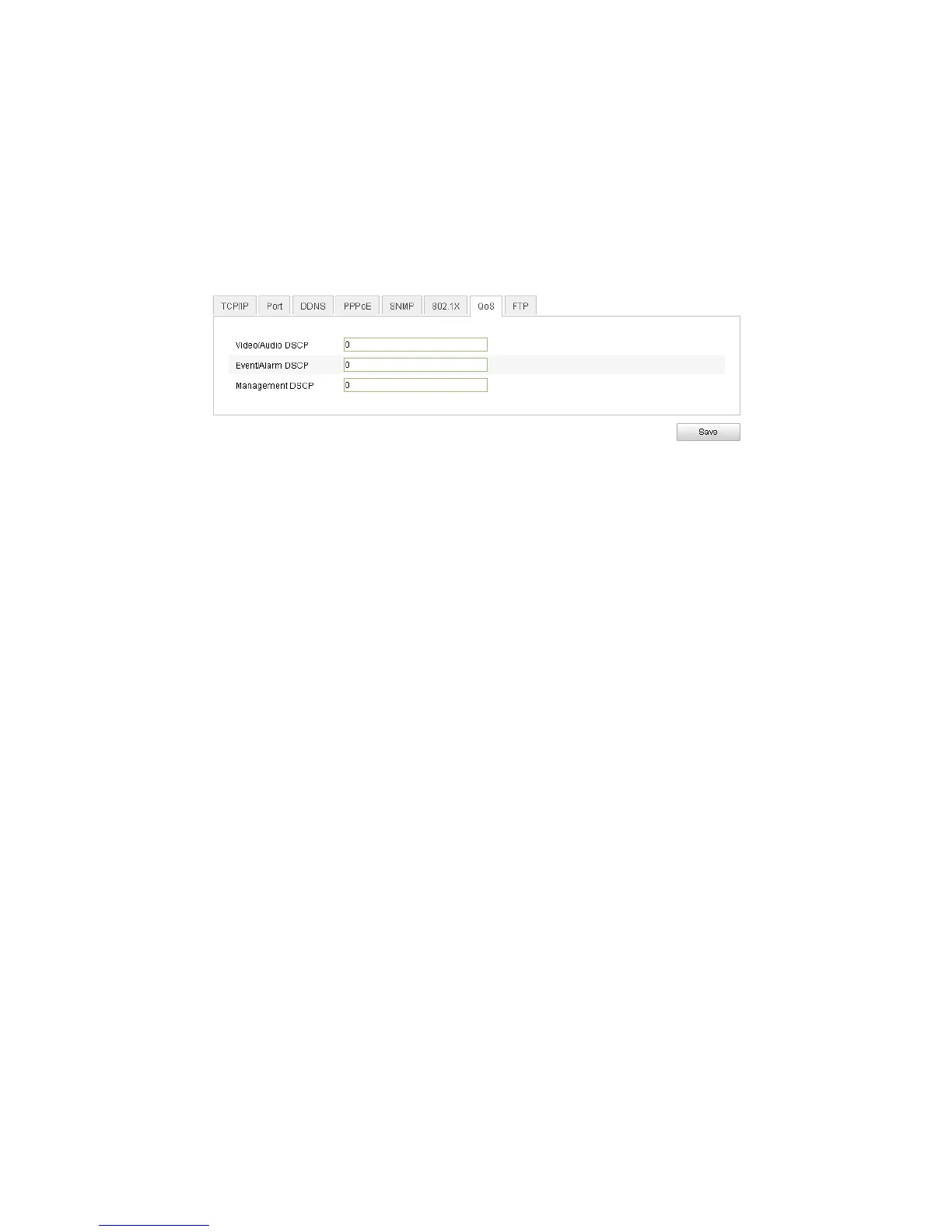
Configuring QoS settings
QoS (Quality of Service) can help solve network delay and congestion by configuring
the priority of the data sent.
To configure QoS settings:
1. Enter the QoS Settings interface.
Configuration > Camera Configuration > Network > QoS
2. Configure the QoS settings, including video/audio DSCP, event/alarm DSCP, and
Management DSCP.
3. The valid value range of the DSCP is 0 to 63. The larger the DSCP value, the higher
the priority is.
Note: DSCP refers to the Differentiated Service Code Point; and the DSCP value is
used in the IP header to indicate the priority of the data.
4. Click Save.
5. When prompted, reboot for the settings to take effect.
Configuring FTP settings
You can configure the FTP server related information to enable the uploading of the
captured images to the FTP server. The captured pictures can be triggered by events or
a timing snapshot task.
To configure FTP settings:
1. Enter the FTP Settings interface.
Configuration > Camera Configuration > Network > FTP



 To Next Page