Chapter 4: Configuration with web interface
98-148232-E The web interface 49
Overview of the web interface
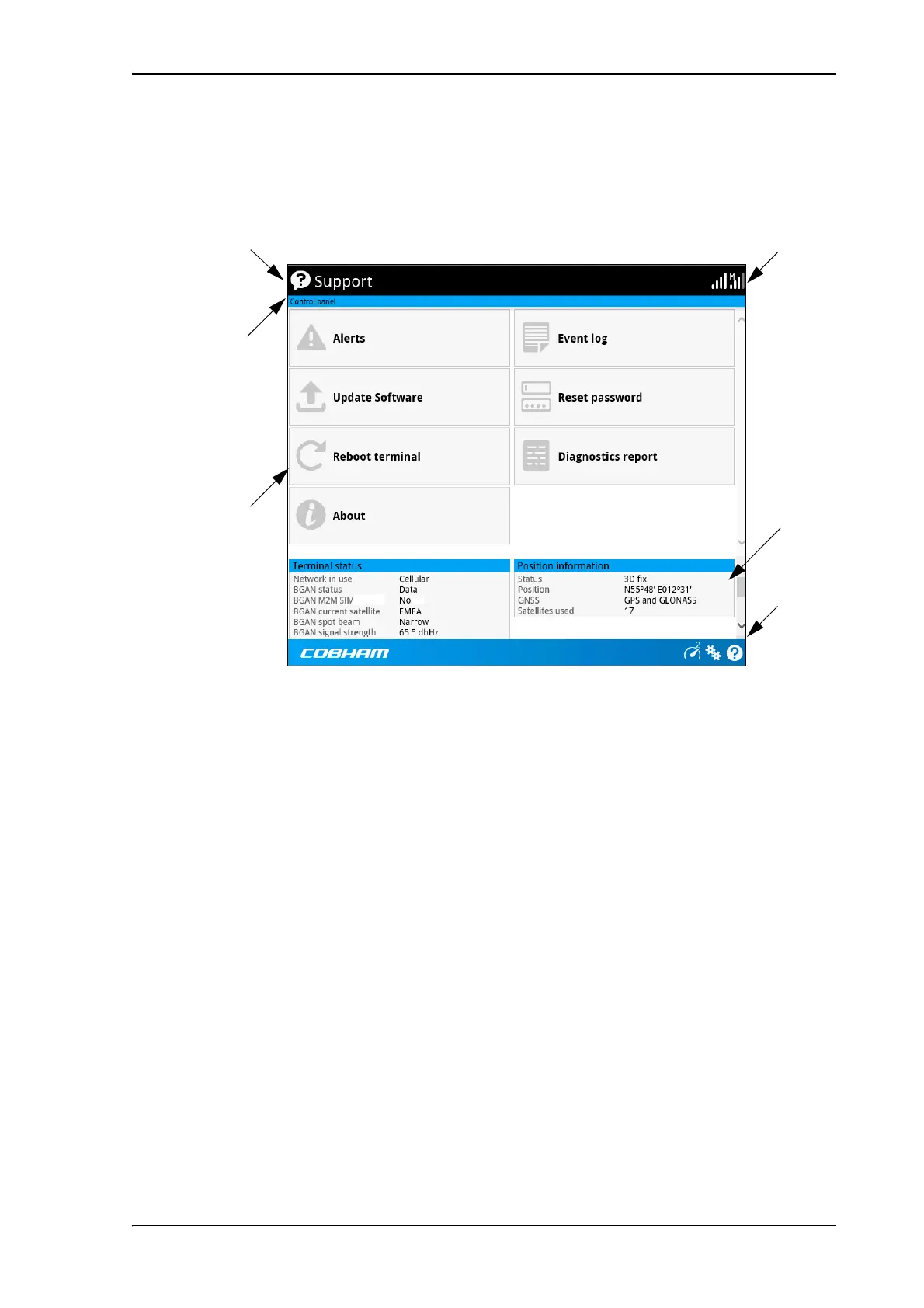
When the web interface opens, the title bar shows the name of the product. The example
below shows the Support page.
The web interface consists of the following sections.
• Name of current page. Tap or click to refresh the page.
• Icon bars at the top and bottom are present on all pages and hold icons that give access
to status such as signal level as well as active alerts, when relevant. It also holds the icon for
the Control panel. For explanations of the icons, see the next section, Icons in the icon
bars.
• Breadcrumbs right below the icon bar show the current location in the menu system and
gives access to the higher levels in the menu.
• Contents section shows the contents of the selected page. This section is used for
viewing or changing settings, or for performing actions. On the opening page, this section
is used to start and stop data connections.
• Status section shows the status of the terminal and the network connection (BGAN and
Cellular if used), position information, ongoing calls and data sessions etc. The Status
section is not shown on small screens. If the screen is small (e.g. on a smartphone), you can
show/hide the status by clicking
at the bottom of the page.
Icon bar
Breadcrumbs
Name and icon of current page (on opening page: the name of the product)
Status
section
Icon bar
Contents
section



 To Next Page