Chapter 4: To use the web interface
98-140012-H To set up the interfaces 64
• None (no encryption is applied)
• WEP-40/64
•WEP-104/128
•WPA-TKIP
• WPA-2-AES (selected by default)
8. Next to Key type, select Hexadecimal or Text.
The encryption key must normally be a hexadecimal code. However, if you are using WPA-
TKIP or WPA2-AES encryption (default) you can choose to use a text string, which may be
easier to memorize.
9. Type in the Encryption key for the selected Security standard (not applicable if security
mode = None). The default encryption key is the serial number of the EXPLORER 710.
You can find the serial number under Control panel > Support > About or on the label
on the EXPLORER 710.
10. Click Save.
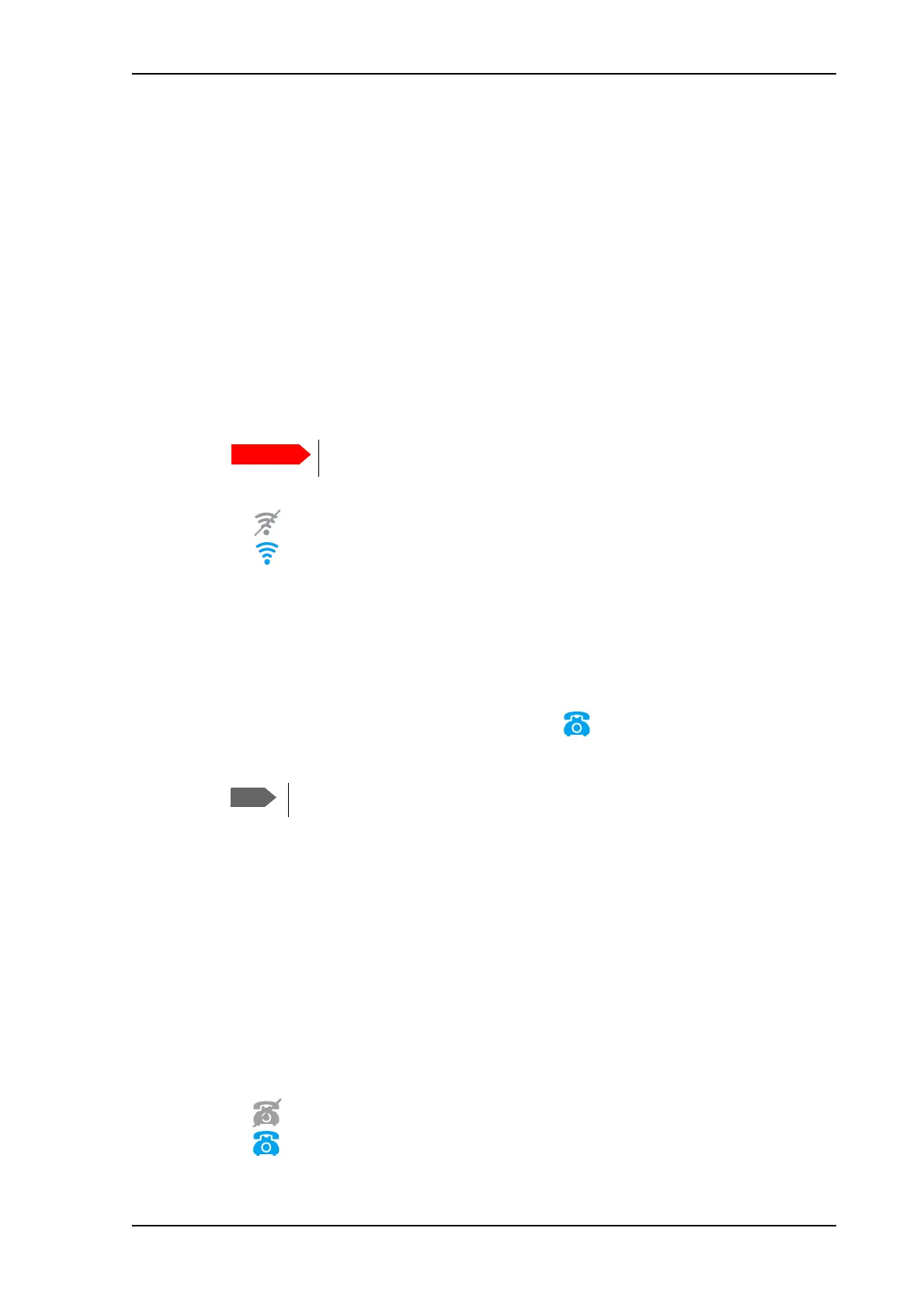
• A line through a grayed-out WLAN icon means the interface is disabled.
• A blue WLAN icon means the interface is enabled.
For a description of how to set up the local network parameters, see Internet and LAN
connection modes on page 75 and Advanced LAN on page 90.
Phone interface setup
To configure the Phone interface, do as follows:
1. In the Control panel
, click the Phone icon at the top of the page.
2. To enable the Phone interface, select Enable.
3. Set the call type for incoming calls.
You can select Standard voice or 3.1 kHz audio or both.
• If you select both, any connected device will react (ring) on incoming calls.
• If you select e.g. Standard voice, the Phone interface will only react on calls made to the
Standard voice phone number.
4. Select the Preferred outgoing call type.
The selected type will be used by default, if possible, for any outgoing call.
5. If needed, change the Phone line impedance. You have the following options:
• EURO (270R/150nF) (default option)
• USA/Canada/Japan (600R)
6. Click Save.
• A line through a grayed-out Phone icon means the interface is disabled.
• A blue Phone icon means the interface is enabled.
Change the encryption key to a personal code in order to keep your WLAN
connection secure and protected!
It may take some seconds to enable the interface.



 To Next Page