CBR2 CGA4332COM- User Guide
24 of 51
Your new password must be at least 8 characters long. It may include letters, numbers, or a
combination of both (no symbols). For better security, try using at least one number and a mix of
upper and lowercase letters.
6. Click SAVE.
7. The Gateway prompts you to log in with your new password.
4.3
How to Back Up or Restore a Configuration
Once you have configured your Gateway, it is recommended to back up the configuration for later use. In
case there are problems, you can always return to the last working configuration.
Backing up your configuration
1. Go to the Admin Tool (http://10.1.10.1), using a computer or other device that is currently connected
to your Gateway (either wired or wirelessly). For more information, see “Accessing the Admin Tool”
.
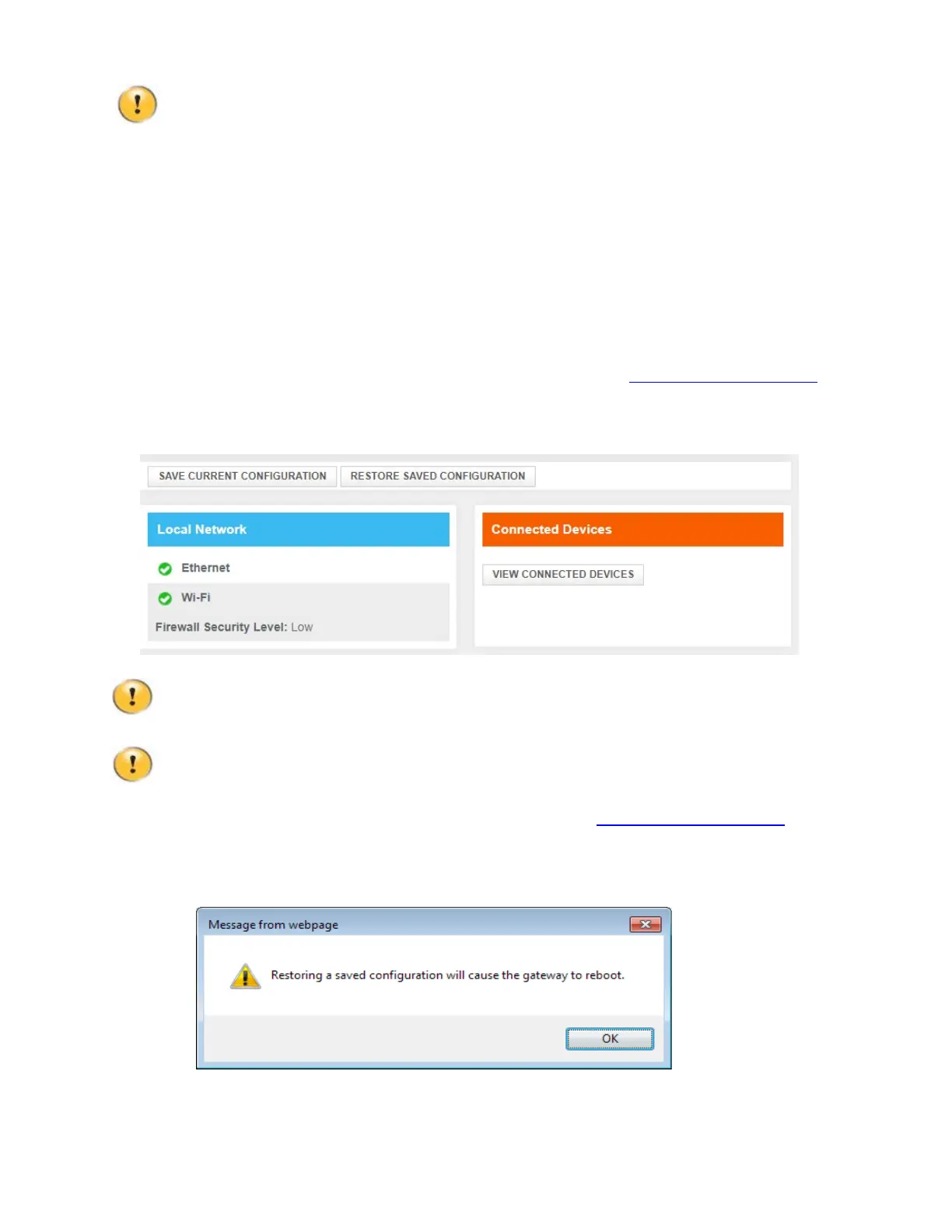
2. The At a Glance page appears. Click SAVE CURRENT CONFIGURATION.
3. Follow the instructions, enter a file name and transfer the password: the browser prompts you to save or open
the backup file (the file format is .CF2). Save the .CF2 file to a location of your choice.
Do not edit the backup file; this may corrupt the file, making it unusable as a backup.
Restoring a previously saved configuration
Restoring a saved configuration will require the Gateway to restart. Restarting causes a short
interruption of the services provided by the Gateway.
1. Go to the Admin Tool (http://10.1.10.1). For more information, see “Accessing the Admin Tool”.
2. The “At a Glance” page appears. Click RESTORE SAVED CONFIGURATION.
3. Choose the saved backup file and enter the same transfer password used above, then click Upload.
4. A pop-up message informs you that restoring a saved configuration will cause the Gateway to reboot.


 To Next Page