CBR2 CGA4332COM- User Guide
43 of 51
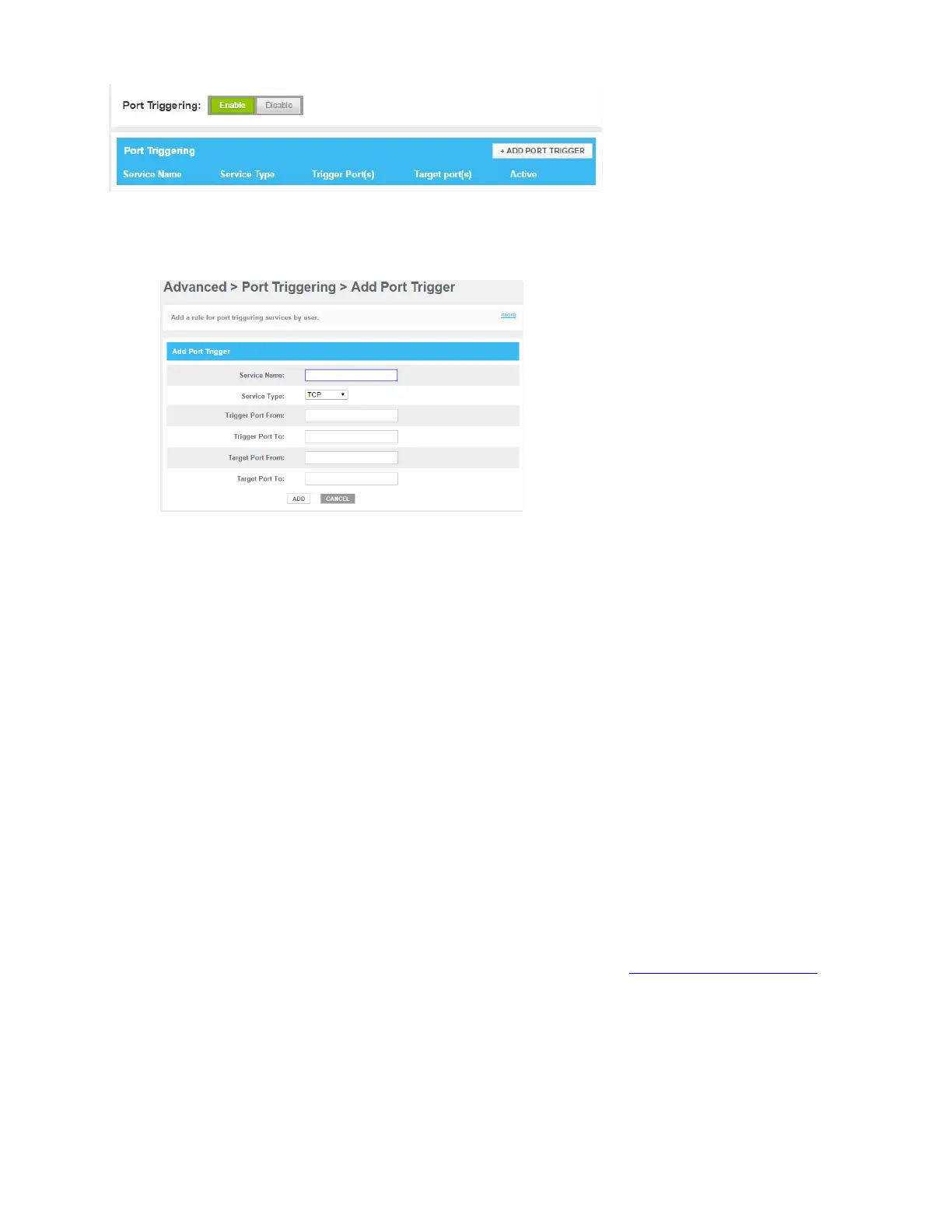
4. In the Enable Port Triggering list, select Enabled. In the Port Triggering table, click +ADD PORT TRIGGER.
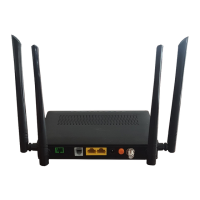
The Add Port Trigger page appears:
5. Complete the following fields:
In the Service Name box, type a name for the rule (for example, FTP).
In the Service Type list, click on the protocol that is used (for example, TCP).
In the Trigger Port From box, type the start port number of the trigger port range.
In the Trigger Port To box, type the end port number of the trigger port range. If you only want to
specify one port, use the same number as in the Trigger Port From box.
In the Target Port From box, type the start port number of the target port range.
In the Target Port To box, type the end port number of the target port range. If you only want to
specify one port, use the same number as in the Target Port From box.
6. Click SAVE.
7. Your service is now listed in the Port Triggering table. All incoming requests for the selected service will
be directed to the selected device. The Gateway also automatically configures its firewall to allow this
service.
7.1.4. Port Management
Port management allows you to define a set of port management rules that restrict certain inbound traffic to
specific computers on the True Static IP network. This gateway supports up to 100 True Static IP Port
Management rules.
Procedure
1. Go to the Admin Tool (http://10.1.10.1), using a computer or other device that is currently connected
to your Gateway (either wired or wirelessly). For more information, see “Accessing the Admin Tool”
.
2. On the Advanced menu, select Port Management.


 To Next Page