CBR2 CGA4332COM- User Guide
41 of 51
4. In the Enable UPnP list, select Enabled.
5.
Click
SAVE
.
7.1.2. Port forwarding
Port forwarding allows you to forward incoming Internet traffic arriving on a specific port to an internal IP address.
For example, if you are running a web server and the Gateway receives a request on port 80, this request should
be forwarded to your web server.
Use a reserved IP address
The target device of the port forwarding rules is specified by an IP address. Make sure that your device uses a
fixed IP address. If you do not do this, the device might eventually get a new IP address and the port forwarding
rule will no longer be applied to the device. For more information, see 7.2 Assigning a reserved IP to a device
.
Procedure
1. Go to the Admin Tool (http://10.1.10.1), using a computer or other device that is currently connected
to your Gateway (either wired or wirelessly). For more information, see “Accessing the Admin Tool”
.
2. On the left menu, click Advanced.
3. The Port Forwarding page appears.
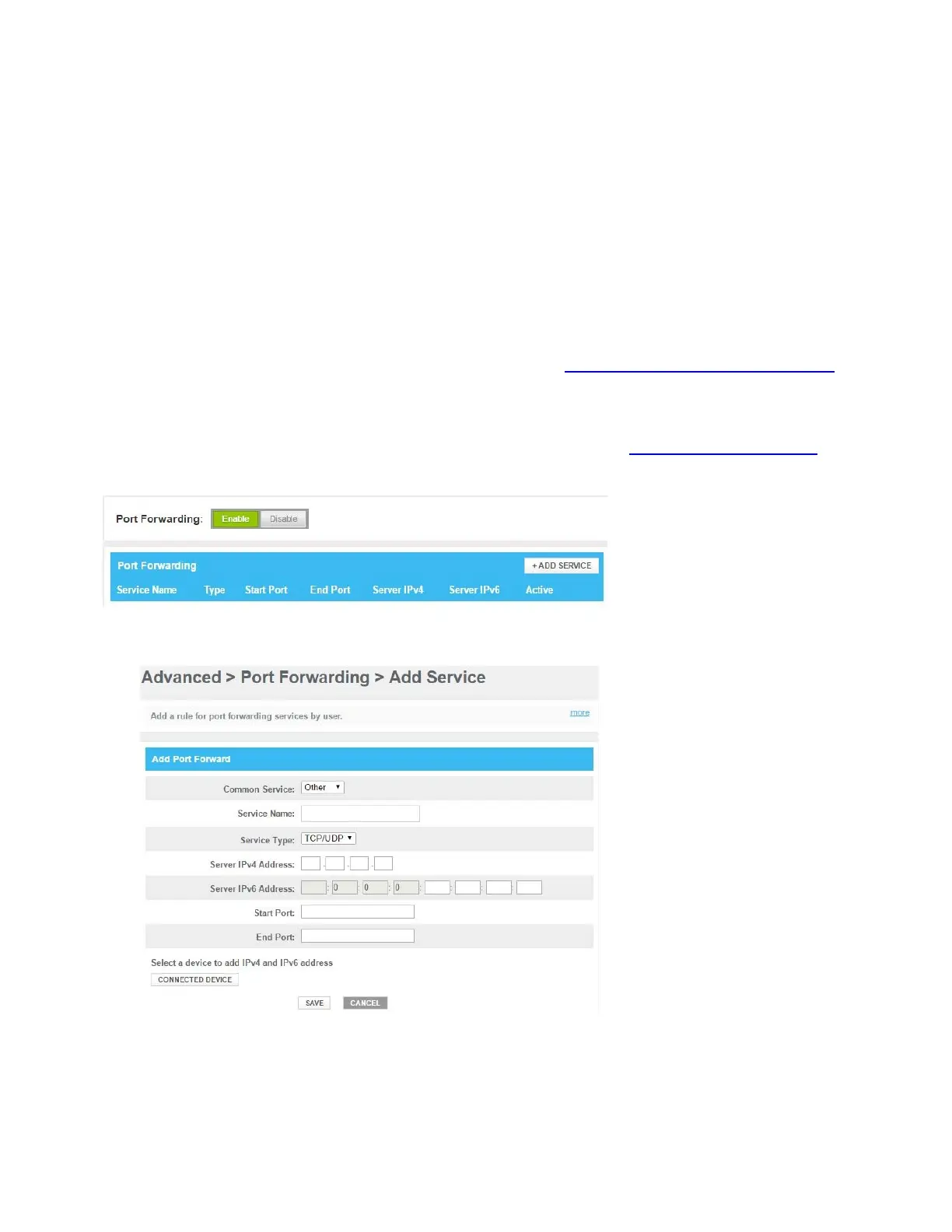
4. In the Enable Port Forwarding list, click Enabled. In the Port Forwarding table, click +ADD SERVICE.
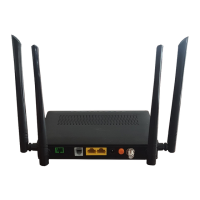
The Add Service page appears.
5. In the Common Services list, select the service you want to run on the computer or select Other if
the service is not listed.
6. If you selected Other, complete the following fields:
In the Service Name box, type a name for the services that you want to configure.


 To Next Page