CBR2 CGA4332COM- User Guide
35 of 51
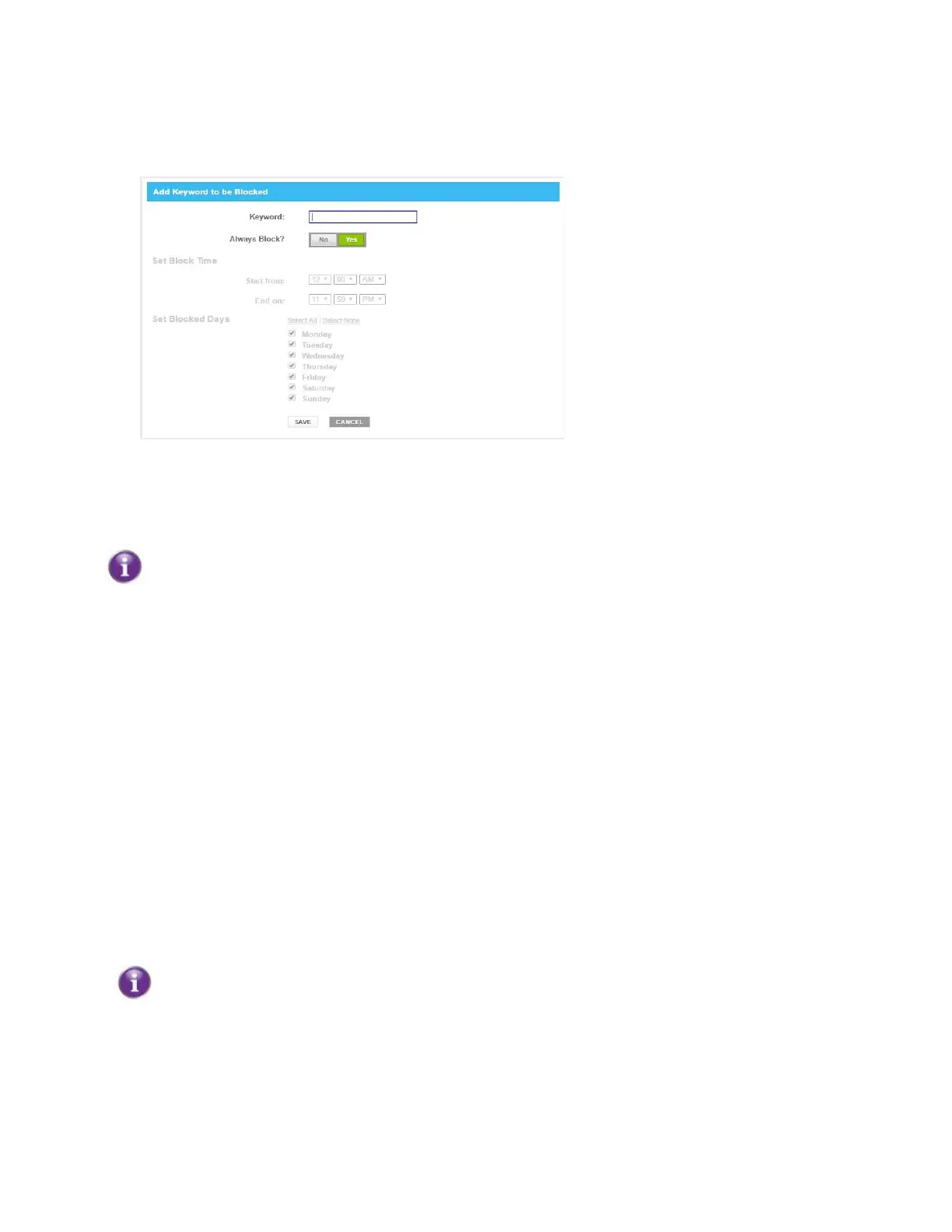
How to block websites based on keywords
Proceed as follows, from the Managed Sites page:
1. Under Blocked Sites, click + ADD.
The Add Keyword to be Blocked page appears.
2. In the Keyword box type the keyword that you want to block (for example, the webmail keyword will
block all URLs that contain the word webmail in the URL).
3. If you want this rule to be applied only at specific times, click No in the Always Block list and
define when to apply the rule:
1. Under Set Block Time, enter a start time and end time.
2. Under Set Block Days, select the days when the selected block time should be applied.
If you want to have different time schedules depending on the day, you must group them
in separate rules, for example:
One rule for weekdays (for example, rule active from 8:00 PM until 10:00 PM).
One rule for the weekend (for example, rule active from 4:00 PM until 10:00 PM).
4. Click SAVE.
Mark computers as trusted for all websites
When a device is marked as trusted, all Managed Sites rules will be ignored.
To mark a computer as trusted:
1. Under Trusted Computers, look for your device and click Yes in the Trusted column.
2. The device is now able to access all web sites unless prevented by other parental control functions that
you configured.
6.1.2 Managed services
The Managed Services page allows you to:
Create a service-specific rule to block specific Internet services.
Optionally, you can provide a time schedule for a rule. The rule will then only be activated within the
specified time frame.
Mark computers as trusted. For trusted computers, all service rules will be ignored.


 To Next Page