CBR2 CGA4332COM- User Guide
46 of 51
7.1.6. Configure a DMZ Host
The Gateway allows you to configure one local device as a Demilitarized Zone (DMZ) host. This means that:
• None of the Gateway firewall rules will be applied to this device.
• All traffic originating from the Internet will be forwarded to this device unless there is a port-forwarding rule
defined for this type of traffic. Port forwarding rules always have higher priority.
Use a reserved IP address for the DMZ host
Make sure that your DMZ host uses a fixed IP address. If it does not, the device might eventually get a new IP
address through DHCP and the port forwarding rule will no longer be applied to the device and another device
may suddenly be acting as DMZ host. For more information, see 7.2 Assigning a reserved IP to a device
.
How to configure a device as DMZ host
1. Go to the Admin Tool (http://10.1.10.1), using a computer or other device that is currently connected
to your Gateway (either wired or wirelessly). For more information, see “Accessing the Admin Tool”
.
2. On the Advanced menu, select DMZ.
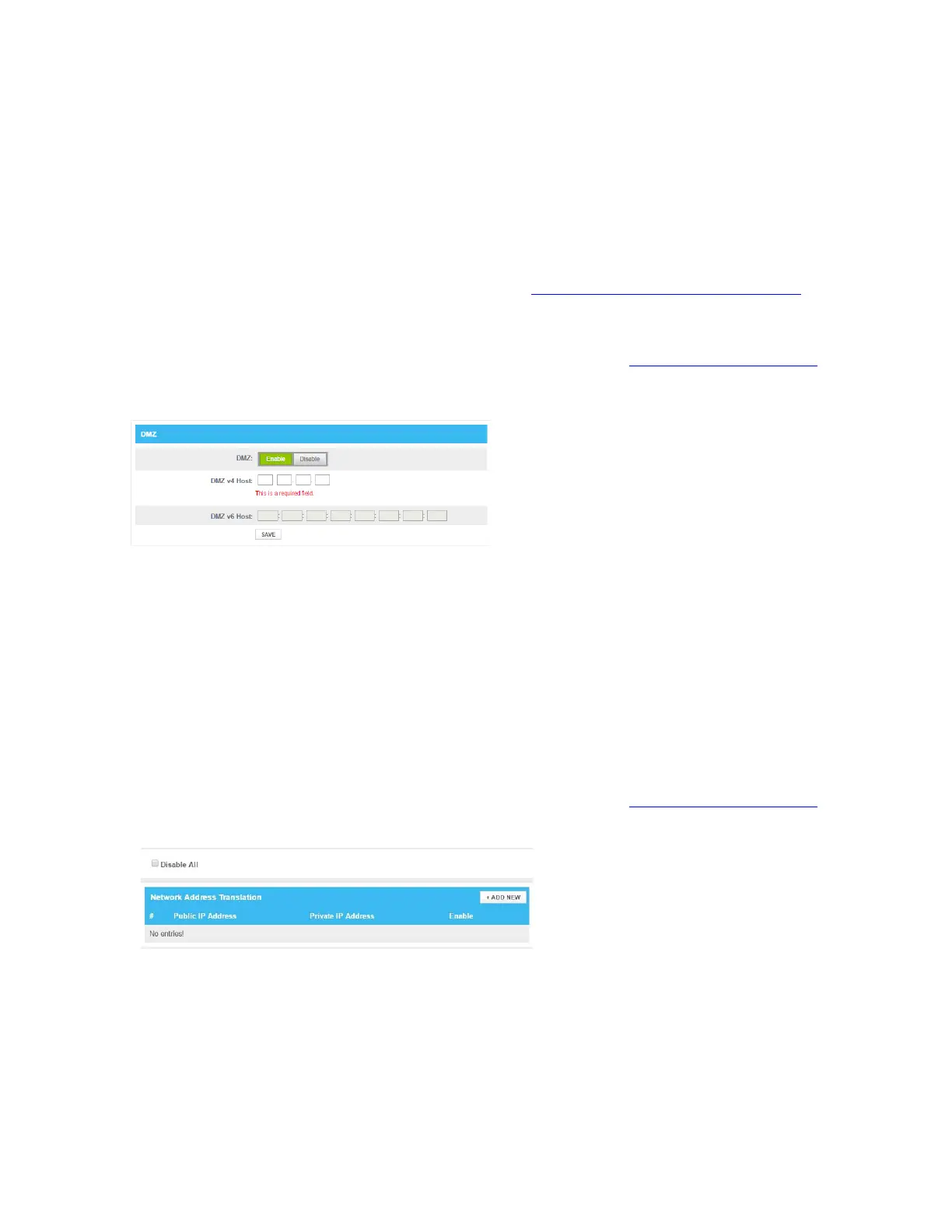
3. The DMZ page appears:
4. Complete the following fields:
In the Enable DMZ list, click Enabled.
In the DMZ v4 Host box, type the IP address of the device.
In the DMZ v6 Host box, type the IP address of the device.
5.
Click
SAVE
.
7.1.7. NAT
NAT manages 1-to-1 Network Address Translation.
To Configure NAT
1. Go to the Admin Tool (http://10.1.10.1), using a computer or other device that is currently connected
to your Gateway (either wired or wirelessly). For more information, see “Accessing the Admin Tool”
.
2. On the Advanced menu, click NAT.
3. The NAT page appears.
4. In the NAT, uncheck Disable All; click OK on the pop-up window.
5. Click +ADD NEW.


 To Next Page