CBR2 CGA4332COM- User Guide
34 of 51
How to access the Managed Sites page
1. Go to Admin Tool (http://10.1.10.1), using a computer or other device that is currently connected
to your Gateway (either wired or wirelessly). For more information, see
“Accessing the Admin
Tool”.
2. On the left menu, click Content Filtering.
3. The Managed Sites page appears.
4. In the Enable Managed Sites list, click Enable.
How to block a specific website
Proceed as follows, from the Managed Sites page:
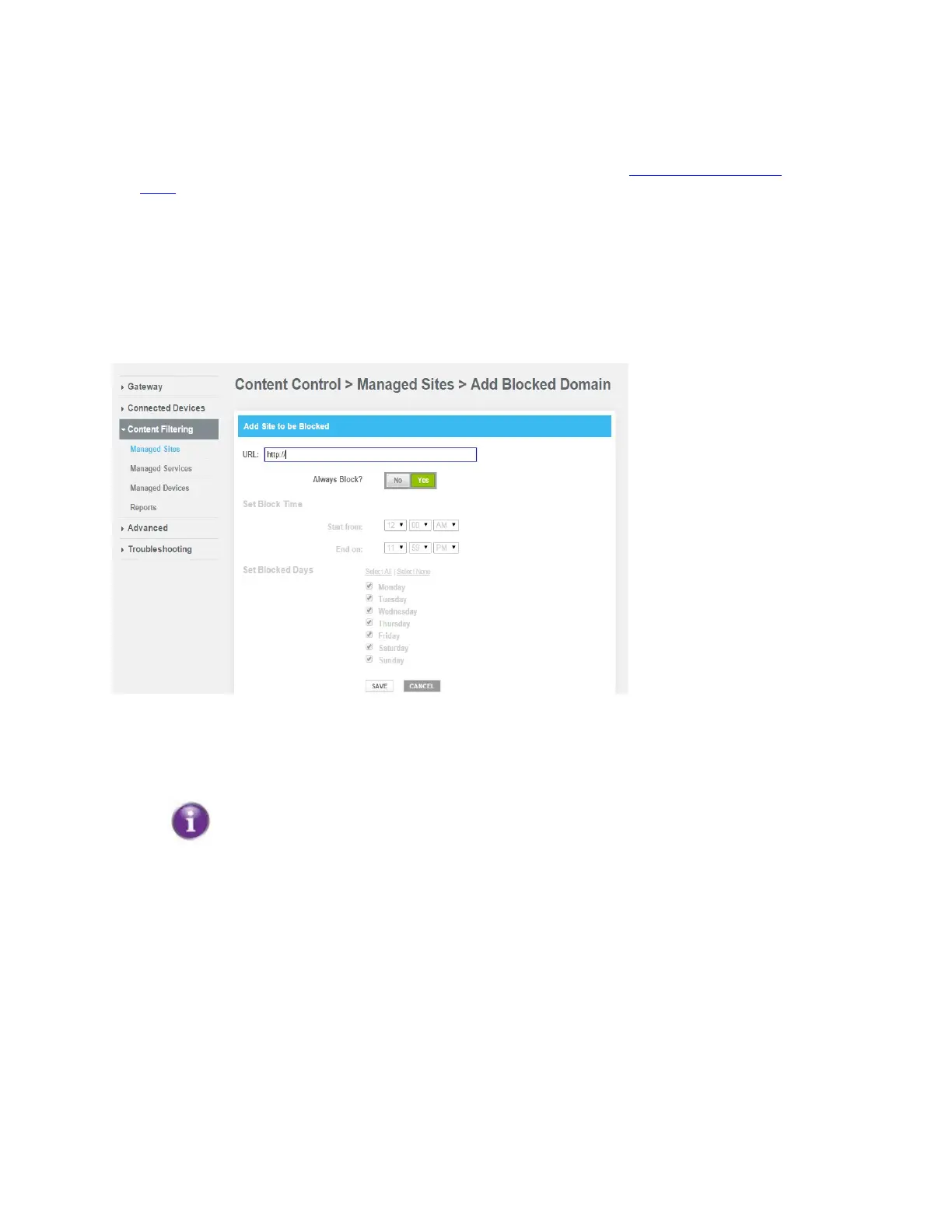
1. Under Blocked Sites, click + ADD.
2. The Add Blocked Domain page appears.
3. In the URL field type the address of the website (for example, facebook.com).
4. If you want this rule to be applied only at specific times, click No in the Always Block list and
define when to apply the rule:
a. Under Set Block Time, enter a start time and end time.
b. Under Set Block Days, select the days for which the selected block time should be applied.
If you want to have different time schedules depending on the day, you will have to group
these in separate rules:
• One rule for weekdays (for example, access to Facebook from 8:00 PM until 10:00 PM).
• One rule for the weekend (for example, access to Facebook from 4:00 PM until 10:00 PM).
• If you want to create rules that run overnight, you must create two rules (for example, make
one rule from Monday 8:00 PM until 11:59 PM and a second rule from Tuesday 12:00
AM until 6:00 AM).
5. Click SAVE.


 To Next Page