CBR2 CGA4332COM- User Guide
47 of 51
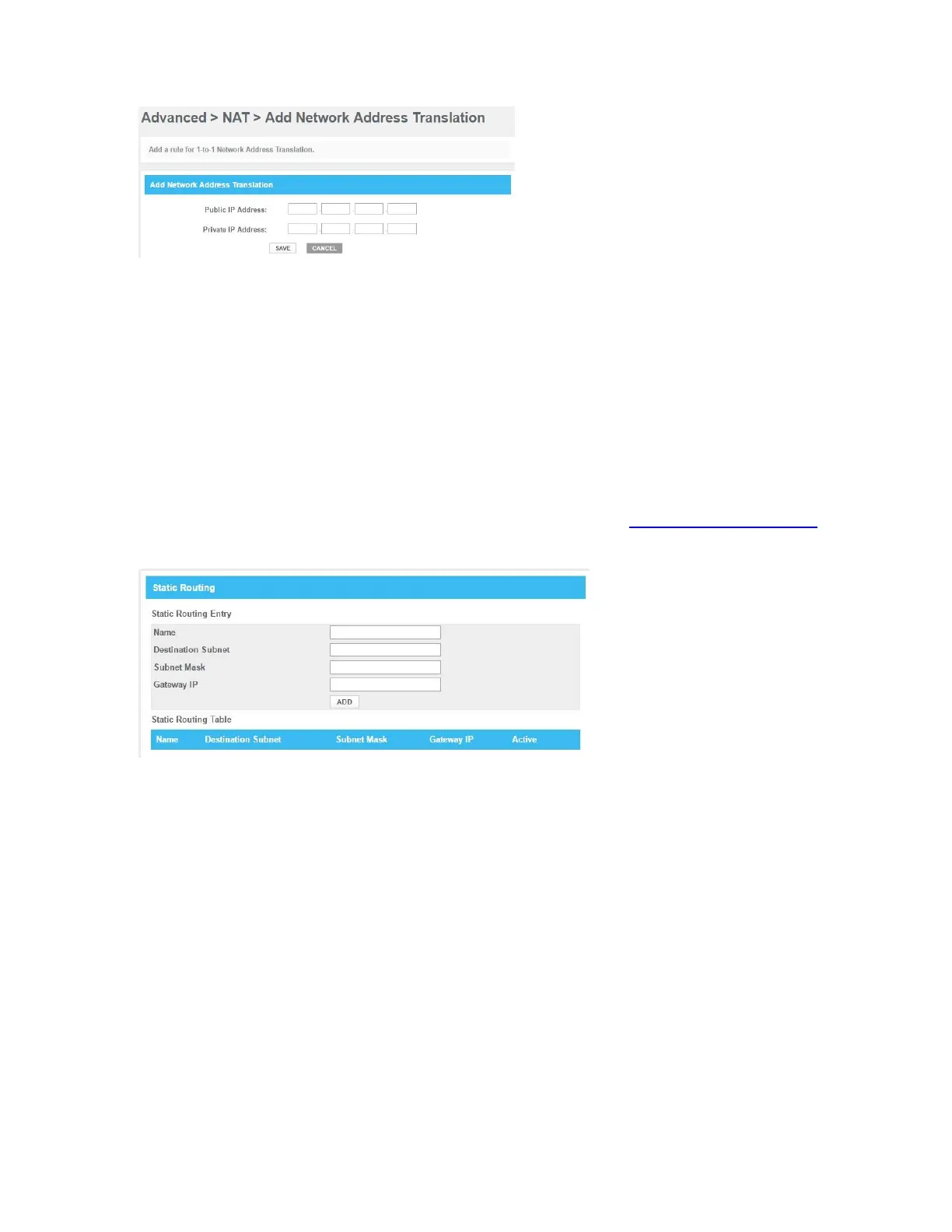
6. The Add NAT page appears:
7. In the Public IP Address box, type the IP address of the computer for which you want to add the rule
for 1-to-1 NAT.
8. In the Private IP Address box, type the IP address of the computer for which you want to add the rule
for 1-to-1 NAT.
9. Click SAVE.
Your service is now listed in the NAT table.
7.1.8. Static Routing
Static Routes allow users to manually add static routes to create specific paths to the destined networks.
To Configure Static Routing
1. Go to the Admin Tool (http://10.1.10.1), using a computer or other device that is currently connected
to your Gateway (either wired or wirelessly). For more information, see “Accessing the Admin Tool”
.
2. On the Advanced menu, select Static Routing.
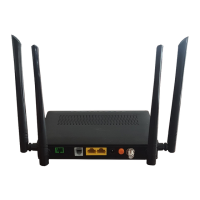
3. The Static Routing page appears.
4. Complete the following fields:
In the Name box, type a name.
In the Destination Subnet box, type destination subnet (example: 192.168.4.20).
In the Subnet Mask box, type the subnet mask (example: 255.255.255.0).
In the Gateway IP box, type the IP address of the gateway.
5. Click ADD.
Your service is now listed in the Static Routing table.
7.2
Assigning a Reserved IP Address to a Device
By default, each device gets an IP address from the Gateway’s DHCP server. When a device leaves, is turned
off, or the lease time of the address has expired, the IP address becomes available and can be reused for other
devices.
When you want to run a service on a network device (for example, a web server, network printer, etc.), it is
recommended to assign a reserved IP address to the device. This way, the device will always be reachable on
the same address and there is no risk that you are accessing the wrong device.


 To Next Page