CBR2 CGA4332COM- User Guide
48 of 51
How to assign a reserved IP Address
1. Go to the Admin Tool (http://10.1.10.1), using a computer or other device that is currently connected
to your Gateway (either wired or wirelessly). For more information, see “Accessing the Admin Tool”
.
2. On the left menu, select Connected Devices.
3. The Devices page appears.
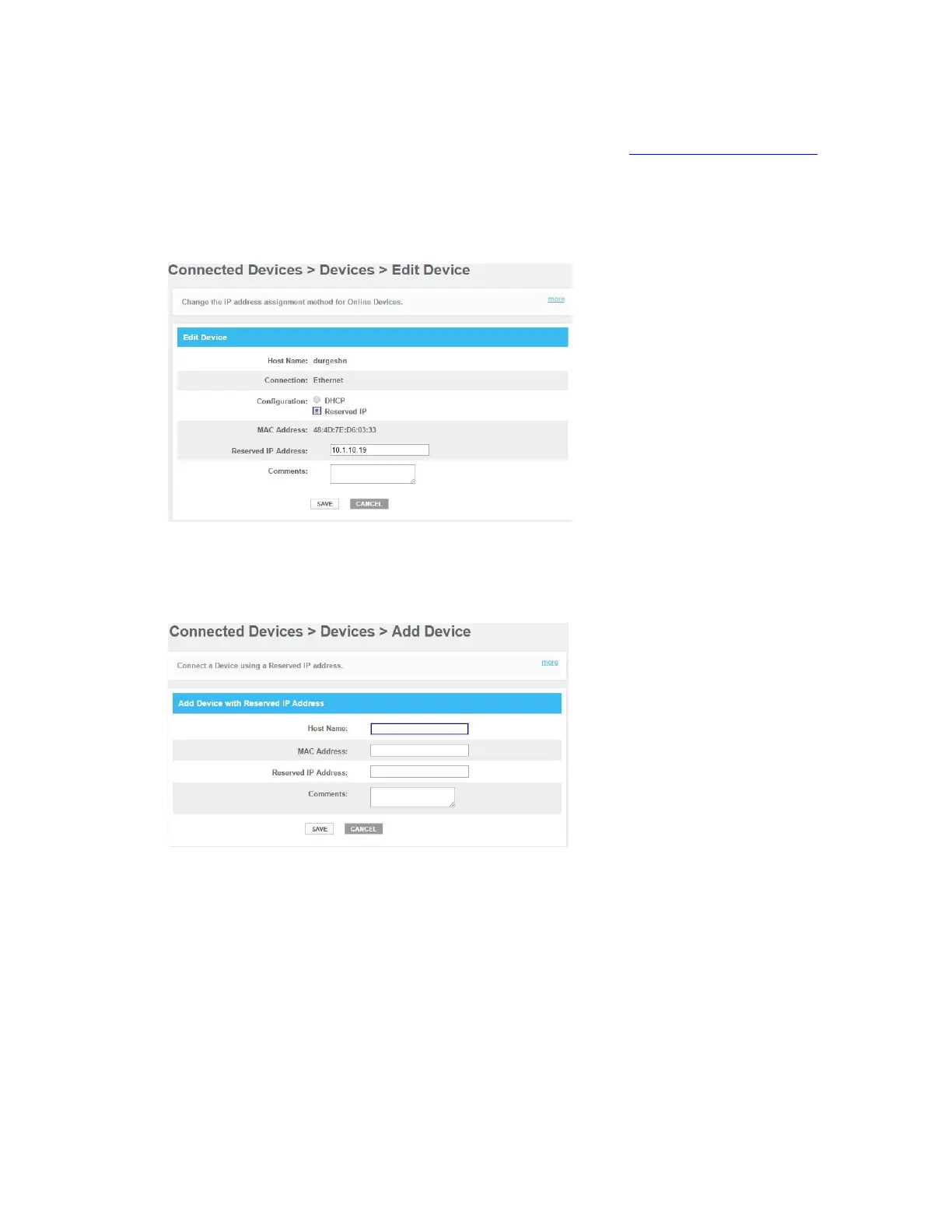
If your device is already listed in one of the tables, proceed as follows:
o Click Edit.
o The Edit Device page appears.
o In the Configuration list, click Reserved IP.
o If needed, change the value in the Reserved IP Address box 3.
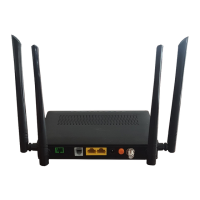
If your device is not listed, proceed as follows:
o On the Device, click ADD DEVICE WITH RESERVED IP.
o The Add Device page appears.
o Enter the settings of your choice.
4. Click Save.


 To Next Page