CBR2 CGA4332COM- User Guide
45 of 51
7. Click SAVE.
Your service is now listed in the Port Management table.
7.1.5. Remote Management
Remote management allows the gateway to be accessed remotely by a customer account representative to
perform troubleshooting or maintenance. This can be used via HTTPS.
To Configure Remote Management
1. Go to the Admin Tool (http://10.1.10.1), using a computer or other device that is currently connected
to your Gateway (either wired or wirelessly). For more information, see “Accessing the Admin Tool”
.
2. On the Advanced menu, select Remote Management.
3. The Remote Management page appears.
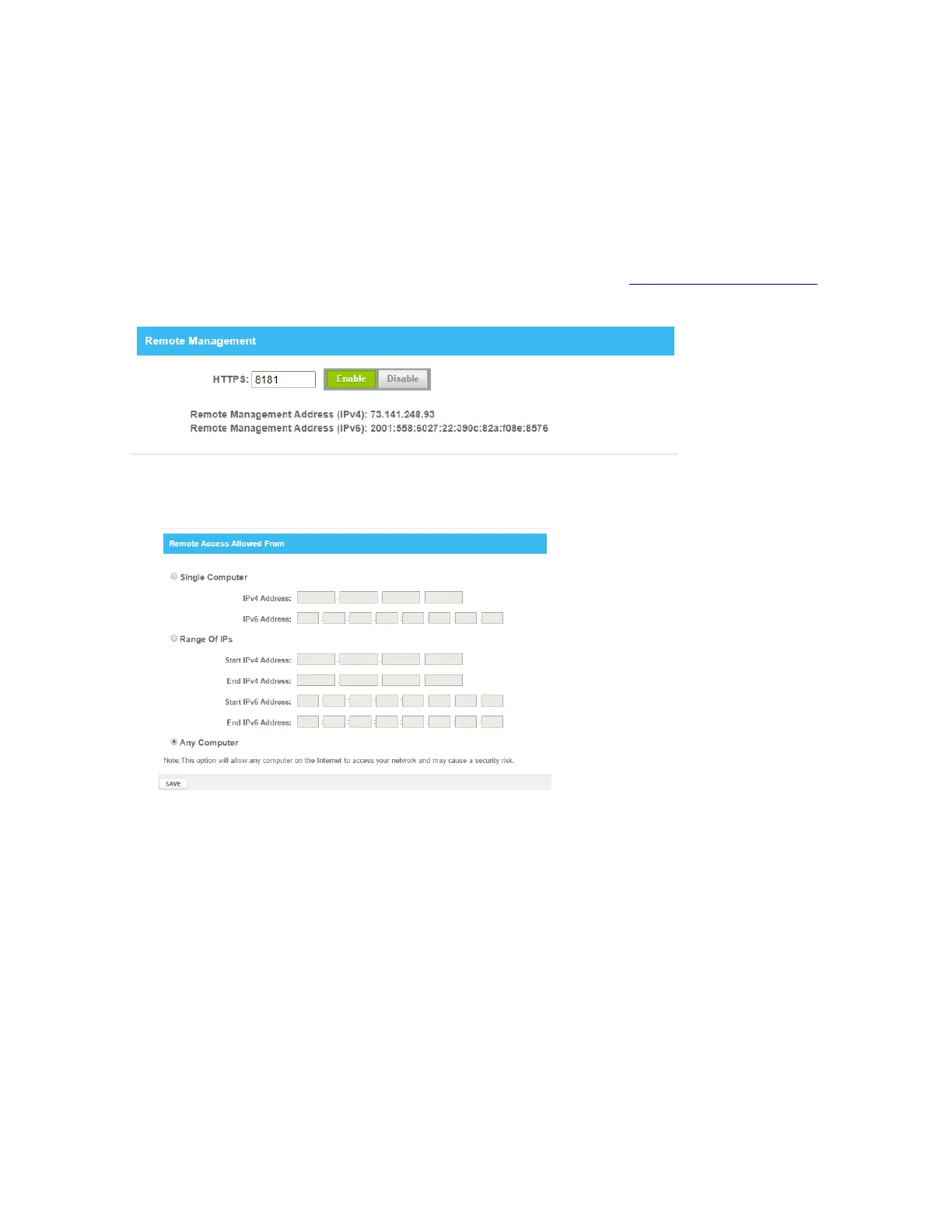
4. In the Enable Remote Management, click Enable for HTTPS, click OK on the pop-up window. It will
display both IPv4 and IPv6 address which will be used to access the device remotely.
5. Select the Remote management Access from the list.
The Remote Access Allowed From page appears:
6. Select and complete one of the options on the page:
• Single Computer
In the Server IPv4 Address box, type the IP address of the computer from which you want to
access the gateway.
In the Server IPv6 Address box, type the IP address of the computer from which you want to
access the gateway.
• Range Of IPs
In the Start IPv4 Address box, type the start IP address of the range from which you want to
access the gateway.
In the End IPv4 Address box, type the end IP address of the range from which you want to access
the gateway.
In the Start IPv6 Address box, type the start IP address of the range from which you want to
access the gateway.
In the End IPv6 Address box, type the end IP address of the range from which you want to access
the gateway.
• Any Computer. This option allows any computer to access your network.


 To Next Page