CBR2 CGA4332COM- User Guide
44 of 51
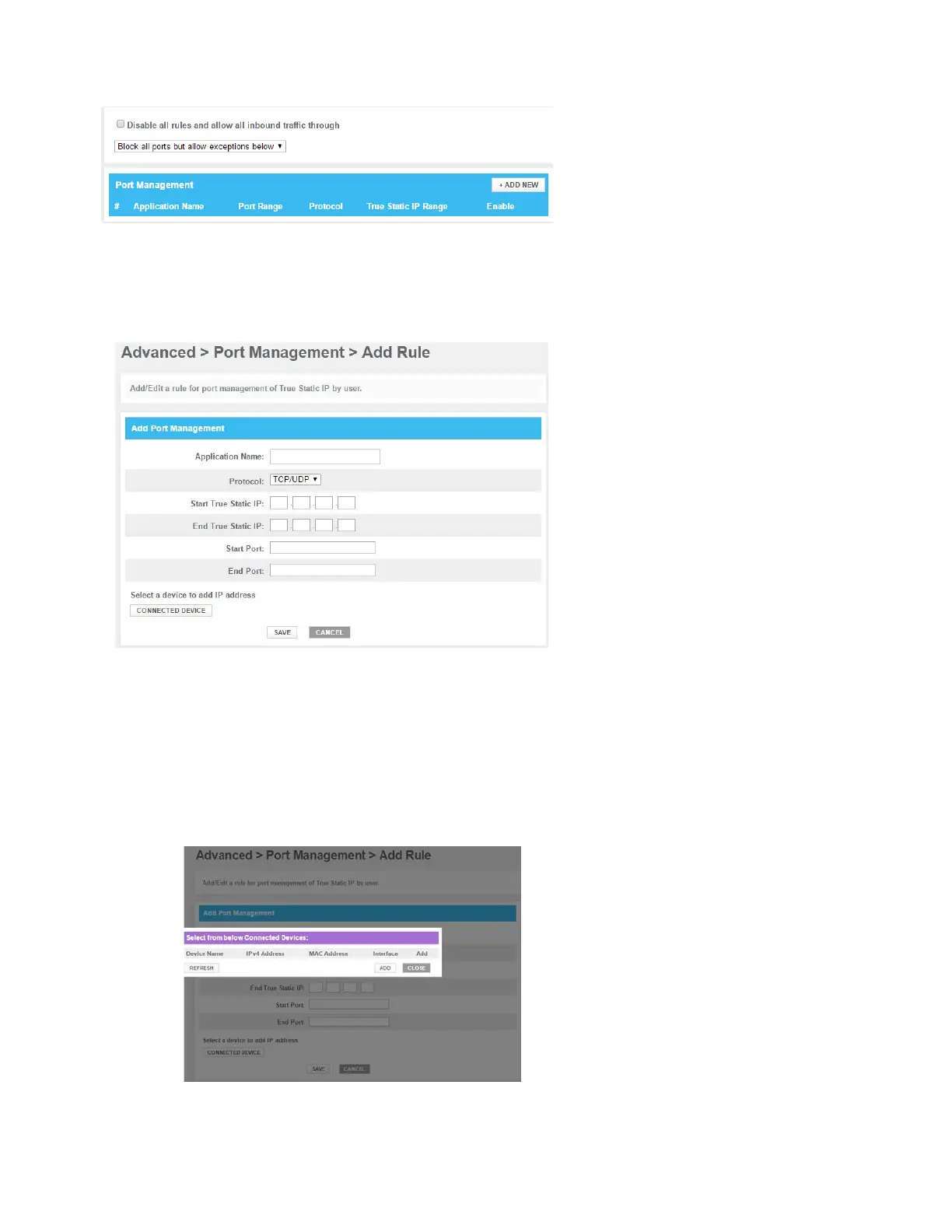
The Port Management page appears.
3. In the Enable Port Management, uncheck the Disable all rules and allow all Inbound traffic through; click
OK on the pop-up window.
4. Select the port management from the list Block all ports but allow exceptions below or Open all ports
but block exceptions below; click OK on the pop-up window.
5. Click +ADD NEW
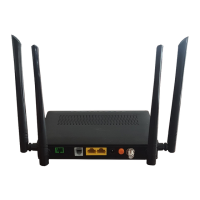
The Add rule page appears.
6. Complete the following fields:
In the Application Name box, type a name for the rule (for example, FTP).
In the Protocol list, click on the protocol that is used (for example, TCP).
In the Start True Static IP box, type the start IP address of the IP range.
In the End True Static IP box, type the end IP address of the IP range.
In the Start Port box, type the start port number of the port range. If you only want to specify one
port, use the same number as in the End Port box.
In the End Port box, type the end port number of the port range.
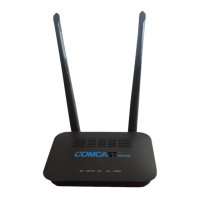
If you don’t want to type in any of the IP address boxes then click on Connected Device tab, select
the connected device for which you want to set the rule and Click Add.


 To Next Page