ln the example above. note that line 50 does
not
check for negatlve num-
bers. If both numbers are negative, then the leading character of T$ should not
be
dropped: this allows the negative sign to appear in front of the entire number W$.
If the
two
strings have different signs, they should
not
be
concatenated.
When
concatenating
two
strings
with
different signs, the following answers result:
T$ 1
tbl1l21314151
+ Q$
1-16171s19101
=
W$
.1121314151116171s19101
Incorrect
T$
[-11121314151
+ Q$ 1
~16171s191ol
=
W$
BlfITd112131411516171s19101
Incorrect
ln
summary, any type of string can be concatenated. The only string
type that must be treated differently
is
a numeric string converted from a
non-string source.
When
the extra space for the sign of numeric strings
is
taken
into consideration. then string concatenation becomes
an
easy, useful tool.
PROGRAMMED
CURSOR
MOVEMENT
ln Chapter 2
we
discussed the screen editing capabilities of six
PET
cursor
control
keys:
CLEAR
SCREEN/HOME,
CURSOR
UP/DOWN,
CURSOR
LEFT
/RIGHT.
INSERT
/DELETE,
RETURN,
and
REVERSE.
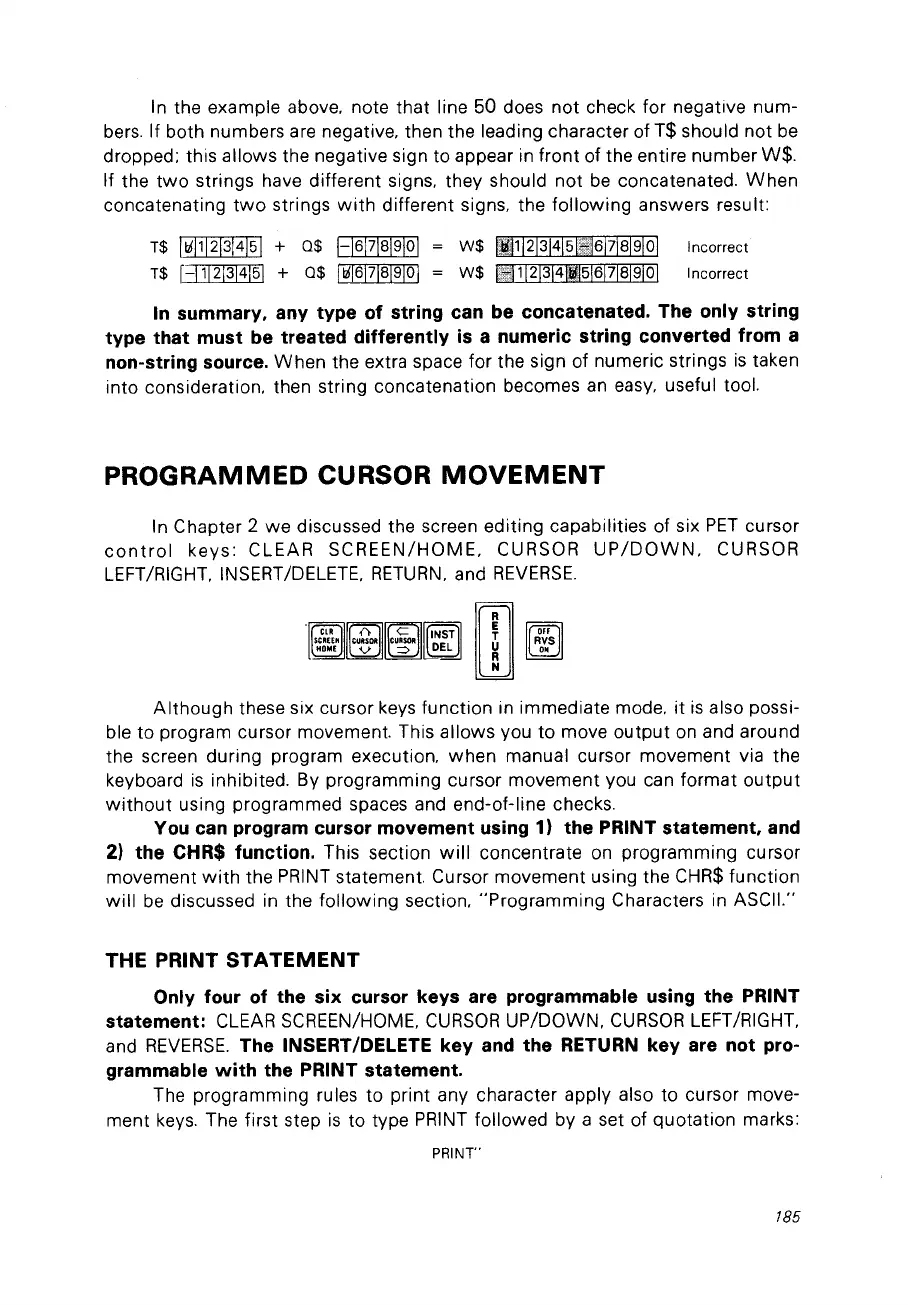
Although
these six cursor keys function in immediate mode.
it
is
also possi-
ble to program cursor movement. This allows vou to move
output
on and around
the screen du ring program execution, when manual cursor movement via the
keyboard
is
inhibited. By programming cursor movement vou can format
output
without
using programmed spaces and
end-oHine
checks.
Vou can program cursor movement using 1) the PRINT statement, and
2) the CHR$ function.
This section
will
concentrate
on
programming cursor
movement
with
the
PRINT
statement. Cursor movement using the
CHR$
function
will
be
discussed in the following section, "Programming Characters in ASCII."
THE PRINT
STATEMENT
Only four of the six cursor keys are programmable using the PRINT
statement:
CLEAR
SCREEN/HOME,
CURSOR
UP/DOWN.
CURSOR
LEFT/RIGHT,
and
REVERSE.
The INSERT/DELETE key and the RETURN key are not pro-
grammable
with
the PRINT statement.
The programming rules to print any character apply also to cursor move-
ment
keys.
The first step
is
to type
PRINT
followed by a set of quotation marks:
PRINT'"
185


 To Next Page