DeviceMaster LT User Guide: 2000586 Rev. B
Troubleshooting and Technical Support - 119
Opening Ports
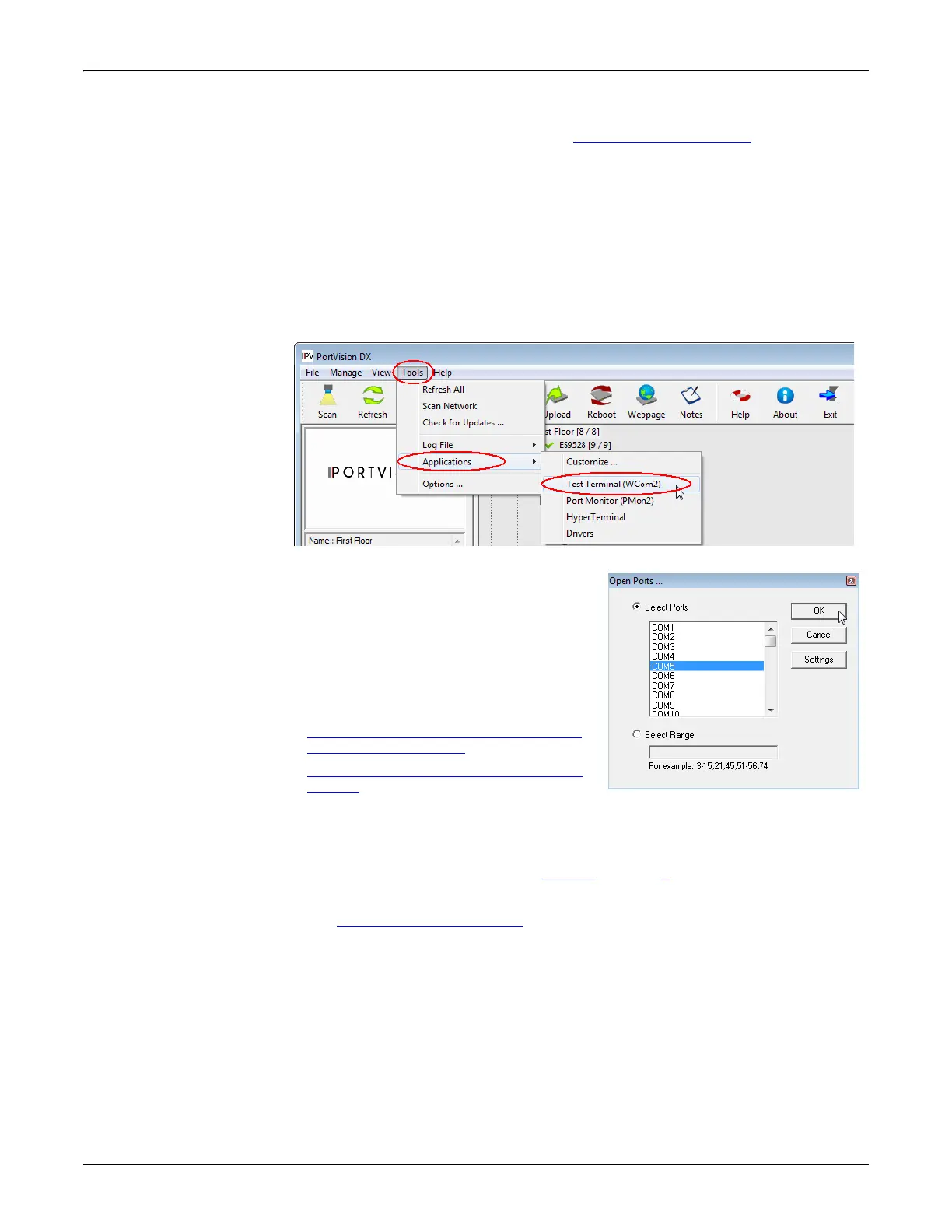
Opening Ports The following procedure shows how to use Test Terminal to send and receive test
data to the serial ports. If necessary, use Installing PortVision DX
on Page 15,
which contains Test Terminal.
1. Stop all applications that may be accessing the ports such as RRAS or an
y
fa
xing, or production software. See the appropriate help systems or manuals
for instructions on stopping these services or applications.
If another application is controlling the port, then Test Terminal will be unable
to open the port and an error message will be shown.
2. Start Test Terminal (WCom2). If necessary, start PortVision DX from the Start
menu, select Programs > Comtrol > PortVision DX > PortVision DX or click the
desktop shortcut.
3. Select Tools > Applications > Test Terminal (WCom2).
4. Select File > Open Port, the appropriate
port (or ports) from the Open Ports
drop list and Ok.
Note:
If you left Port Monitor open
from
the previous subsection,
you should show that the port is
open.
Go to the appropriate procedure to send
and receive test data.
• Sending and Receiving Test Data (RS-
232/422/485: 4-Wire) (below)
•
Sending and Receiving Data (RS-485:
2-Wire) on Page 121
Sending and
Receiving Test Data
(RS-232/422/485: 4-
Wire)
You can use this procedure to send and receive test data through the RS-232/422/
485 (4-wire, full-duplex) port or ports that you want to test.
1. If you have not done so, perform Steps 1
through 2 on Page 119.
2. Install the loopback plug onto the port (or ports) that you want to test.
See Connecting Serial Devices
on Page 65, if you need to build loopback plugs.
3. Select Port > Send and Receive Test Data.



 To Next Page