36 - Device Driver (NS-Link) Installation
DeviceMaster LT User Guide: 2000586 Rev. B
Configuring the NS-Link Driver for Windows
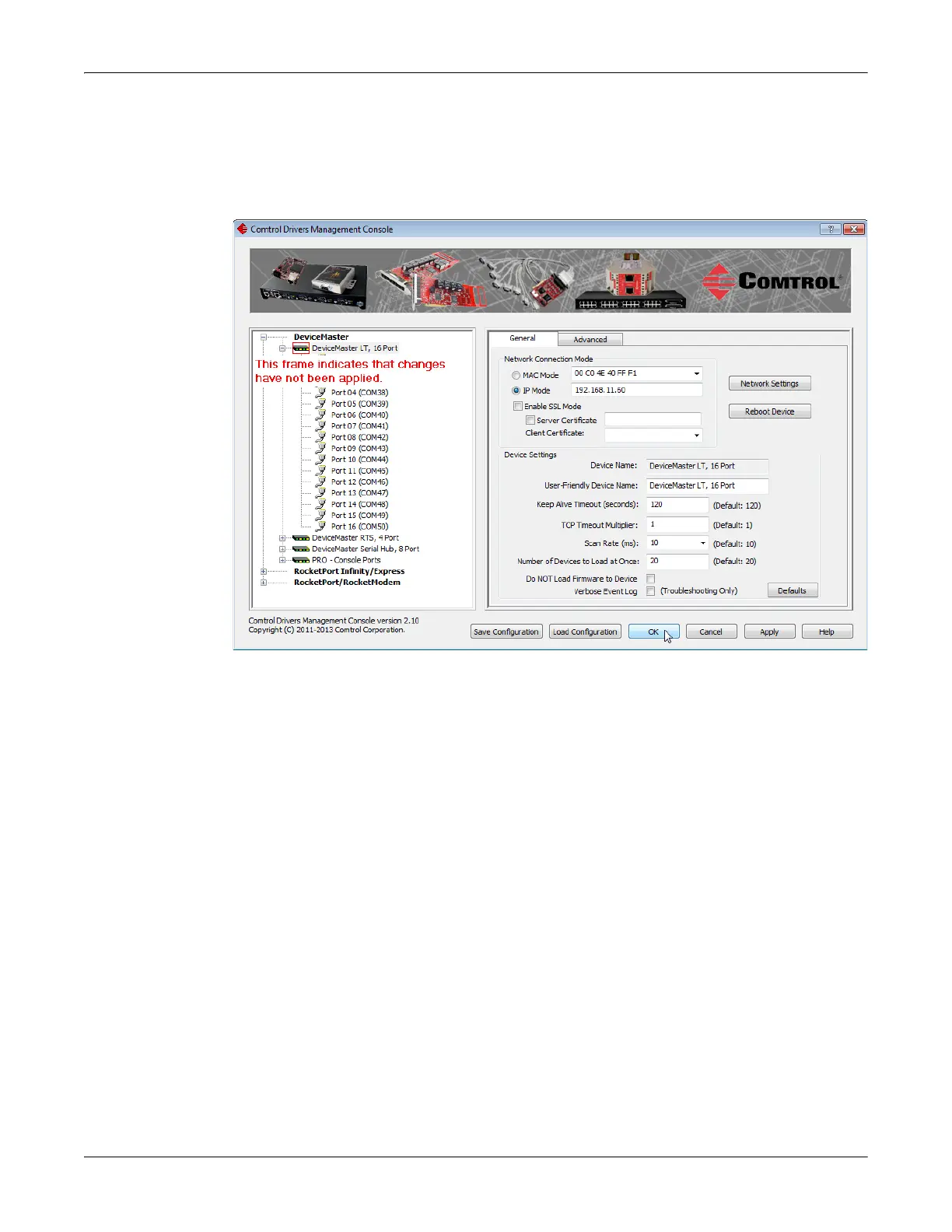
4. Click Apply to program the driver with the MAC address of the DeviceMaster
L
T or Ok to save the change and close the Comtrol Driver
s Management
Console.
If you do not A
pply the changes before leaving this screen, you will be
prompted to Apply, Ignore, or Cancel the changes.
5. Now that the MAC address has been associated to the DeviceMaster LT,
you
ca
n use the Network Settings screen to:
• Change the IP address, set the DeviceMaster
LT to DHCP, or Disable IP
communications using the Network Settings button
• Reboot the DeviceMaster LT on the General tab
• Access network statistics on the Advanced tab
If you want use IP mode and the IP address is configured for your network,
click the IP Mode radio button and click Apply. If you want to use SSL Mode,
you must set the DeviceMaster LT to IP mode.
Click the Network Settings button and click Modify to make any network
settings changes.
6. Optionally, click Enable
SSL Mode if you want to configure secure COM ports.
The DeviceMaster LT must be configured using IP Mode before you can Enable
SSL Mode.
If SSL Mode is enabled, TCP connections that carry data to/fro
m the serial
ports
are encrypted using SSL or TLS security protocols. This includes
the
f
ollowing:
• TCP connections to the per-serial-port TCP ports (default is 8000, 8001,
8002, ...) are encrypted using SSL/TLS.
• TCP connections to TCP port 4606 on which the DeviceMaster LT
implements the Comtrol proprietary serial driver protocol are encrypte
d
u
sing SSL/TLS.
• Since SSL/TLS can not be used for
either UDP data streams or for the



 To Next Page