4
Operation
Control Function Descriptions -
Stand Alone Configuration
(continued)
Trending
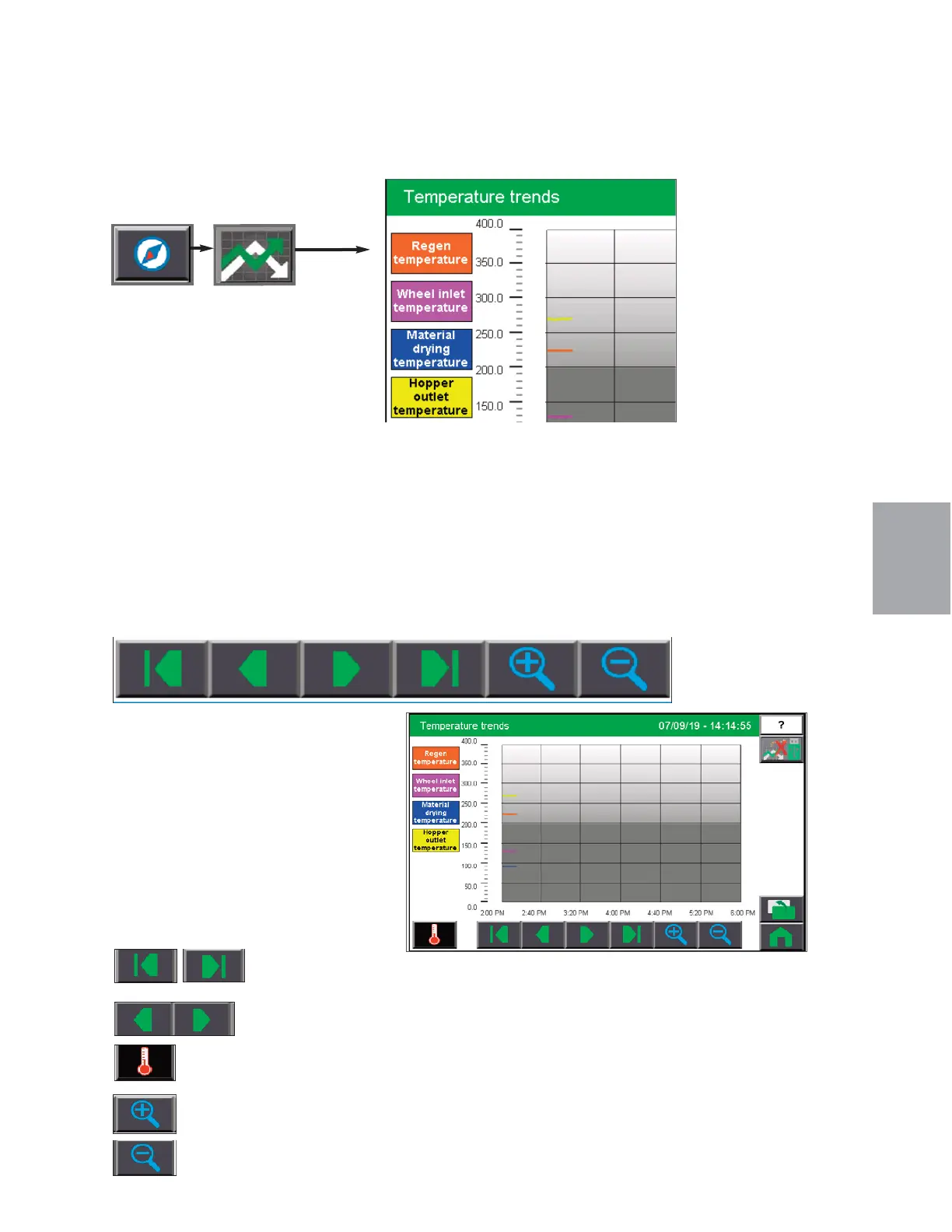
To access the Trending screens:
1 Press the Navigation button from the
Home screen.
2 Press the Trend button.
The Trend Selection screen displays the various trends. Press the next tend button on the
bottom left of each screen to advance to the next screen.
• Temperature Trends
• On-time Trends
• Dewpoint Trends
• Energy Use Trends
• Drying Monitor Trends (if equipped)
Trending Screen Navigation
Each trending screen will allow the user to scroll
through data. When the screen first opens, it
will be displaying values sampled every 15 sec-
onds for the last 14 day period. The scroll but-
tons near the bottom of the screen allow the user
to scroll back to an earlier time or forward to the
present time, or jump immediately to live data.
The user can also touch any point on the trend
line and the display will show the data reading,
date, and time for that spot in the trend.
Scroll to the beginning or end of the record.
Scroll back or forward one point at a time (30 seconds).
Move to the next trend screen.
Zoom in (Instead of seeing 2 hours of trend in the window, you will see 1 hour,
30 minutes, 15 minutes, etc.)
Zoom out (Instead of seeing 2 hours of trend in the window, you will see 3
hours, 4 hours, 5 hours, etc.)
NOTE: Depending on your DC-C
configuration, and system secu-
rity, different users may not be
able to access the trending
screens. Also, if you do not have
Drying Monitor enabled, or the
Drying Monitor equipment at your
drying hoppers, you will not be
able to view Drying Monitor
Trends.
0
Operation l 4-47


 To Next Page