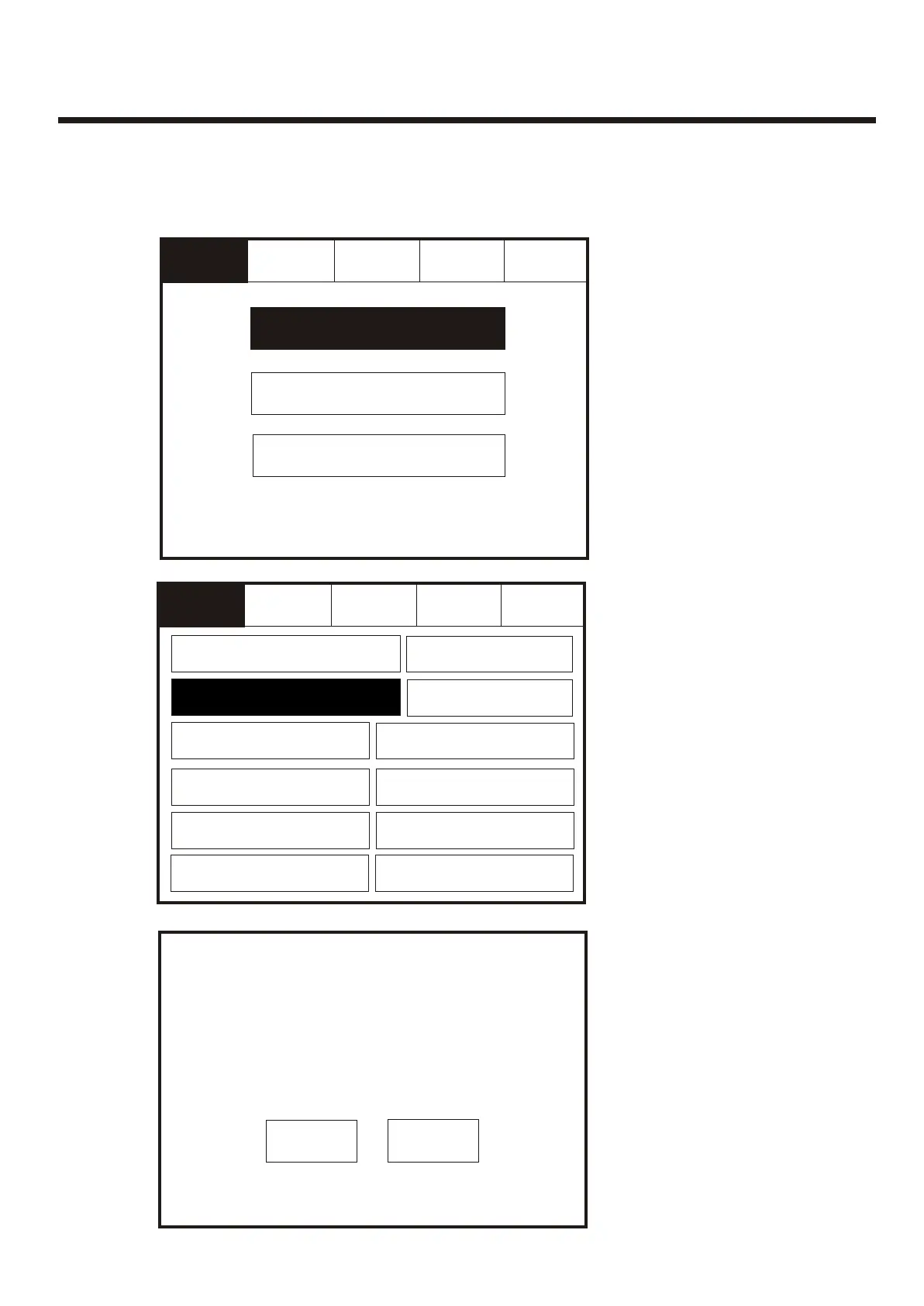
Commission: Download CDR to LaptopCommission: Download CDR to Laptop
ServiceService
CommissionCommission
TestTest
ConfigureConfigure
Download CDR to LaptopDownload CDR to Laptop
Start PC program
Press "OK" to continue
or "Cancel" to exit
Start PC program
Press "OK" to continue
or "Cancel" to exit
OKOK
CancelCancel
Enter the Service Mode and Select Commission. Enter the Service Mode and Select Commission.
Select “Download CDR
from Laptop” from the
Commission Menu
Screen.
Select “Download CDR
from Laptop” from the
Commission Menu
Screen.
To activate the touch screen, touch the top left corner of the screen until the screen
illuminates. To enter the supervisor mode touch the supervisor button and enter the
service passcode.
To activate the touch screen, touch the top left corner of the screen until the screen
illuminates. To enter the supervisor mode touch the supervisor button and enter the
service passcode.
ExitExit
Mute
Buzzer
Mute
Buzzer
Reset Reset
ExitExit
ResetReset
Service
FRE Off
Service
FRE Off
Load logo from PCLoad logo from PC
Load CDR from LaptopLoad CDR from Laptop
Download CDR to LaptopDownload CDR to Laptop
Auto LearnAuto Learn
Erase Log and ResetErase Log and Reset
Analogue LevelAnalogue Level
Printer SettingsPrinter Settings
Change Panel NumberChange Panel Number
Number of Panels
in Network
Number of Panels
in Network
Italian ModeItalian Mode
Mute
Buzzer
Mute
Buzzer
System DetailSystem Detail
Screen CoverScreen Cover
58



 To Next Page