Viper Low overrun Service Manual
Publication Number: 621360241LOEWSE - 18 - © 2016, Cornelius Inc.
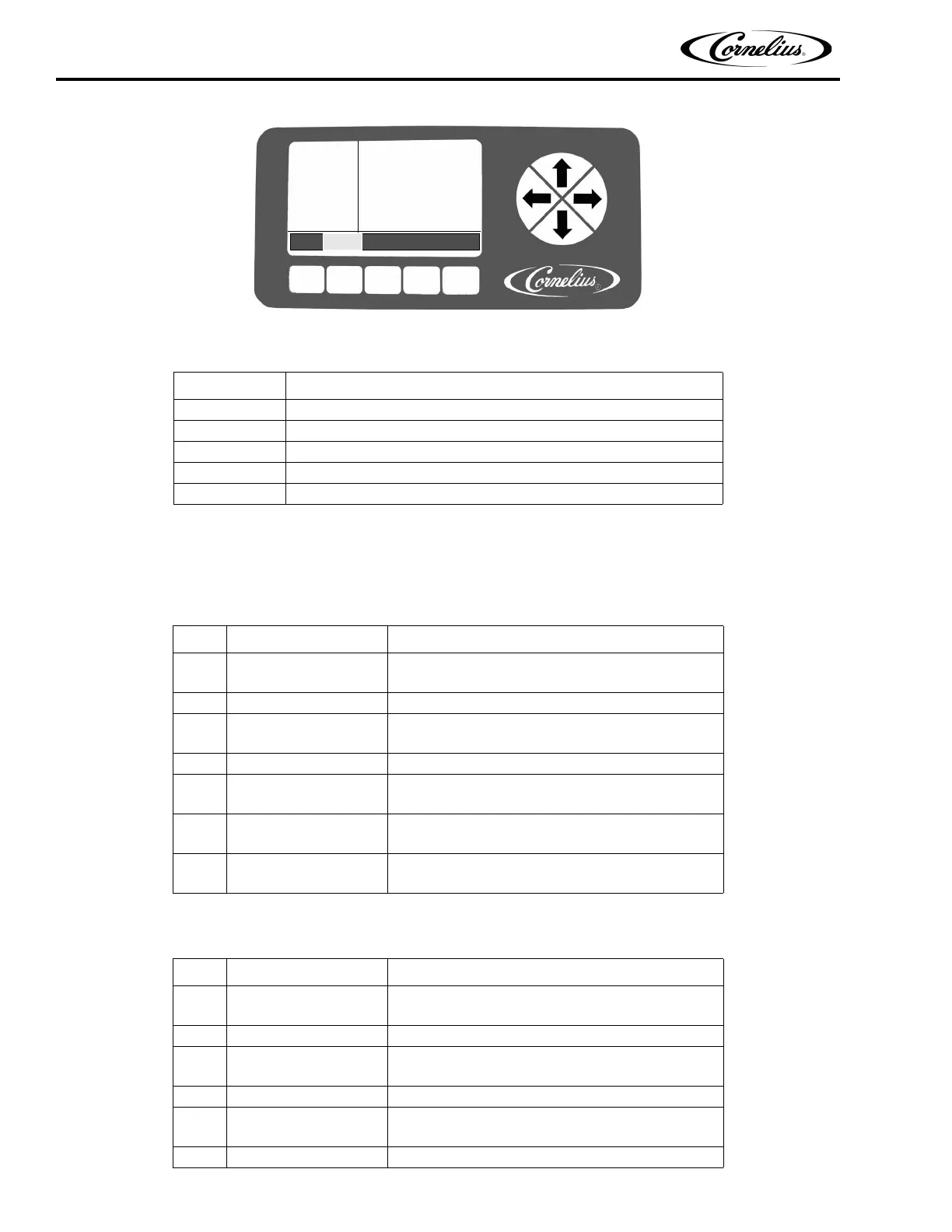
Figure 14. Clock Setup Screen
Setting the Clock
Select the CLOCK SETUP menu from the Select menu, shown in Figure 13. This displays the Clock Setup menu,
shown in Figure 14. To set the time, perform the procedure in Table 11.
To set the date, perform the procedure in Table 12 and refer to Figure 14.
Table 10.
Button Description
BACK Returns the display to the Select menu
CLOCK Highlighted to indicate that the Clock menu is displayed
DST Opens the Daylight Savings Time menu
- Decrements the highlighted field
+ Increments the highlighted field
Table 11.
Step Action Procedure
1 Set clock time
Use up and down arrows on the right side of the con-
trol panel to highlight TIME display on screen.
2 Select hour field Use the left and right arrows to select hour field
3 Set correct hour
Use the + or - buttons at the bottom of the display to
set the proper hour.
4 Select minute field Use the left and right arrows to select minute field.
5 Set correct minute
Use the + or - buttons at the bottom of the display to
set the proper minute.
6 Select AM/PM field
If the 12 hour clock option is selected, use the left and
right arrows to select the AM/PM field.
7Set AM/PM
Use the + button at the bottom of the display to set the
AM/PM setting.
Table 12.
Step Action Procedure
1 Set date
Use up and down arrows on the right side of the con-
trol panel to highlight DATE display on screen.
2 Select month field Use the left and right arrows to select month field
3 Set correct month
Use the + or - buttons at the bottom of the display to
set the correct month.
4 Select day field Use the left and right arrows to select day field.
5 Set correct day
Use the + or - buttons at the bottom of the display to
set the correct day.
6 Select year field Use the left and right arrows to select year field.
CLOCK
SETUP
12:51P
MAR 04
TIME: 11:00 AM
DATE: 01/01/00
BACK CLOCK DST - +


 To Next Page