Kangaroo™ Console | 22
On Screen Keyboard
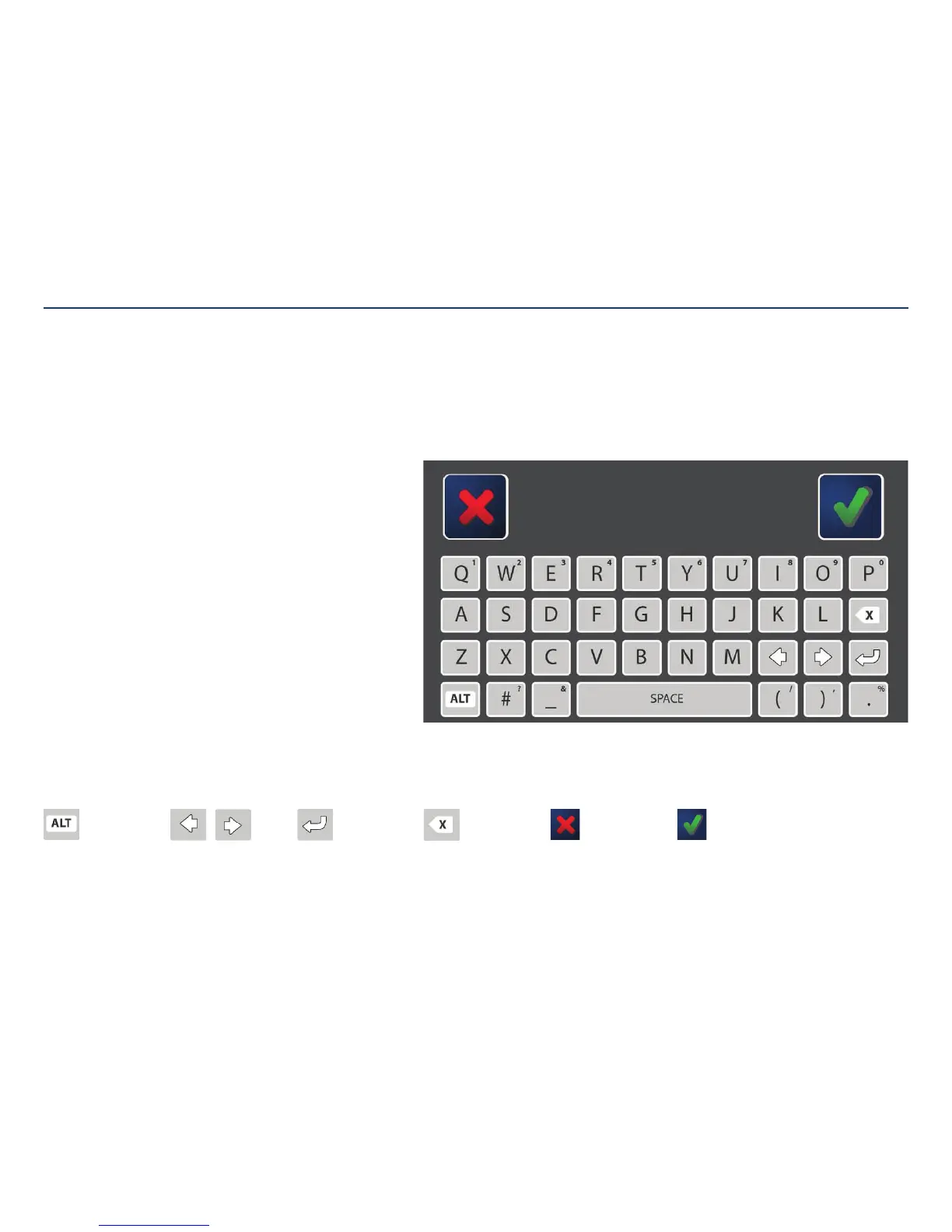
The on screen keyboard will be displayed when typing is necessary.
Use the keyboard to enter text, such as a login name, or to annotate images.
How to use the keyboard:
To enter text:
Tap a text field, such as a login name or password. Then, tap on the letters on the
keyboard to type. Text will always be written in uppercase.
To edit text:
Tap the text field and use the arrow keys to navigate to the desired textlocation.
To enter numbers or secondary symbols:
Press and release the ALT key. Tap the key(s) that contains the desired letter, number,
or symbol (displayed in the upper right corner of the key). Press and release the ALT
key again to return to main keyboard.
For example, to enter a login name of “64USER” press ALT, then 6, 4, then ALT again,
followed by U, S, E, R.
Note: For keyboards that include a top row of dedicated number keys, use of the ALT
key is not required for entering numbers.
Accept changes or cancel:
Tapping the check mark or “x” icons will either accept the entered text or cancel any
changes and return to previous screen.
ALT key:
Enables alternate letter,
symbol, or number keys.
Arrow keys:
Moves cursor left
orright.
“X” icon:
Cancels any changes
made and returns to
previous screen.
Check mark icon:
Accepts changes
made and advances to
nextscreen.
Return:
Moves cursor to next
text field.
Delete text:
Deletes previously
written text, letter
byletter.
Section V: User Interface Features


 To Next Page