Kangaroo™ Console | 30
View image:
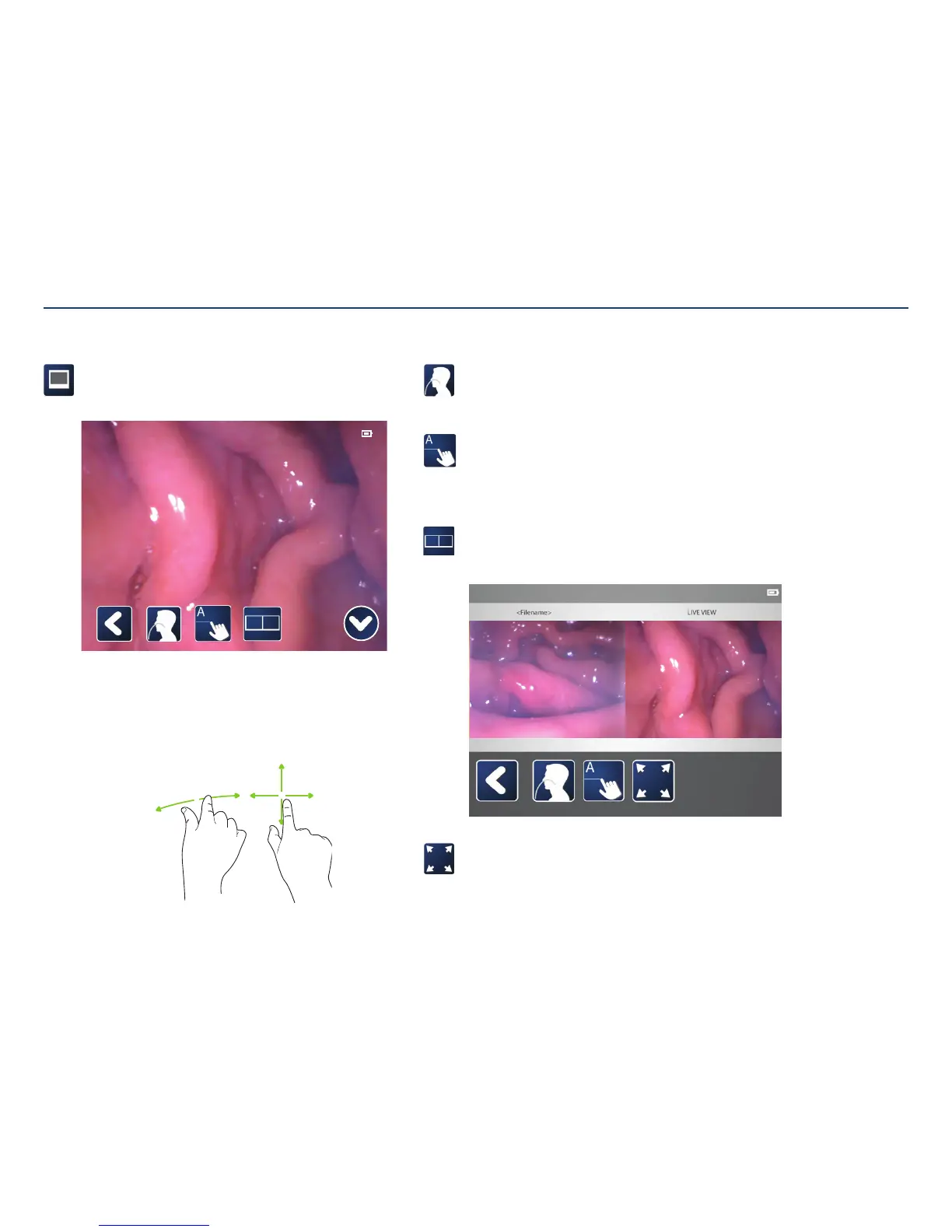
When viewing a captured image there is an option to annotate, view in split
screen, and return to the procedure (live feed from camera).
11:11:11 PATIENT-NAME-UP-TO-THIRTY-CHARACTERS 11-11-2011 PATIENT-ID -XXXX
Zooming in/out, panning the image:
While touching the screen with two fingers, slide the fingers away from each
other to zoom in.
Pan the screen by touching with one finger and dragging along the screen.
Panning is only active when zoomed in.
To zoom out, touch the screen with two fingers and slide them towards
eachother.
Viewing Captured Images
Procedure:
If not currently in the procedure process, this icon will appear. Tapping this
icon opens the procedure screen.
Annotate image:
Select an image to annotate by clicking the box to the left. Then, tap the
annotation icon.
For detailed information on annotating images, see the annotating
imagessection.
Split view:
Viewing in split screen will show the captured image on the left and the
live view from the camera on the right side.
Full screen view:
To switch to full screen view, tap this icon.
Section V: User Interface Features


 To Next Page