Kangaroo™ Console | 25
11:11:11 PATIENT-NAME-UP-TO-THIRTY-CHARACTERS 11-11-2011 PATIENT-ID-XXXX
Procedure
Use the Procedure feature to launch the functional flow for entering patient
information and procedure activities.
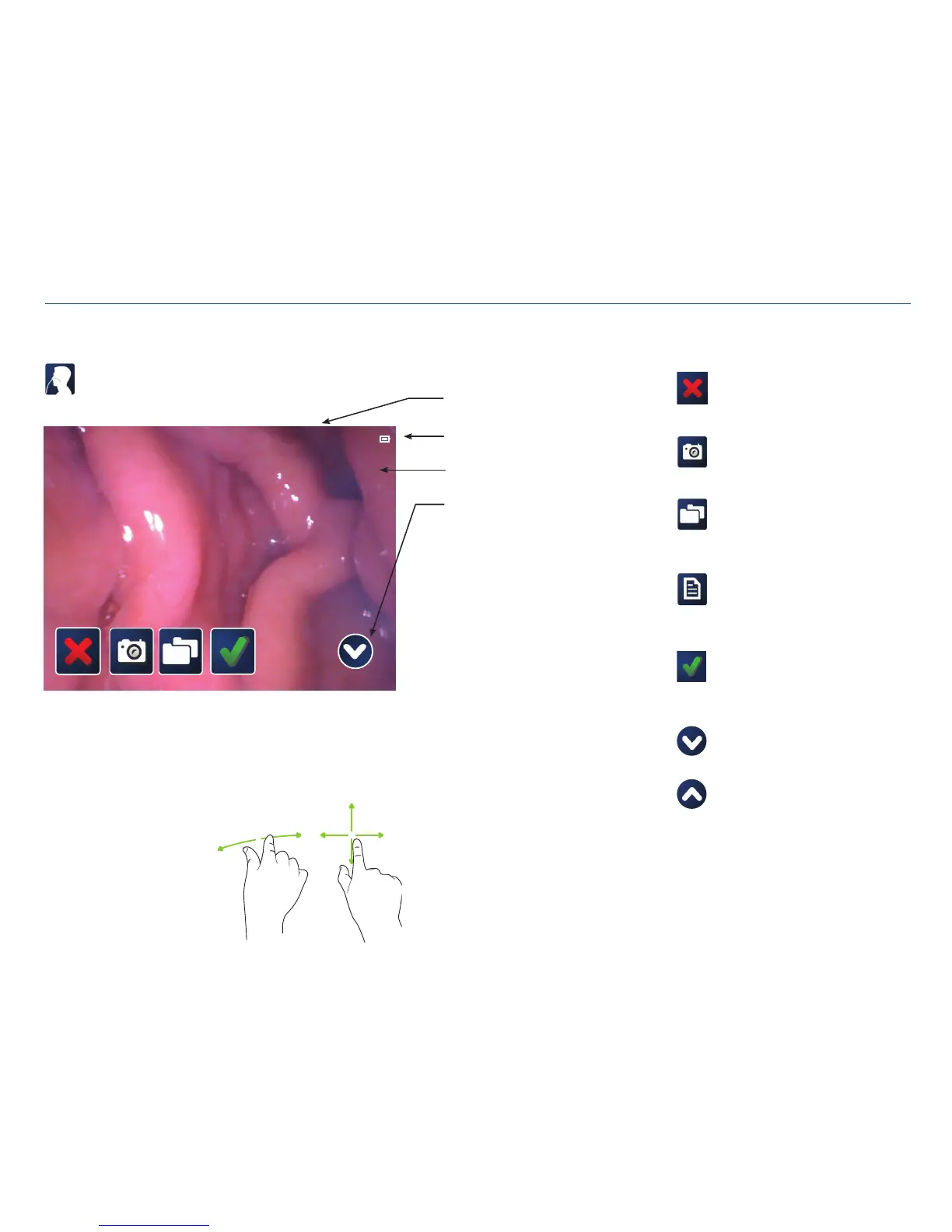
Zooming in/out,
panning the image:
While touching the screen with two fingers, slide the fingers away from each other to
zoom in.
Pan the screen by touching with one finger and dragging along the screen.
To zoom out, touch the screen with two fingers and slide them towards each other.
Battery level indicator
Patient and procedure information
Icon tray
Live feed from feeding tube camera
Cancel:
Cancel procedure. System will request
cancellation confirmation.
Capture image:
Tap on the camera to capture an image from
the live feed.
Patient folders:
Displays all patient folders. Each folder
contains images captured during the
placement procedure.
Patient file:
Icon appears after capturing an image.
Tapping this icon opens patient’s folder to
show images.
Done/Complete:
When placement is complete, tapping on the
check mark ends the placement procedure.
System will request completion confirmation.
Hide icon tray:
Hides icon tray.
Show icon tray:
Show icon tray on screen.
Section V: User Interface Features


 To Next Page