Kangaroo™ Console | 27
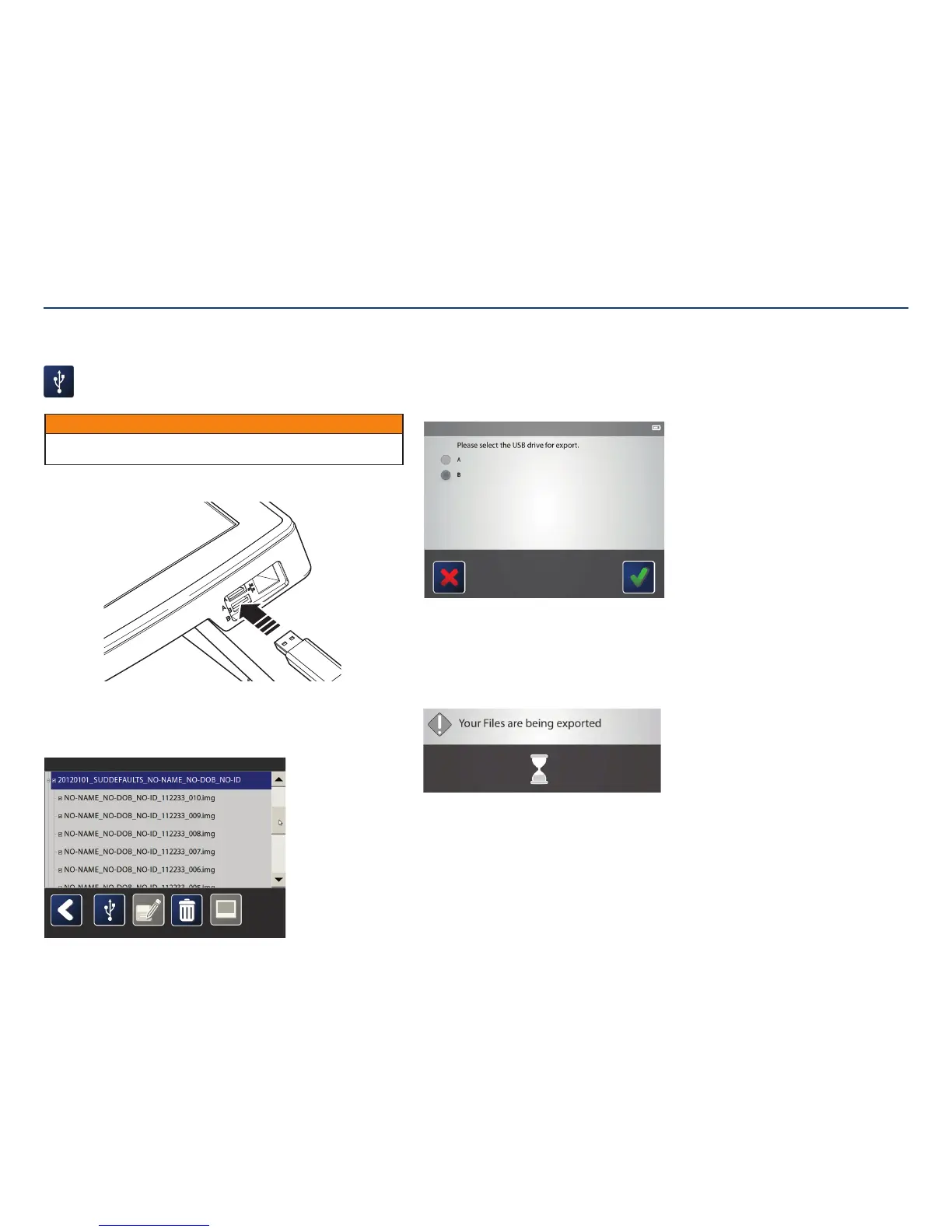
Save to USB:
Images can be exported to a USB flash drive and opened on
anothercomputer.
Start by plugging the USB flash drive into the port on the side of the console.
Then, tap the box on the left of the image(s) to be exported. Tapping the box at the
left of the folder selects all images. Images can only be exported from one patient
folder at a time.
Tap the USB icon. A screen will pop up asking which USB port to save to. Confirm and
tap the check mark.
For privacy purposes, a password has been created by an administrator.
The password will be required to view the images on another computer.
Note: Passwords are in full upper-case. When using a computer, be sure to use
upper-case letters.
After the files are exported, disconnect the USB flash drive.
Exporting Images to USB Flash Drive
Section V: User Interface Features
CAUTION
Verify USB devices used with this equipment are free of software viruses and other
malicious software.


 To Next Page