Using Your Creative Prodikeys 3-4
Step 4: Selecting
Instruments
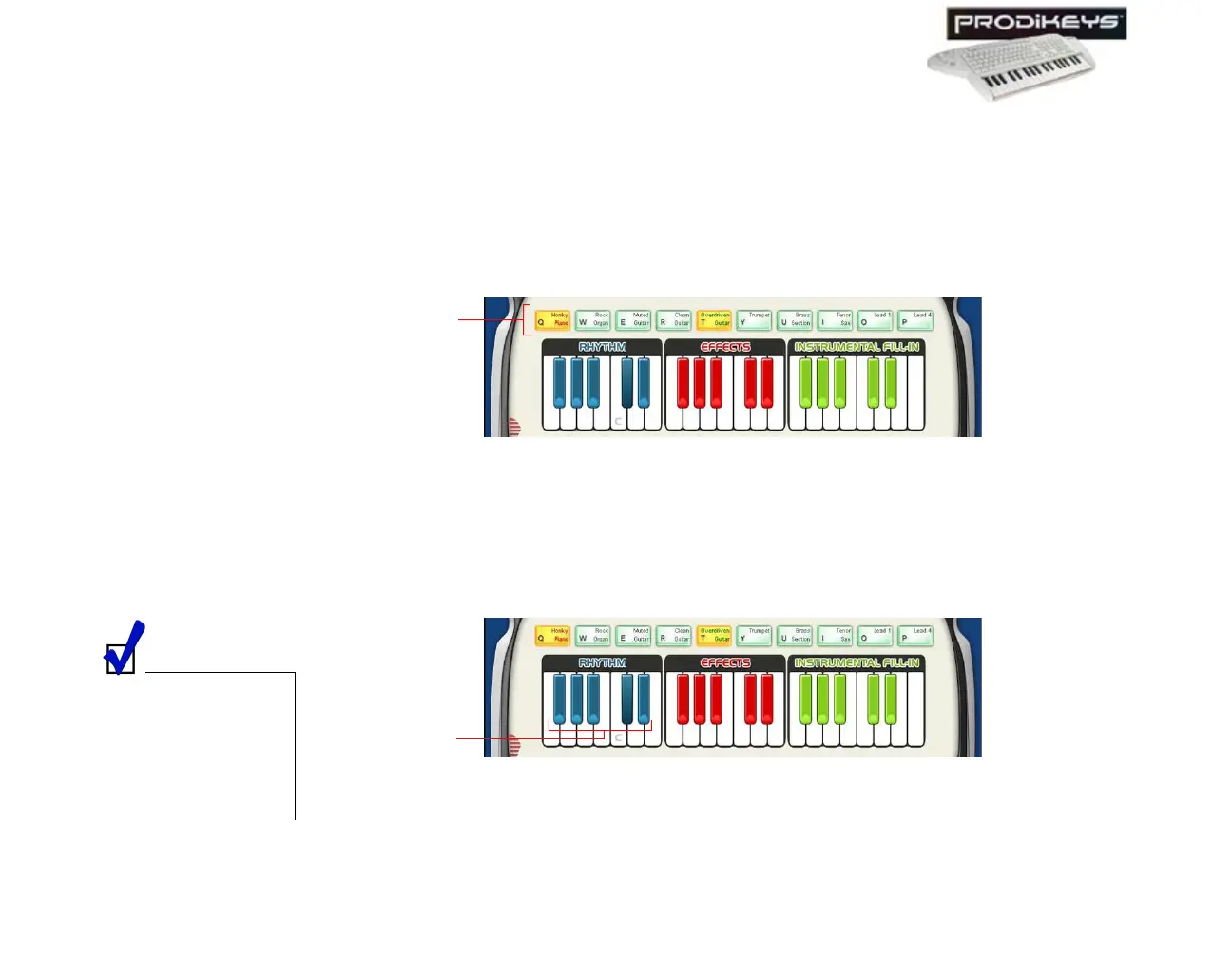
Besides selecting a main instrument for your music keyboard, you can also select a
second instrument that will be played together with your main instrument.
To select a main instrument: Click the Instrument keys in the Creative
Prodikeys software, or press the corresponding keys on your computer keyboard.
To select a second instrument (or cancel the selection): Double-click the
Instrument keys in the Creative Prodikeys software, or press the corresponding
keys quickly twice on your computer keyboard.
Step 5: Starting
and Stopping
Rhythms
You are now ready to play! To begin, just start a rhythm.
To start or stop a rhythm: Press the black keys on your music keyboard that
correspond to the blue keys in your Creative Prodikeys software.
Figure 3-5
Instrument
keys
You can also press
SPACEBAR on your
computer keyboard to
start the rhythm
assigned to the first
blue key, or to stop all
current playback.
Figure 3-6
Blue
keys



 To Next Page