Using Your Creative Prodikeys 3-27
Step 8: Starting
the Rhythm
You are now ready to play! To begin, just start the rhythm. You can start the
rhythm with or without an introductory rhythm pattern.
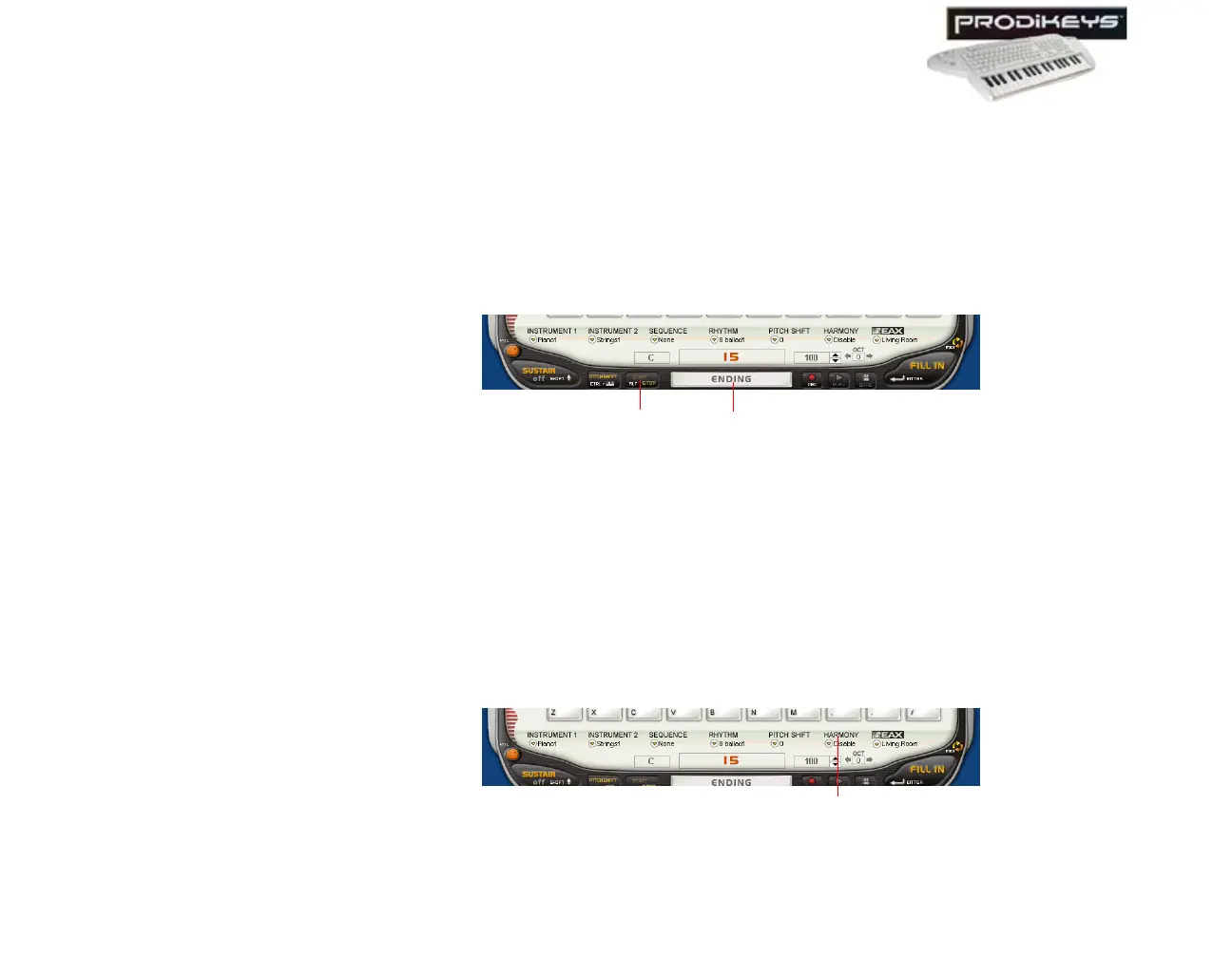
To start the rhythm with an introductory rhythm pattern: Click the
Introduction/Ending button in the Creative Prodikeys software, or press
SPACEBAR on your computer keyboard.
To start the rhythm without an introductory rhythm pattern: Click the
Start/Stop button in the Creative Prodikeys software, or press ALT on your
computer keyboard.
Step 9: Playing the
Melody
Now that the rhythm has started, play your melody on the music keyboard. You
will notice that chords will be generated automatically to blend with your melody.
Step 10: Adding
Harmony to the
Melody
You can add harmony to your melody as you play on the music keyboard.
To add harmony to the melody: In the Creative Prodikeys software, click the
Harmony button to enable it.
Figure 3-41
Start/Stop
button
Introduction/
Ending button
Figure 3-42
Harmony
button



 To Next Page