Using Your Creative Prodikeys 3-5
Step 6: Playing the
Melody
Now that the rhythm has started, press the white keys on the music keyboard to
play the melody.
Step 7: Adding Trill
Effects to Melody
Notes
A trill happens when two music notes are played alternately at high speed,
producing a vibrating effect on the sound. There are a few trill effects that you can
use.
To add an upper or lower trill effect: Press and release F1 or F2 on your
computer keyboard while holding down white keys on the music keyboard.
To add an automatic upper or lower trill effect: Press and hold F3 or F4 on
your computer keyboard while holding down the white keys on the music keyboard.
To add a tremolo (trembling) effect: Press and hold F5 on your computer
keyboard while holding down white keys on the music keyboard.
Step 8: Adding
Effects and
Instrumental
Fill-Ins
To accompany your melody, try adding effects and instrumental fill-ins to your
song.
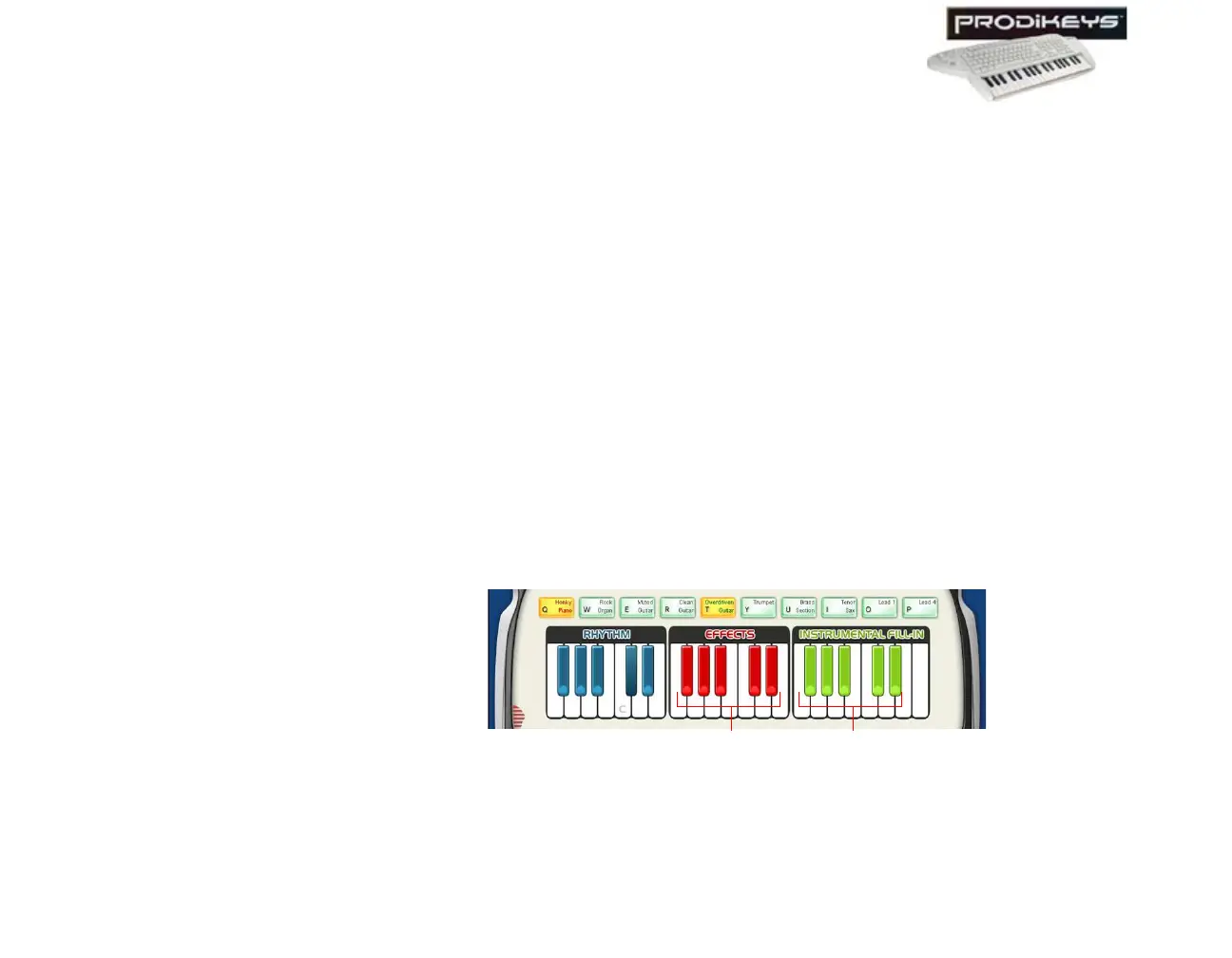
To add effects and instrumental fill-ins: Press the black keys on your music
keyboard that correspond to the red keys and green keys in your Creative Prodikeys
software.
Figure 3-7
Green keysRed keys



 To Next Page