74 • CCS-UC-1: Crestron Mercury Tabletop Conference System Product Manual – DOC. 7844M
Present with a Computer
A computer can use the AirMedia client application, native mirroring capabilities, and
other methods to share content.
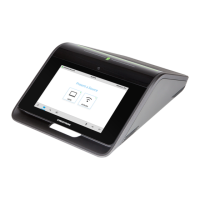
1. Open a web browser on the computer, and navigate to the web address or IP
address displayed on CCS-UC-1. The welcome screen is displayed.
Welcome Screen
2. Click Start Presenting. The CCS-UC-1 detects the computer’s operating system
and provides appropriate instructions for presenting content.
AirMedia Client Application
Follow the instructions to download the AirMedia client application. Once the application
is downloaded, content can be presented.
NOTES:
• If the AirMedia client software is to be used for presentation, it requires no
installation. The application will be downloaded and run locally
• If using the AirMedia client application on a Mac, the AirMedia client application
must be run from within the disk image file. Do not drag the application out of
the disk image file.
• If the CCS-UC-1 is equipped with the AM-USB-WIFI(-I) AirMedia USB Adapter
with Wi-Fi Connectivity, Windows 10 computers can use the native mirroring
capability to present content. For details, refer to “Windows 10 Native Mirroring
Capability” on page 77
for details.



 To Next Page
 Loading...