Introduction
Note
●
The Infotainment system is a part of the
vehicle. It cannot be used in any other vehi-
cle.
●
If the battery has been disconnected, the
ignition must be activated before switching
on the Infotainment system.
Changing the basic volume
Increasing or decreasing the volume or
muting the sound
R
aise the v
olume: turn the volume control
clockwise or move the left thumbwheel on
the multifunction steering wheel upward .
Lower the volume: turn the volume control
clockwise or move the left thumbwheel on
the multifunction steering wheel downward
.
Changes in volume are indicated by a volume
bar on the screen. The volume can be con-
trolled using the steering wheel controls. In
this case, the changes in volume are dis-
played on the instrument panel by a volume
bar.
It is possible to preset certain volume set-
tings and adjustments. Select > Sound >
Volume.
Muting the Infotainment system sound
●
Turn the volume control anti-clockwise
until it displays .
●
OR: press the left wheel of the multifunc-
tion steering wheel.
Playback is paused while in Media mode (ex-
cept AUX). The screen displays .
Operation of the function buttons and
the instructions on the screen
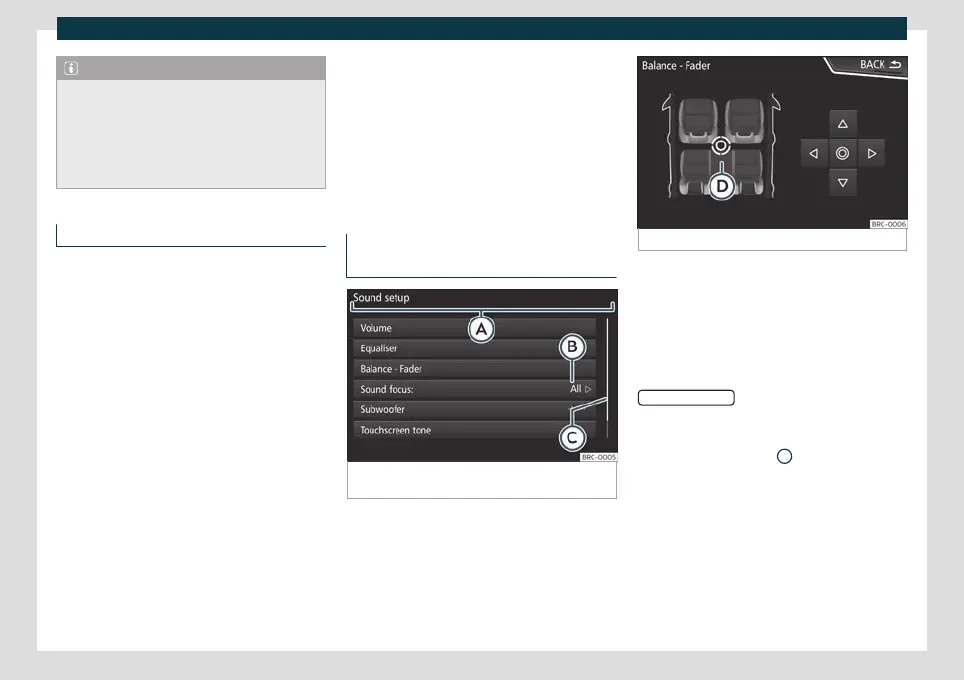
Fig. 128
View of some of the function buttons on
the screen.
Fig. 129 Sound setup menu
Active areas of the touchscreen that call up a
cert
ain function ar
e called “function but-
tons”. These buttons are operated by press-
ing them on the screen or holding them
down.
The function buttons appear in this manual
as a “function button” and a button symbol
inside a rectangle
.
These activ
at
e functions or open submenus.
The currently selected menu is displayed in
the title bar
›››
Fig. 128
A
of the submenus.
Inactiv
e (gr
ey) function buttons cannot be
selected.
Increase or decrease the size of the im-
ages displayed on the screen
The size of the navigation map image and
image views can be enlarged or reduced. To
do this, slide 2 fingers across the screen to
separate them or bring them together.
»
151



 To Next Page