Operating modes
Indications and symbols of the MEDIA
main menu
Display: Meaning
A
Information about the artist name, al-
bum name and song title.
Audio CD: track information if availa-
ble via Gracenote
®a)
. If no data is avail-
able, it only displays Track and the
corresponding order number.
B
Album cover.
The system prioritizes the display as
follows:
1st Cover embedded in the file(s).
2nd Image in the file folder.
3rd Image provided by the Gracenote
®
database
a)
4th Icon of the connected device.
If playing a video file, by pressing the
icon (cover) it can be played on full
screen.
C
The playing time so far and time re-
maining in minutes and seconds.
RDS off
b)
The RDS radio data service is deactiva-
ted. The RDS can be activated in the
FM settings menu.
TP
b)
The TP function is active and can be
tuned in.
b)
There is no traffic news station availa-
ble.
Display: Meaning
b)
DAB not available.
a)
Gracenote
®
is a database a
vailable on the Infotain-
ment system hard drive that contains information on
the tracks of different artists and albums. In order for
the user to benefit from the functions offered by
Gracenote
®
, the tracks must contain the artist
and/or album data (only available for the model: Navi
System Plus.
b)
Depends on the market and unit in question.
Note
●
When the media source is inserted, play-
ing will not start automatically; it is neces-
sary for the user to select the source. Nor
will the media source change when it is
ejected.
●
In order to see the different covers inside
of the same album/folder, make sure that
the tracks contain different information
about the Artist or Album in its metadata. If
not, you will see the same cover for all of
tracks contained in the same album/folder.
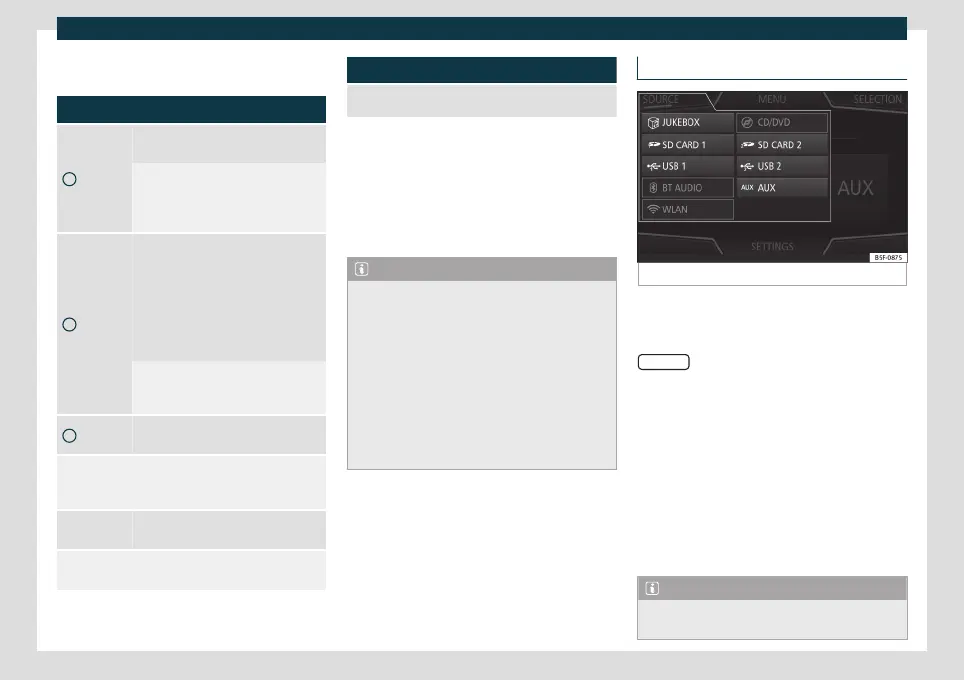
Switching the Media source
Fig. 150
MEDIA mode: switching media source.
●
Lower the base volume on the Infotain-
ment s
y
stem.
●
From the Media main menu, press the
SOURCE
function button
›
›
›
Fig. 150 and se-
lect the desired media source.
●
OR: from the Media main menu, press the
Infotainment button repeatedly to cycle
through the available media sources.
In the pop-up window, the Media sources
not selected are shown as deactivated (in
grey).
When a Media source that has already been
played is selected again, playback is resumed
from the point at which it was stopped.
Note
The Media source can be changed in the
Track list view: select Media > View.
183



 To Next Page