8
When the Startbuttonispressed,theLEDontheStep Buttons will indicate the current step in the pattern. To select
another pattern whilst playing, select it using the combination of Step Button and Bank button or select it using
the keys on a connected MIDI keyboard. The next pattern will start when the current pattern comes to the end of its
nalstep.
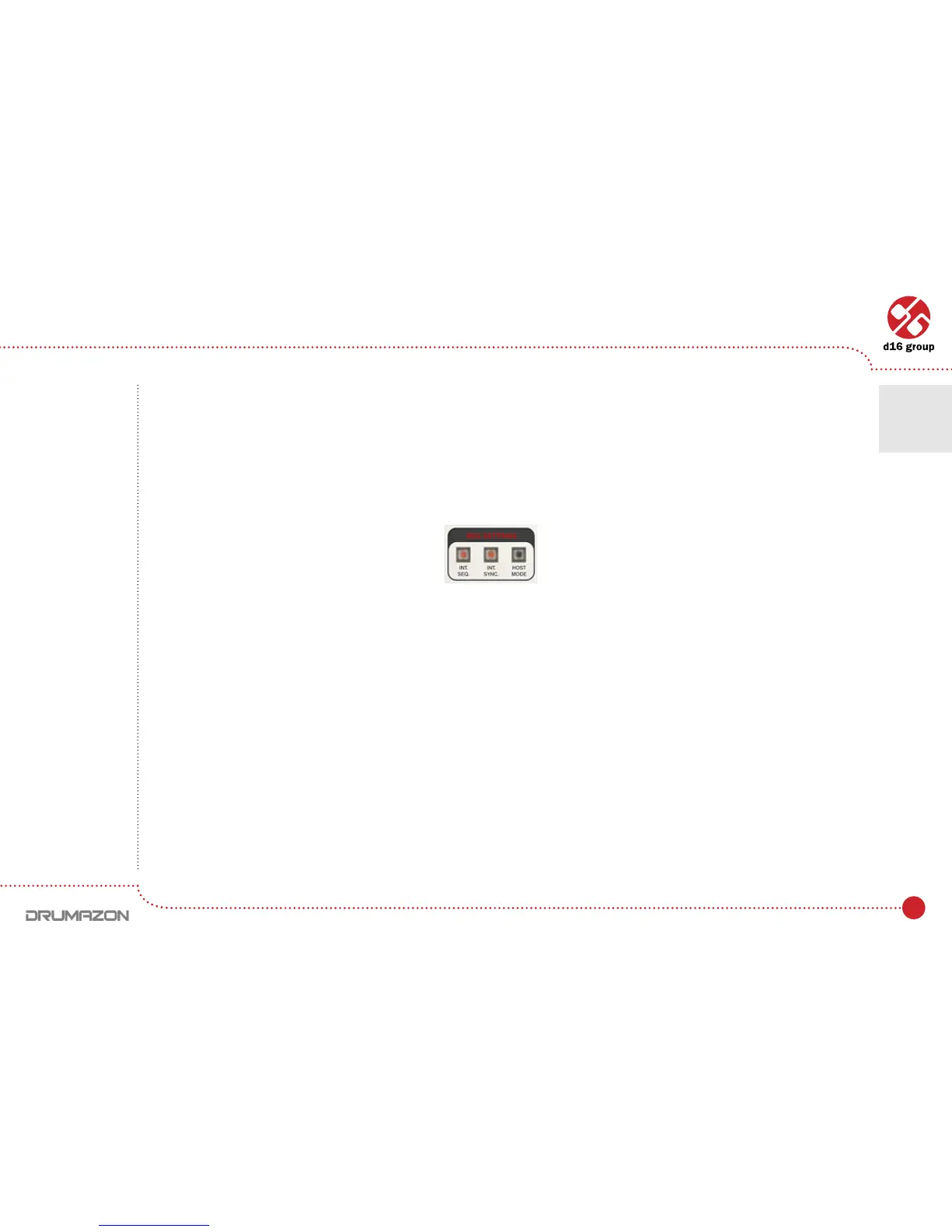
Internal sequencer has two internal Play modes:
• Native mode – available when the Host modeLEDisturnedoff:
• Host mode–whenthisLEDisturnedon.
Native mode
Drumazonisinthismodewhenitisrstloaded.Thisisthedefaultmode.Itallowsarangeofpatterns(orsingle
pattern)tobeselectedandforDrumazontocontinuallycyclethroughthesepatterns.
To select the start pattern, press the appropriate Step button with the mouse. To select the last pattern in the range,
selectanotherpatternWHILSTholdingdowntheCTRLkeyonthekeyboard(OnMacOS use Apple CMD key instead
of CTRLkey).Drumazonwillnowcycleupthroughtherangeandrepeat.AMIDIkeyboardcanbeusedtoselect
a range to play. To do this, press the two notes on the keyboard, which cover the range, at the same time. Drumazon will
now cycle through this range and continually loop.
Whilst playing back in Native mode, selecting a different pattern (either using a Step key on the interface will cause
Drumazon to play that pattern next after coming to the last step in the currently playing pattern. It will then continue
to play the new pattern until stopped.
Play mode settings
Play modes • Internal Pattern Storage
2


 To Next Page