Diagnostics
Power status light: Indicates the power status.
Solid Amber – The system is unable to boot to the operating system. This indicates that the power supply or another device in
the system is failing.
Blinking Amber – The system is unable to boot to the operating system. This indicates that the power supply is normal but
another device in the system is failing or not installed properly.
NOTE: To determine the device that is failing, see the light patterns .
Off – System is in hibernation or turned off.
The power status light blinks amber along with beep codes indicating failures.
For example, the power status light blinks amber two times followed by a pause, and then blinks white three times followed by a
pause. This 2,3 pattern continues until the computer is turned off indicating the Recovery image is not found.
The following table shows different light patterns and what they indicate:
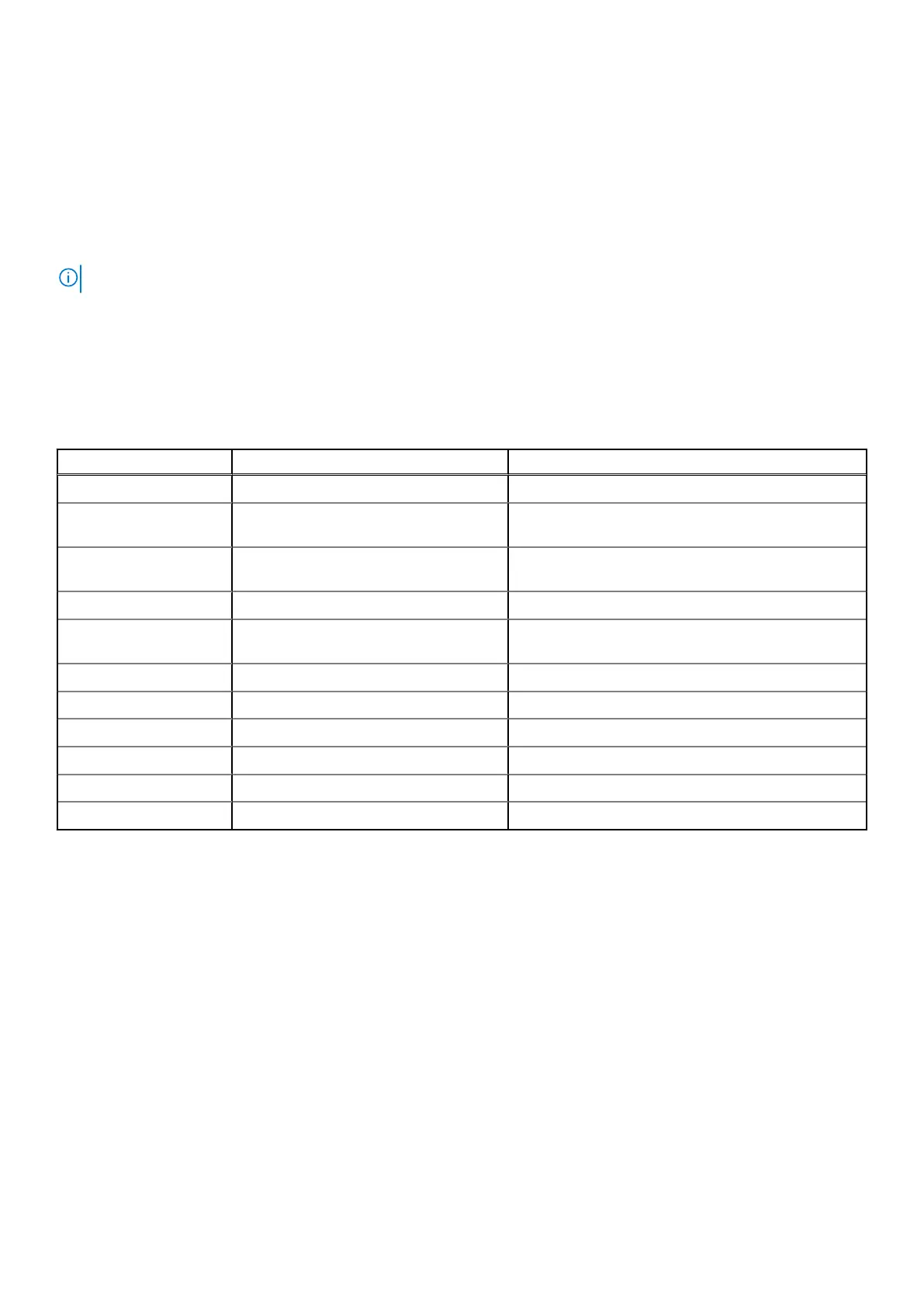
Table 7. Diagnostic LED/Beep codes
LED # of Flashes Problem description Faults
2,1 Faulty system board Faulty system board
2,2 Faulty system board, power supply unit
(PSU), or cabling
Faulty system board, power supply unit (PSU), or
cabling
2,3 Faulty system board, CPU, or DIMMS Faulty system board, power supply unit (PSU), or
DIMMS
2,4 Faulty coin cell battery Faulty coin cell battery
2,5 BIOS Recovery AutoRecovery trigger, recovery image is not found or
is invalid
2,6 CPU CPU Error
2,7 Memory Memory SPD failure
3,3 Memory No memory detected
3,5 Memory Modules incompatible or invalid configuration
3,6 BIOS Recovery On-demand trigger, recovery image is not found
3,7 BIOS Recovery On-demand trigger, recovery image is invalid
The system may emit a series of beeps during start-up if the errors or problems cannot be displayed. The repetitive beep codes
help the user troubleshoot problems with the system.
Power supply-built in self test BIST
The Dell OptiPlex, and Desktops(AIO) features a new Power Supply Unit (PSU) Built -in Self Test (BIST). BIST can now be
performed by simply connecting the AC power cord to the PSU.
1. Turn off the computer.
2. Disconnect the power cord from the PSU and wait for 15 seconds.
3. After 15 seconds, connect the power cord back to the PSU.
a. If the LED stays on for 3 seconds and turns off, it indicates the PSU is functional. Continue with troubleshooting steps
for other devices.
b. If the LED does not come on, it indicates a hardware failure. The failed component can be PSU, system board or any
device.
68
Troubleshooting your computer



 To Next Page