[Accessibility]3-4
1 Press the [Utility/Counter] key.
2 Press [Accessibility].
" All factory default values are shown in bold.
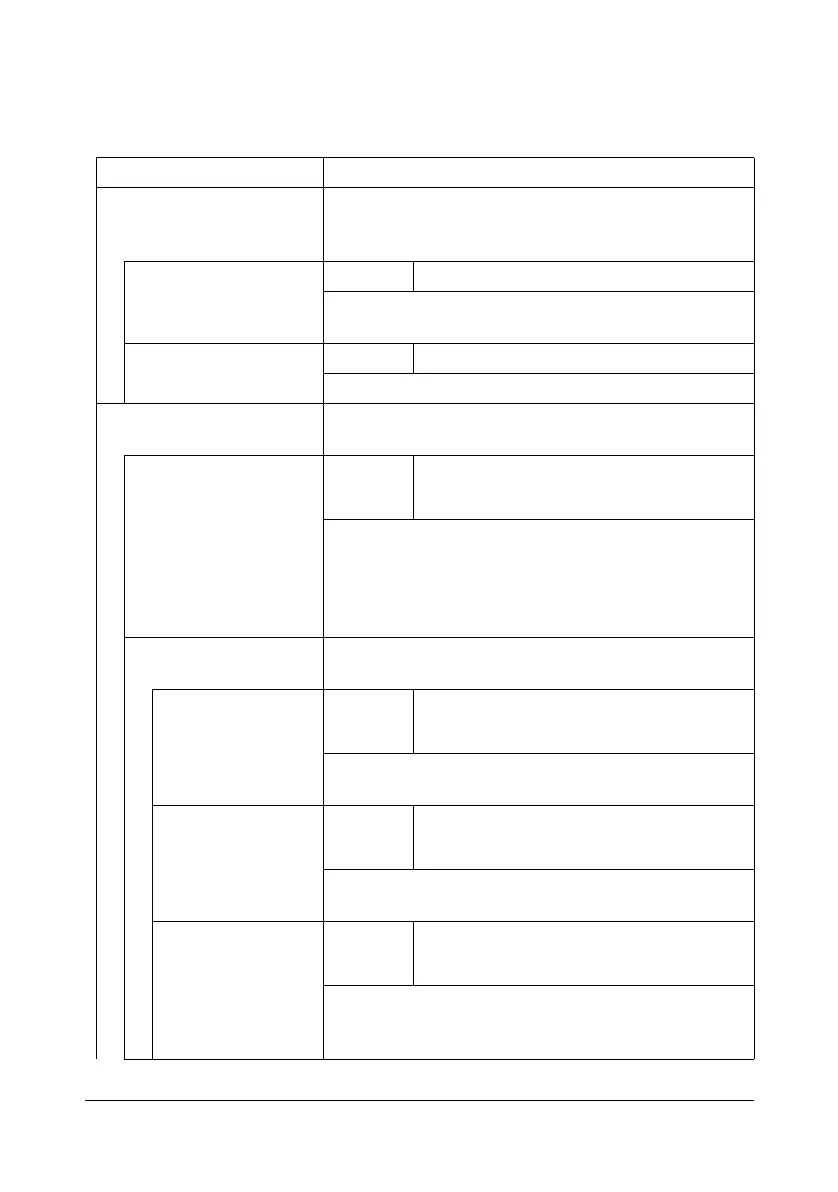
Item Description
[Key Repeat /Interval] The length of time until the value begins to change
after a button is held down and the length of time for
the value to change can be specified.
[Time to Start] Settings 0.1 to 3.0 seconds (Default:0.8)
Specify the length of time until a value begins to
change after a button is held down.
[Key Interval] Settings 0.1 to 3.0 seconds (Default:0.3)
Specify the length of time for the value to change.
[Sound Settings] Settings can be specified for the various sounds pro-
duced with key operations.
[Set all] Settings Enable: [Yes] / [No]
Volume: [Low] / [Middle] / [High]
To specify that sounds be produced, press [Enable],
and then press [Yes]. To adjust the volume, press
[Volume], and then press [Low], [Middle] or [High]. To
specify that sounds not be produced, press [Enable],
and then press [No].
[Confirmation Sound] Select if confirmation sounds are to be produced with
key operations.
[Input Confirmation
Sound]
Settings Enable : [Yes] / [No]
Volume : [Low] / [Middle] / [High]
Select whether sounds are produced when keys are
pressed to enter data.
[Invalid Input Sound] Settings Enable : [Yes] / [No]
Volume : [Low] / [Middle] / [High]
Select whether sounds are produced when keys are
pressed to enter invalid data.
[Basic Sound] Settings Enable : [Yes] / [No]
Volume : [Low] / [Middle] / [High]
Select whether sounds are produced when the
default setting is selected while scrolling through the
settings.











 To Next Page