Dexcom G5 Mobile CGM System Quick Start Guide • 27
To receive audible alerts, you must have the following settings:
• Volume set loud enough for you to hear
• Bluetooth: ON
• Do Not Disturb: OFF (If Do Not Disturb is enabled, you will not receive audible
or vibrating alerts)
For a full list of recommended settings see your user guide. For information on how to
set the above settings, see your smart device’s user guide.
Once in
the app,
tap OK to
acknowledge
the alert.
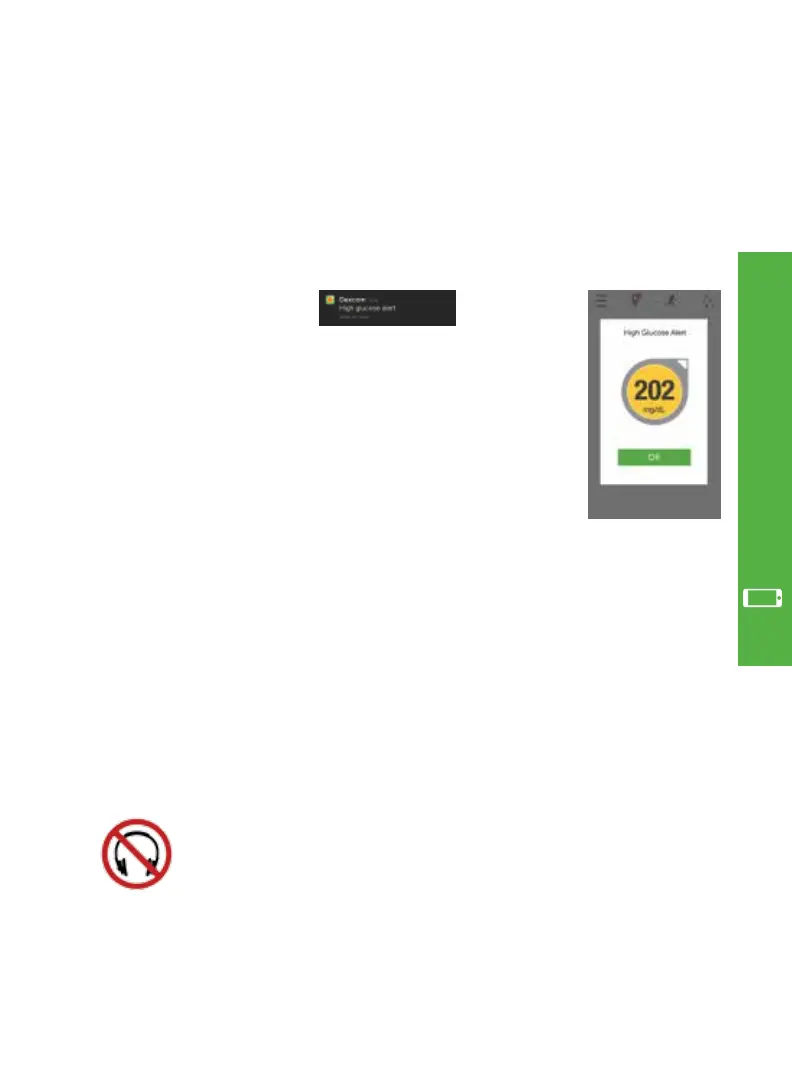
Example: a “High glucose alert”
notification will be sent to you
if your glucose rises above your
high alert setting.
Your smart device will vibrate
and/or audibly alert you
depending on your settings.
Sliding the notification will take
you into the app.
Even though the Dexcom G5 Mobile App is a medical app, it functions just like any
other app. Your smart device settings will impact your alerts.
To receive CGM alerts, you must allow Dexcom to send you notifications. These
notifications include CGM information only. No promotional notifications will be sent.
An example of a CGM notification and an in app alert is shown below.
Your app must always be running in the background to receive alerts. If you restart
your smart device, your app will not be working. You need to re-activate your app by
tapping it, after restarting your smart device.
Headphones will prevent sound from coming through the speaker.
You may miss a high or low alert.
5.7 Smart Device Settings
App Setup & Operation



 To Next Page