Dexcom G5 Mobile System User Guide
168Home Screen, Rate of Change Arrows, and Errors
Your Apple Watch can communicate only with your smart device, not the Dexcom G5
transmitter. You will not get Alarm or Alerts on the watch unless it is connected with your
smart device. For example, if you have your watch on and you go out, but leave your smart
device at home, you will not receive any CGM updates.
When you wake your Apple Watch, it gets your current CGM data from your smart device.
There may be a brief delay before the watch shows current information.
For compatibility information, see dexcom.com/compatibility.
Now that you’ve learned about the app’s home screen, let’s move our focus to the Dexcom
G5 receiver.
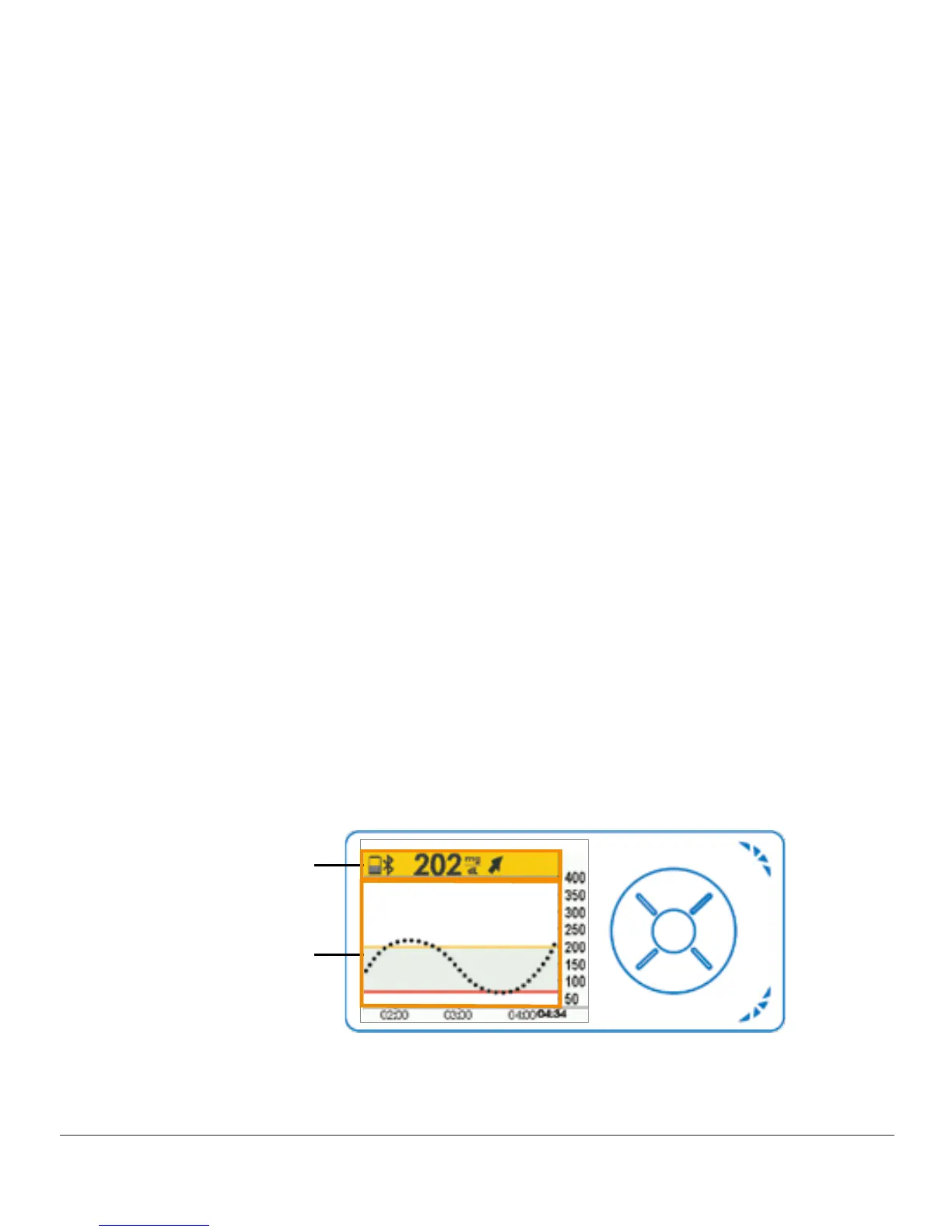
Receiver Home Screen
Unlike your smart device screens, the receiver’s screen is not interactive; all prompts are for
information only. To make changes or enter data in the receiver, press select button and go
to the Main Menu.
The receiver’s home screen has two main sections:
1. Status Bar
a. Reflects glucose trends, readings, status of receiver’s system (for example, battery
level).
2. Glucose Information Trend Graph
a. Reflects sensor glucose readings and trends.
This section will get you familiar with the receiver’s home screen. In other chapters, you’ll
see how to use the navigation wheel to enter data or make system changes.
Status Bar
Glucose
Information
Figure 7. Home Screen on Receiver



 To Next Page