Dexcom G5 Mobile System User Guide
377Dexcom Share
21.6 Using Dexcom Share
Dexcom Share Status
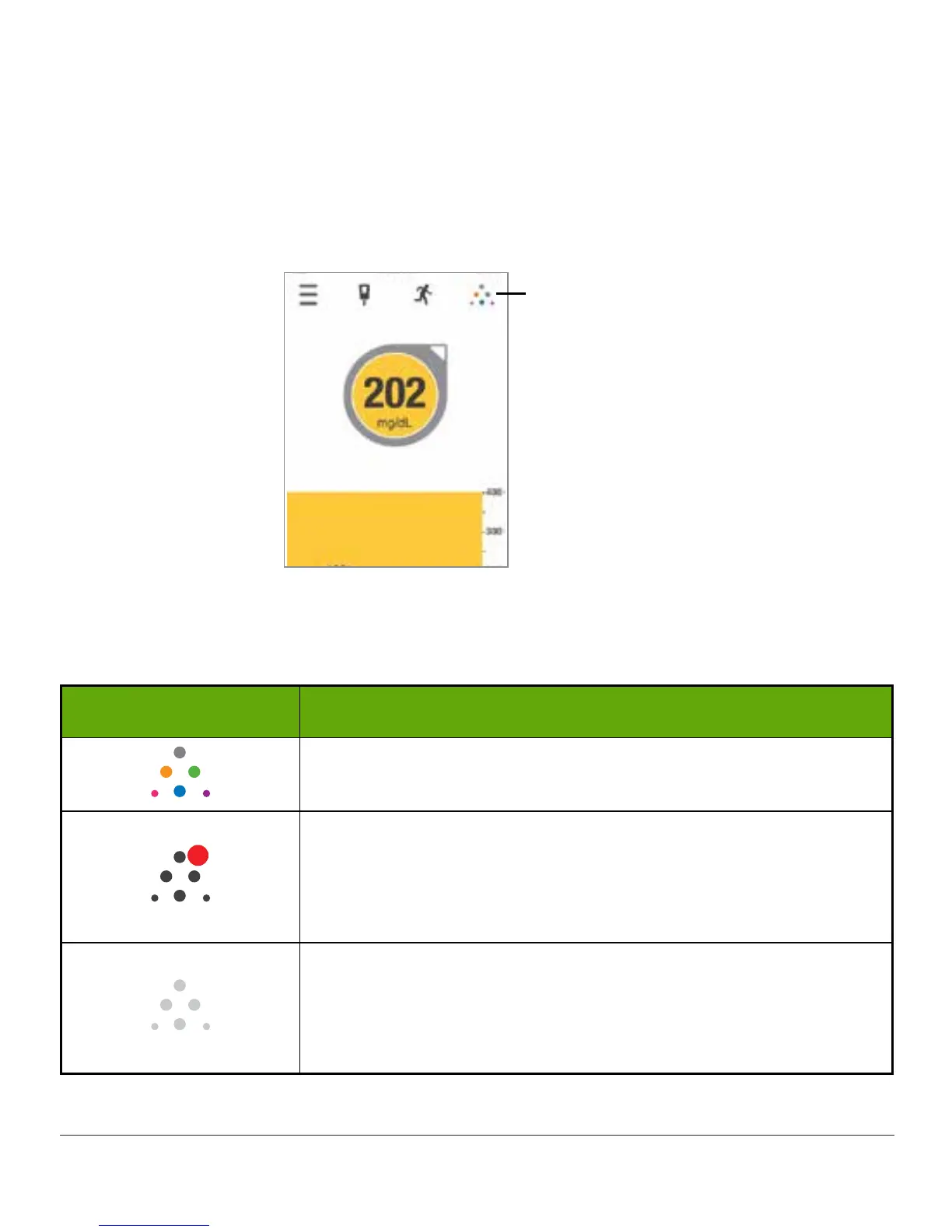
You can look at the Dexcom Share icon on your home screen to see if Dexcom Share is
working. After turning on Dexcom Share, check its status.
Share icon
Figure 9. G5 Mobile App Home Screen
Dexcom Share Status Icons
Status tab What it is
The Share icon is in color when Dexcom Share is sending
sensor glucose readings and information.
1
The Share icon is dark gray with a red circle when Dexcom
Share is not working.
The Sharer should tap on the dark gray icon when Share is not
working to get further information about the error.
The Share icon is light gray when Dexcom Share has not been
activated.
The Sharer should tap the light gray icon to get started using
Dexcom Share.



 To Next Page