44 Chapter 7: Advanced App Features
Dexcom G6
®
System • Using Your G6
Follower Notification Settings
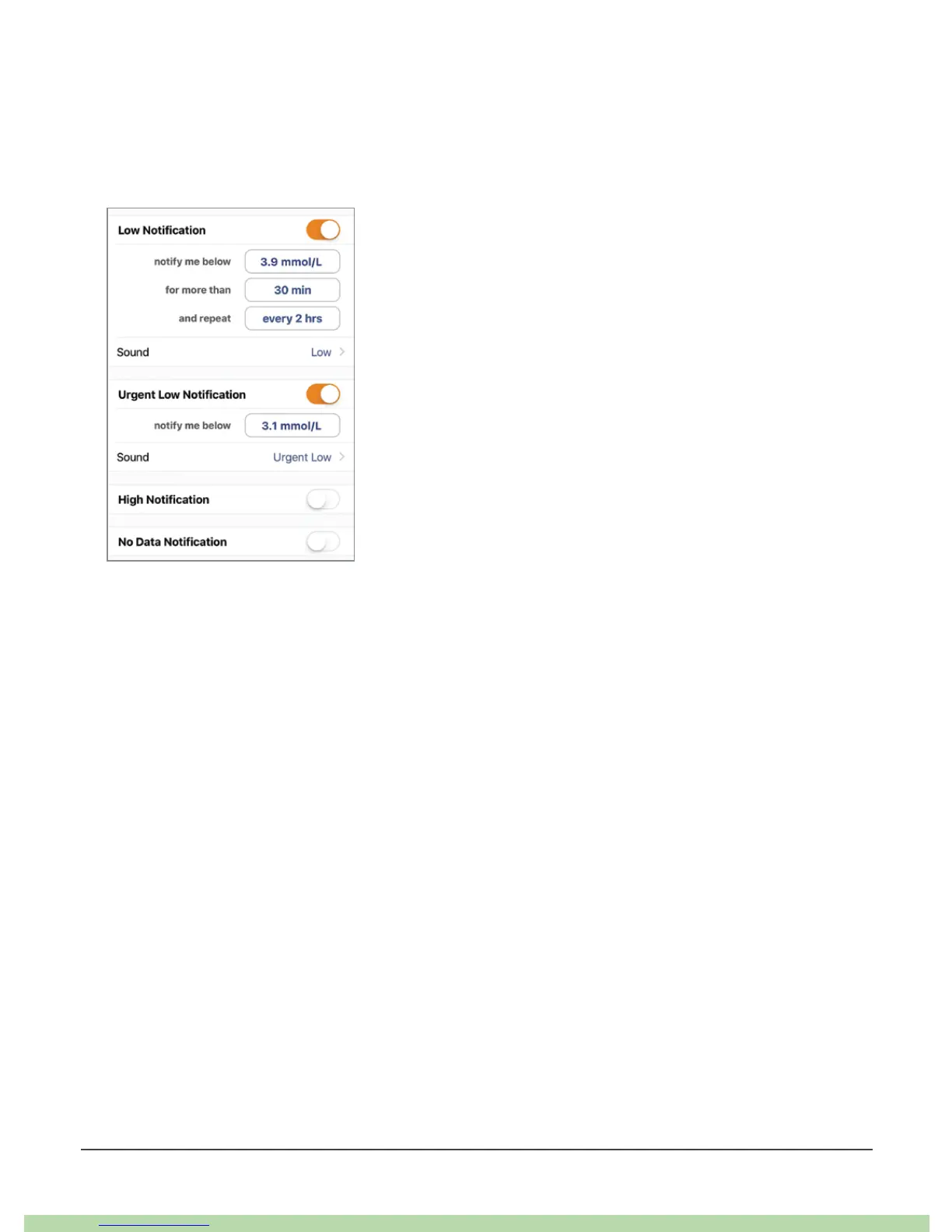
Your Follower can customize notifications. For example, they can change their
settings so they know when you go below 3.9 mmol/L for more than 30 minutes.
They can also change it to get notified every 2 hours if you stay under 3.9 mmol/L.
There are times when Share information may be out of sync with your G6
information. Always depend on your G6 app to manage your diabetes, not your
Followers’.
7.3 Control When Alarm/Alerts Sound
When you set up your smart device, the Always Sound icon displays. You can change
how Always Sound works in Settings > Alerts.
Using Always Sound
When you are at school or work, you may want your phone sounds to be more
discreet. Always Sound, combined with your phone’s mute/Do Not Disturb setting,
lets you control when you hear your alarm/alerts and your phone’s other noises.
Icons on your Home screen show what you will hear.
The mute/Do Not Disturb phone setting controls whether you hear phone noises,
like text messages and phone calls. When Always Sound is on, you always hear your
default and scheduled alerts, no matter what your phone’s mute/Do Not Disturb



 To Next Page