46 Chapter 7: Advanced App Features
Dexcom G6
®
System • Using Your G6
7.4 Alert Schedule
The app Alert Schedule lets you pick how your alarm/alerts notify you at different
times and on different days. For example, you may choose to schedule the alarm/
alerts to be the only sounds your smart device makes while you sleep.
Alert Schedule lets you set up one additional schedule.
Using Alert Schedule
When you turn on the Alert Schedule for the first time, your default glucose alert
settings are copied into your schedule. The Alert Schedule guides you through
creating an additional schedule.
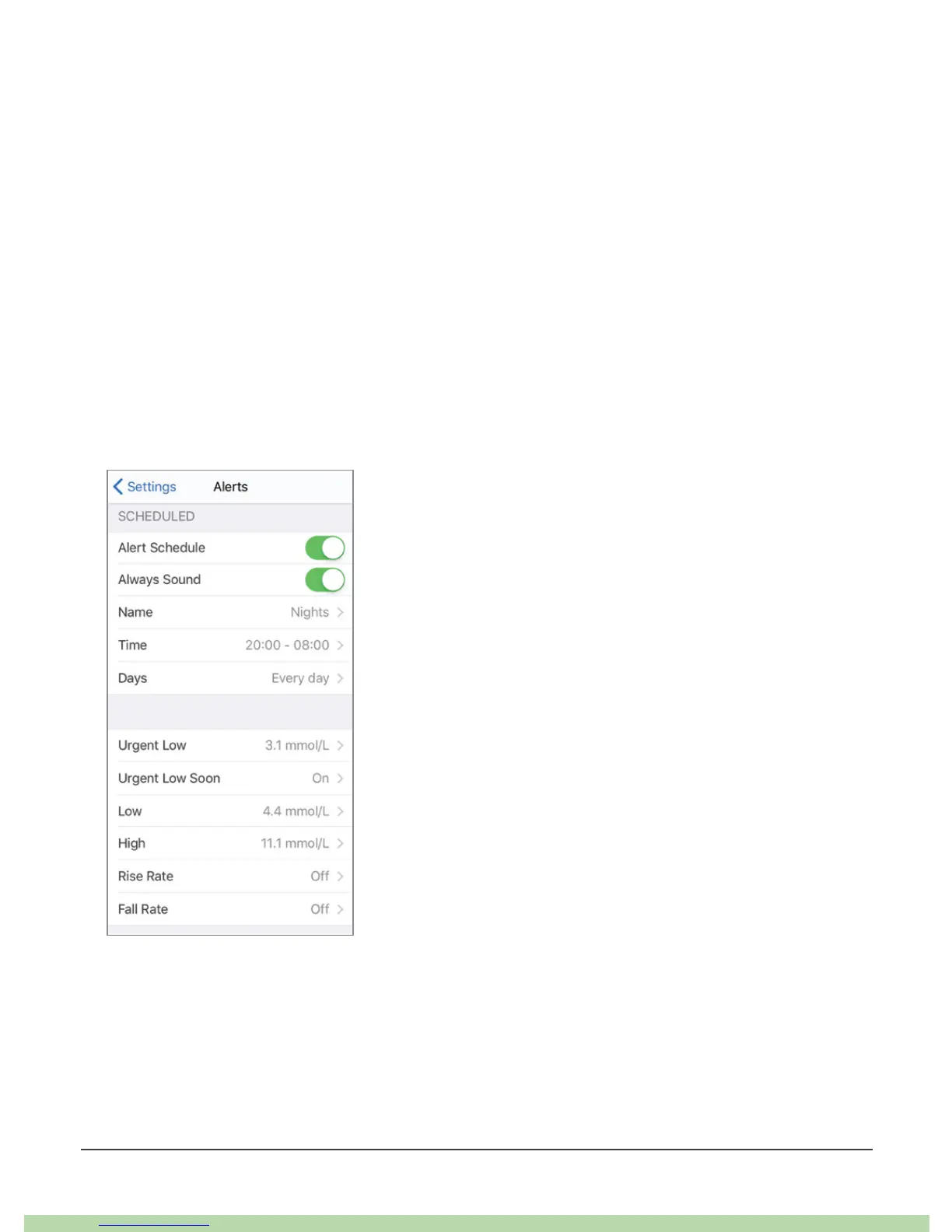
To schedule the alarm/alerts to be the only sounds your smart device makes while
you sleep, create a night alert schedule with Always Sound on, like the example
below. Then, each night, switch your smart device to mute/Do Not Disturb.
When Alert Schedule is on, there are two groups of settings in the Alerts menu:
Default and Scheduled.
• Default shows your regular, not scheduled settings
• Scheduled shows any alerts you changed from your default setting



 To Next Page