45Chapter 7: Advanced App Features 45
Dexcom G6
®
System • Using Your G6
setting is. So at night, you can turn on both Always Sound and mute/Do Not Disturb
to avoid hearing anything except your G6 alarm/alerts.
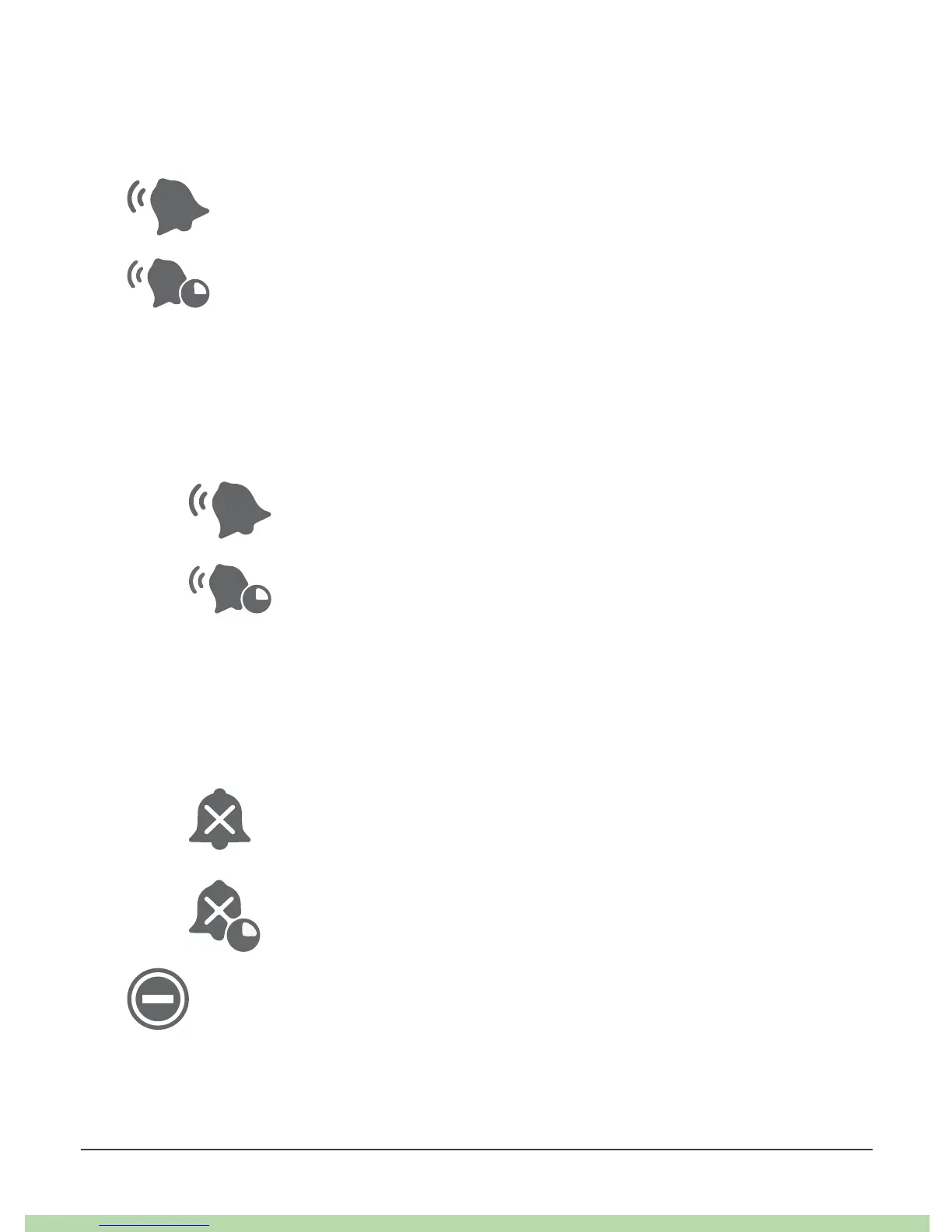
When Always Sounds is on, these icons show on your home screen:
Default Alerts (those you established when you set up the app on your
phone or in the Alerts menu)
Scheduled Alerts (described in the next section)
When Always Sound is off, it matters whether your phone is set to mute/Do Not
Disturb.
• If mute/Do Not Disturb is also off, you will hear default and scheduled alerts
and see these icons on your home screen. You also hear other non-G6 noises
from your phone, like calls and texts.
Default Alerts
Scheduled Alerts
• However, if mute/Do Not Disturb is on, you hear only these three alarm/alerts:
Urgent Low Glucose Alarm, Transmitter Alert, and Sensor Failed Alert. You do
not hear any other noises from your phone. This may be the right setting
combination for you during the school or work day. These icons on your home
screen show this state:
Default Alerts
Scheduled Alerts
Android only: No alarm/alert sounds when your phone is in the most
restrictive Do Not Disturb settings.



 To Next Page