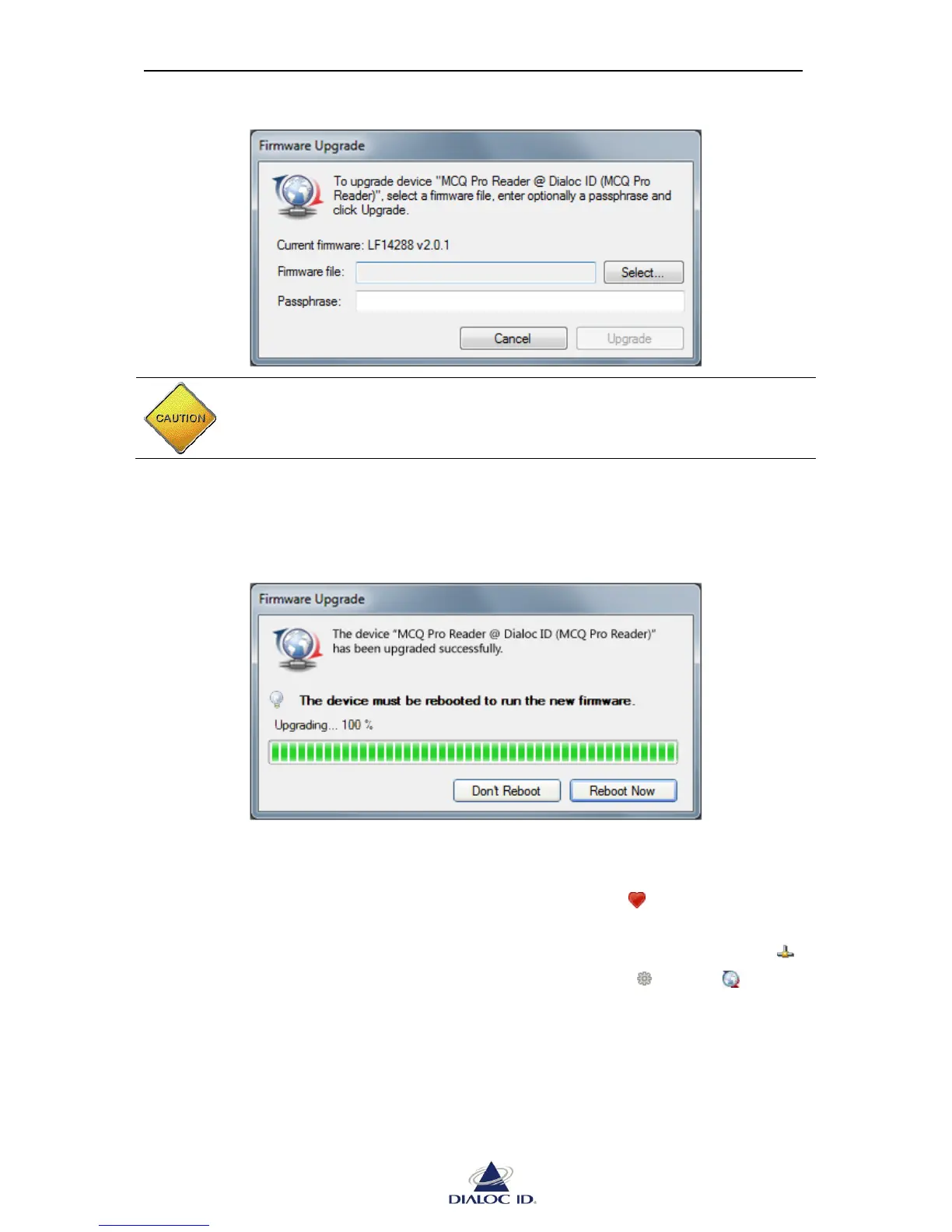
CAUTION: Do not turn off the device during the upgrade as this may
permanently corrupt the firmware data.
5. Once the upgrade is completed, click “Reboot”.
If you need to upgrade additional firmware to the device then click “Don’t Reboot”.
Figure 23: System firmware upgrade completed
Radio Firmware Upgrade
To upgrade radio firmware:
1. Open “Favorite Devices” panel by clicking on the icon in the toolbar or by
choosing “Favorite Devices” in the “Device” menu.
2. Connect to the device to upgrade the radio by selecting it and clicking on the icon .
3. Click on the radio to upgrade and in the drop down menu , select “ Upgrade
Radio Firmware…” Alternatively, you may as well right-click the radio.
4. In the “Firmware Upgrade” dialog box, select the firmware file, enter if necessary its
associated passphrase and click “Upgrade”.



 To Next Page