MCQ-PRO RFID Reader — Installation and Tuning Manual Version 1.00
Page 39 of 89
Speed Benchmark: You can benchmark communication speed with device by clicking “Run
test” button.
Direct Command: You can send any command directly to a device by entering its identifier in
“Command” field and its associated data in “Data” field (both as hexadecimal values) and
clicking “Execute”. Recent commands are displayed in “History” list.
See Designer’s Guide for more information about supported commands.
6.2 Communication Interfaces Configuration
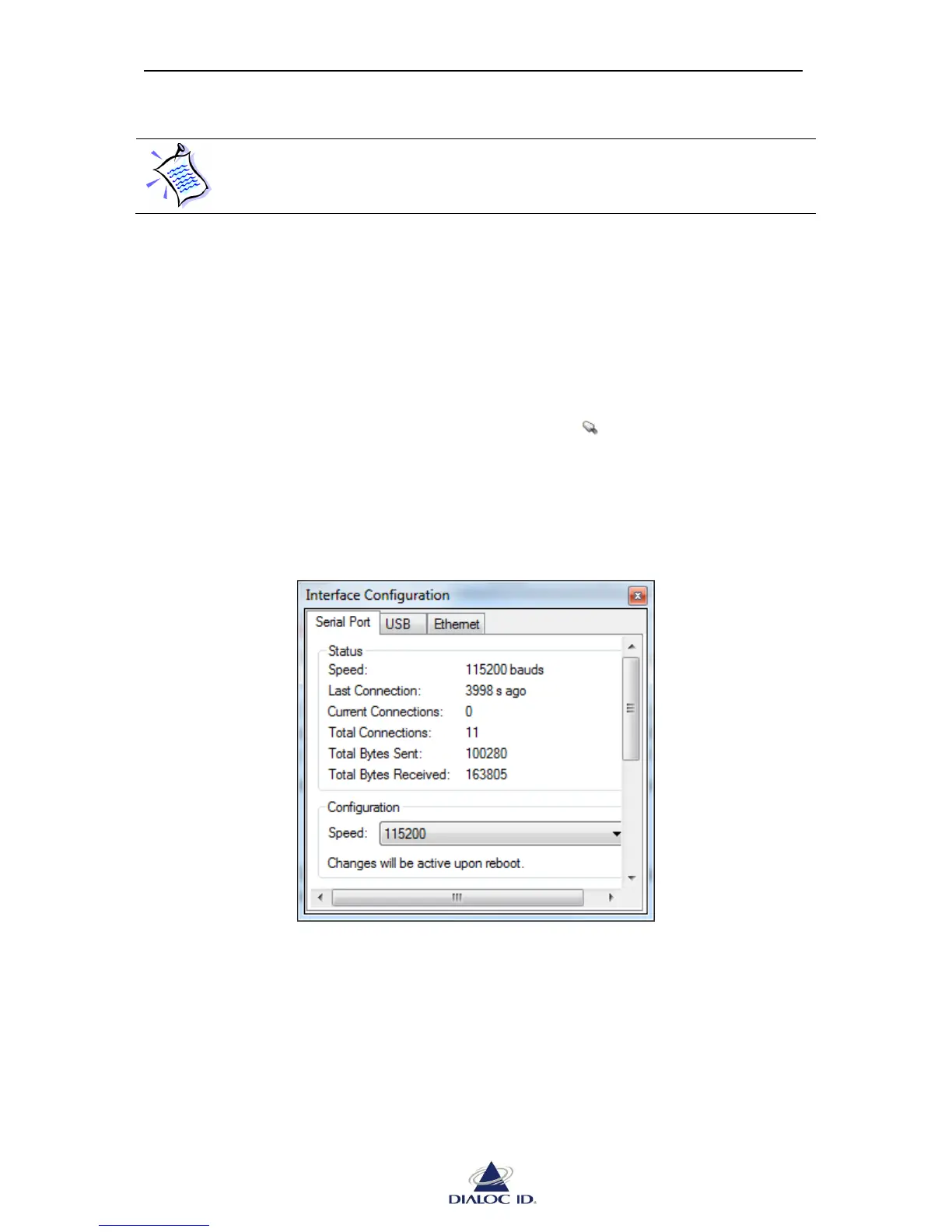
Open “Interface Configuration” panel by clicking on the icon in the toolbar or by choosing
“Interface Configuration” in the “Device” menu.
6.2.1 Serial Port Tab 6.2.1
You configure device’s serial communication interface and view its status on “Serial Port”
tab.
Figure 30: Interface Configuration panel (Serial Port tab)
6.2.2 USB Tab
You view device’s USB communication interface status on “USB” tab.



 To Next Page