16
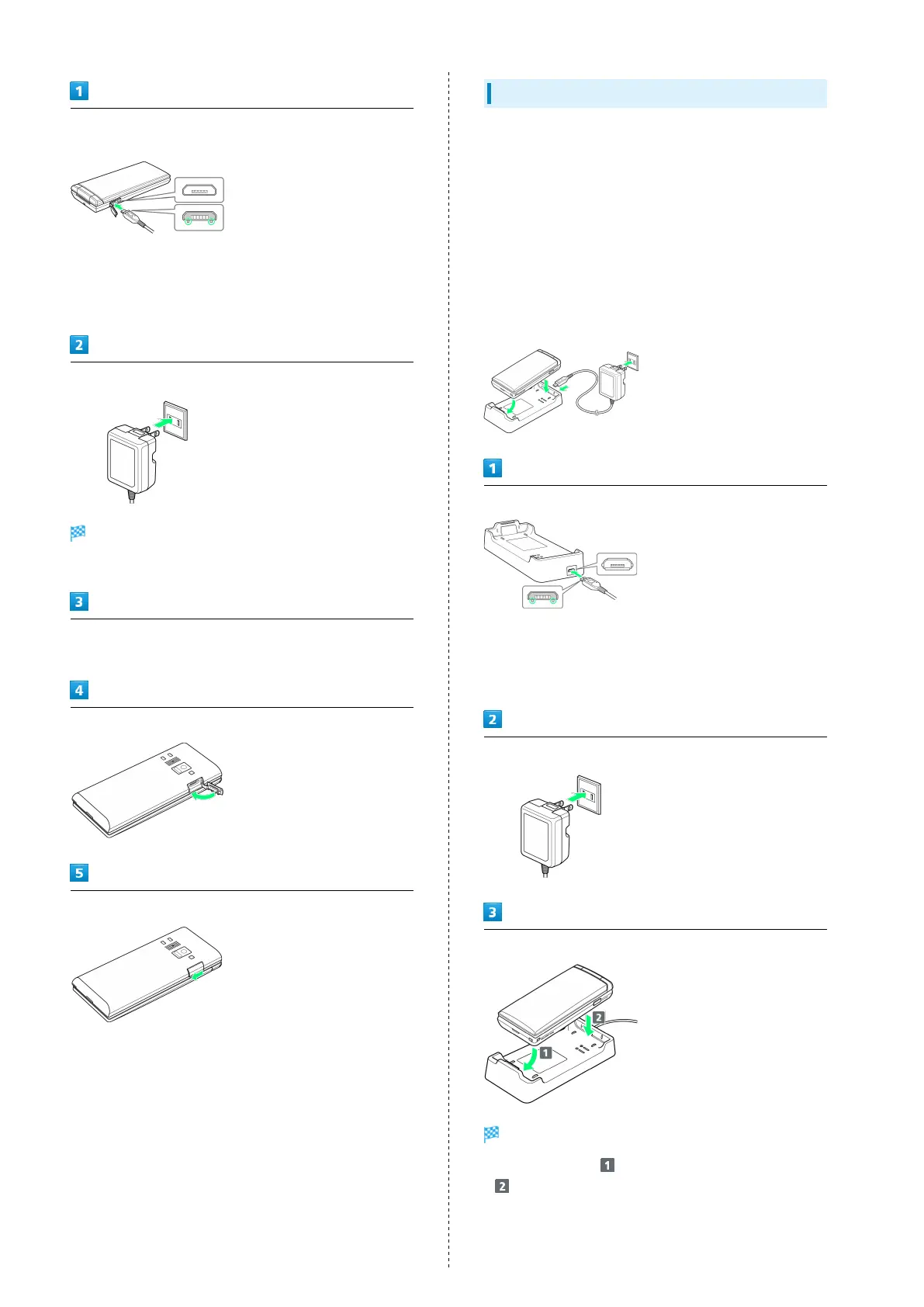
Open External Device Port Cover and insert Micro USB plug on
AC Charger
・Insert Micro USB plug in correct orientation; otherwise,
External Device Port may be damaged. Check contours and
orientation of Micro USB plug, then insert it with tabs (○)
facing down.
Extend blades and plug AC Charger into AC outlet
Charging starts, and Incoming/Charging LED lights.
・Incoming/Charging LED goes out once charging completes.
After charging, remove Micro USB plug from External Device
Port, then unplug AC Charger and retract blades
Close External Device Port Cover
Press in direction shown to close securely with no gaps
Charging with Desktop Holder
Desktop Holder and AC Charger are optional accessories. Use
SoftBank-specified Desktop Holder/AC Charger.
For details on Desktop Holders/AC Chargers and other
peripheral equipment, see SoftBank Website.
Charging with Desktop Holder KYEAH1 and AC Charger SB-
AC12-HDQC is described here.
・See User Guide for Desktop Holder KYEAH1 or AC Charger
SB-AC12-HDQC.
・Never connect Micro USB plug while Desktop Holder or AC
Charger is wet.
・Do not place handset in Desktop Holder if wet.
Insert Micro USB plug of AC Charger in Desktop Holder
・Insert Micro USB plug in correct orientation; otherwise,
Desktop Holder port may be damaged. Check contours and
orientation of Micro USB plug, then insert it with tabs (○)
facing down.
Extend blades and plug AC Charger into AC outlet
Place handset in Desktop Holder
Charging starts, and Incoming/Charging LED lights.
・
Insert in direction , and then press down in direction
until it clicks in place.
・Incoming/Charging LED goes out once charging completes.


 To Next Page