29
Basic Operations
DIGNO
®
ケータイ
How to Use Touch Pointer
Operate LINE, Browser, and OfficeSuite with Touch Area using
your fingers.
Turn Touch Pointer on in a Touch Pointer-capable application
to use the onscreen (pointer).
Using Touch Pointer
Touch Pointer may not respond to the following types of
operation.
・With gloves on or with tips of fingernails
・With pointed objects (pen, pencil, etc.)
・While an object is on operation area
・With any water on handset
Touch Pointer Operations
Setting a description to appear when Touch
Pointer turned on
Settings More settings Touch Pointer
Startup confirm
・
Startup confirm to toggle show ( )/hide
( ).
Viewing Touch Pointer guide
To access operation guide:
Settings More settings Touch Pointer
User Guide
Enabling Touch Pointer
When Touch Pointer-capable application is activated,
appears in Status Bar.
In Touch Pointer-capable application, (Long Press)
Touch Pointer turns on, and appears.
・Touch Pointer does not turn on in non-capable applications.
・
(Long Press) again to turn Touch Pointer off.
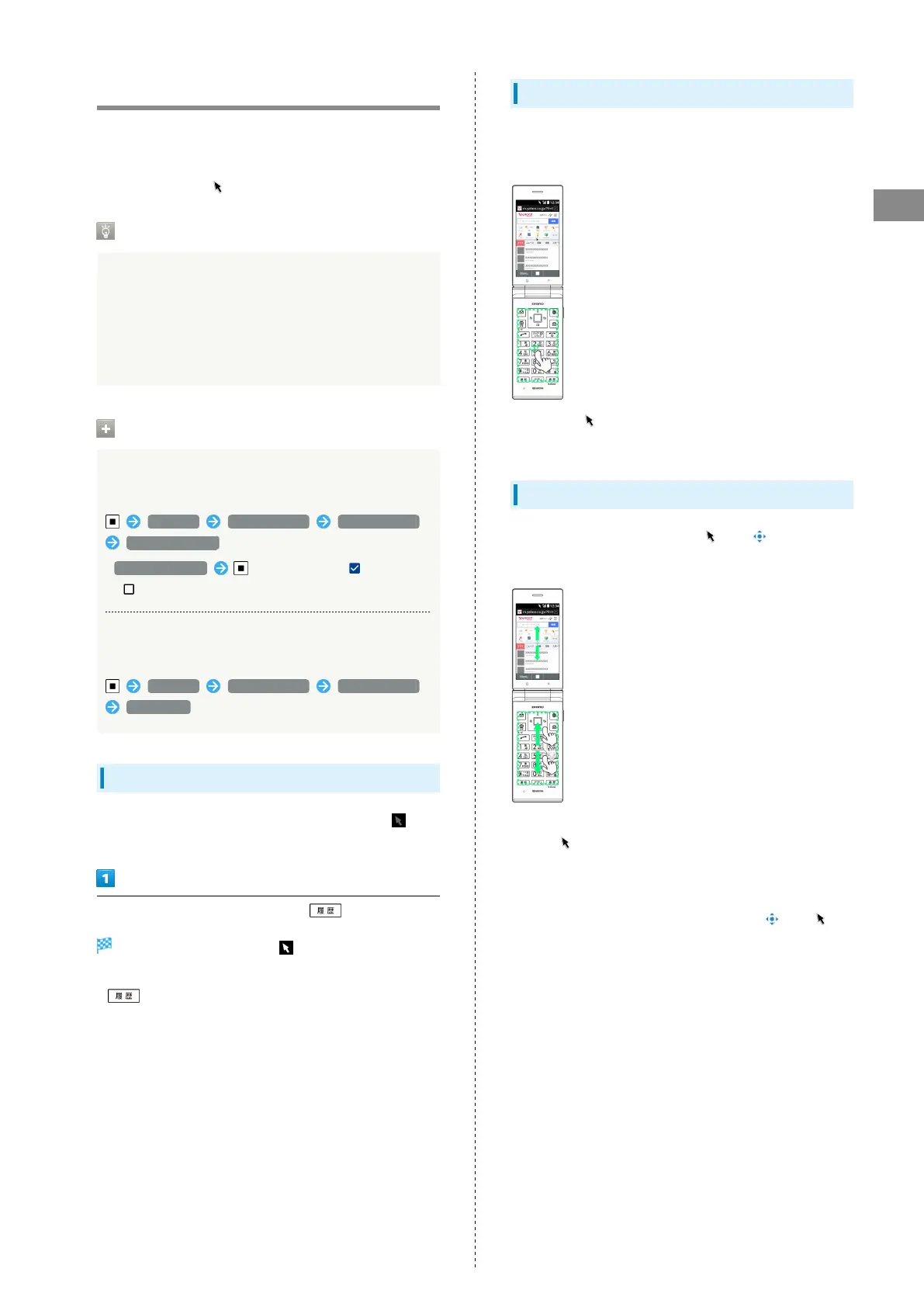
Tap
Lightly Tap Touch Area without Pressing keys. To Double-Tap,
Tap the same position twice.
・
Move the " " over an item and Tap to select (activate) it.
・Double-Tap image, etc. in Browser to enlarge/shrink.
Drag
Long-touch Touch Area to change " " to " ." Then slide in
the desired direction or to the desired position.
・Use to scroll lists.
・
With " " at edge of screen, continue lightly touching
Touch Area and slide toward off the screen to Drag.
・In some applications, alternatively Drag with two fingers in
Touch Area.
・
Touch and hold Touch Area again to return " " to " ."


 To Next Page