55
Messaging
DIGNO
®
ケータイ
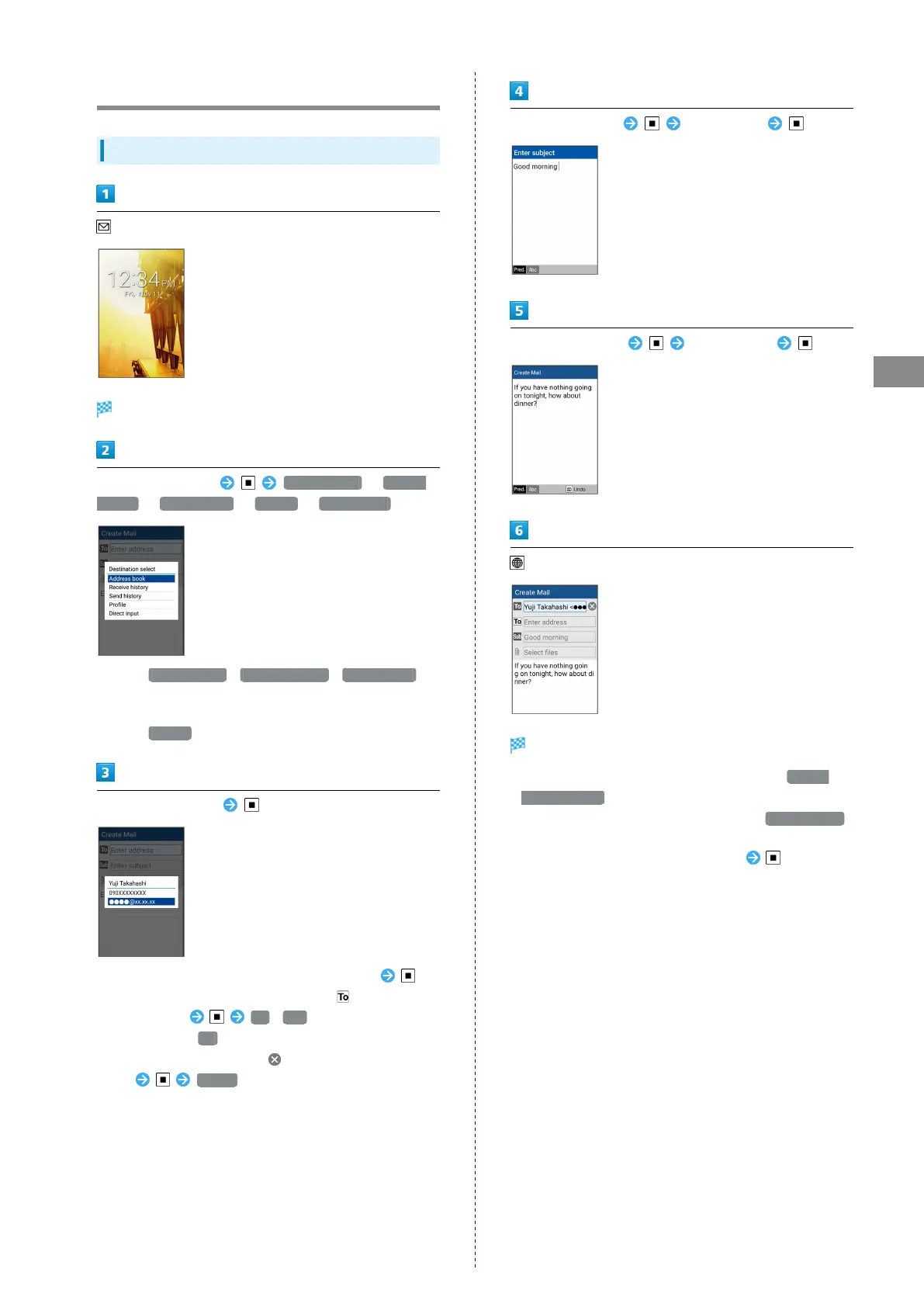
Sending S! Mail
Sending S! Mail
(Long Press)
Window for creating S! Mail opens.
Select Recipient field Address book / Receive
history / Send history / Profile / Direct input
・
Select Address book / Receive history / Send history
to select a recipient from Phone Book or receive and send
histories.
・
Select Profile to select a recipient from the profile.
Select/enter recipient
・
To add recipients, select an empty Recipient field .
・
To change recipients to Cc or Bcc, select for the
Recipient field Cc / Bcc . To return them to the
To field, select To .
・
To delete a recipient, select for the Recipient
field Delete .
Select Subject field Enter subject
Select Message field Enter message
(Send)
S! Mail is sent.
・
Confirmation appears before message is sent if Prompt
before sending is enabled in send settings.
・
If message could not be sent, it is saved to Draft/Unsent
as an unsent message.
・
To attach a file, select Attachment field .


 To Next Page